

Pen
Depending if you want to paint on objects or delete painted objects, you can select between the following:
-
Add: Here you can paint objects onto object surfaces
-
Remove: Using a reduced toolset (Radius only) you can clean up among the instances that were painted on. To do so, select the corresponding Scatter object.
Alternatively you can press the Shift or Ctrl key while painting.
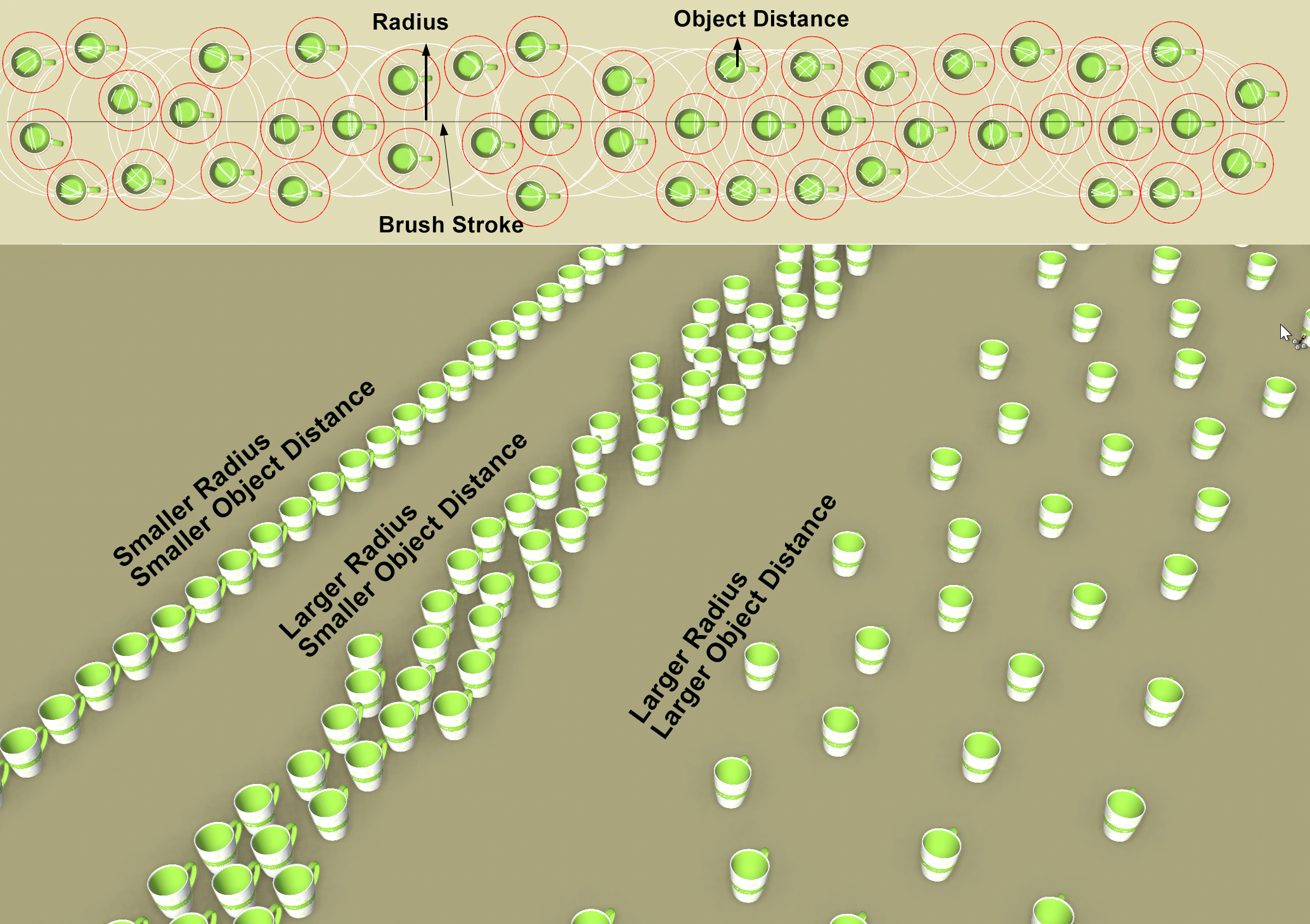 The effect of various Radius and Object Spacing values with a larger Density (Use Splats is disabled).
Independent of all other settings, this setting defines how far away a placed instance can be from the brush stroke (exception: depending on the Position Min/Max setting, larger deviations can take place in the vertical arrangement over the surface).
So if you want to place instances lined up in a row you should enter a value of 0 here. For placement across large regions, enter correspondingly larger values.
The Radius will be displayed as a white circle when painting.
The Object Spacing setting is the most important setting because it defines the minimum spacing between instances. The Object Spacing setting is displayed by a red circle when painting. This minimum spacing will always be maintained - unless you define negative values, which can be desired when scattering bushels of grass, for example, in order to create a homogenous lawn surface and ensure that no overlapping occurs. On the contrary, the placement density will reduce with increasing values. A dense forest can be generated using smaller values and a sparse forest with larger correspondingly values..
Object spacing is created with the help of the Bounding Box. The red circle will be placed into the Bounding Box and the Object Spacing value will be added to the circle.
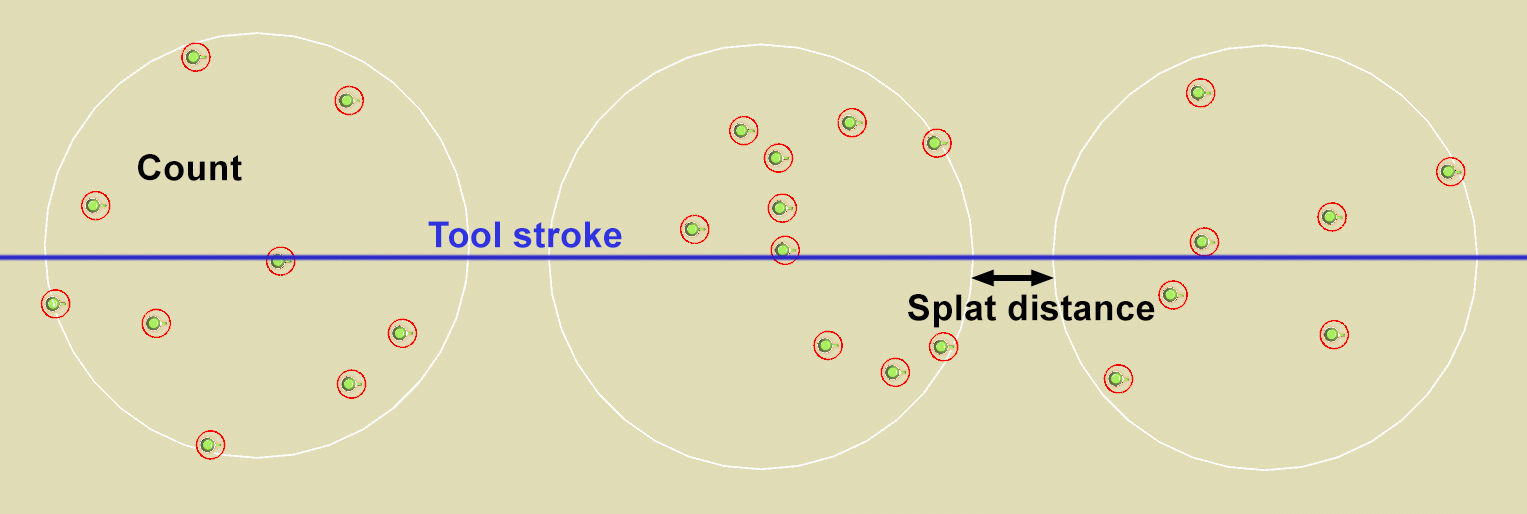 Scattering of instances with splats and corresponding settings
If this option is enabled, a different algorithm will be used to scatter instances.
- Option disabled: Instances will be placed continuously during painting, which reflects the behavior of a paintbrush continuously applying color
- Option enabled: No continuous placement of instances will take place but rather after the tool has covered a certain distance onward - Radius + Splat Spacing - will placement take place. This reflects the behavior of a splattering bruch that only applies color now and then.
If Use Splats is enabled, this is the distance that the brush radii have from one another (see image). If set ti 0, the splats will be placed directly next to each other.
If Use Splats is enabled, this setting defines the maximum number of instances that can be placed with in the Radius.Depending on the above setting, this can be very few or none at all. Imagine the Object Spacing value is too large and when instances are scattered randomly within a Radius, the red circles would get in each other's way: fewer instances would be placed.
If you don't use Splats, this value can be used to define how often instances should be placed: This can be seen by the white circles that appear in the Viewport. The higher the Density value, the more often attempts will be made to place instances in the gaps, which will increase the instance density. This all happens in consideration of the Object Spacing value.
After you finish painting you can still modify the last stroke settings interactively. If you want to continue with a new brush stroke with different settings, click on End Stroke and define new settings.