
Scene

Displays additional settings pertinent to your scene or your currently selected objects in the Attributes Manager. The Calculate Children option will take into account child objects of the currently selected object(s). A list of the currently selected object(s) is displayed in the top line of the window.
The four available tabs contain the following information:
- Object tab: Number of selected objects and the number of points and polygons they contain will be listed here. Furthermore, the amount of memory required by these objects is also shown. The information displayed in the Cache column reflects the number of internal object copies, the number of which will be much higher when Instance or Array Objects are created.
- Selection tab: Displays information regarding number of selections, total number of selections and number of hidden points, edges, polygons, n-gons and splines contained in the current selection.
- Structure tab: Different information will be displayed, depending on the object(s) selected and current mode (the + and - keys can be used to select or deselect items):
- Polygonal objects in Point mode: All points that are reference (touched) by 0, 1, 2, 3, 4 or more polygons will be listed. Points that are not referenced by a polygon are not connected to the object via polygons.
- Polygonal objects in Polygon mode: The number of triangles, quads, non-planar and degenerated polygons will be listed.
- Splines: The total length of the spline and points with uneven (tangents with different lengths or orientations on either side of the point), soft (tangents with equal lengths on either side of the point and that lie in a straight line) and hard (tangent length = 0) will be listed.
- Textures:
Note that missing textures can be found and replaced using the Project Asset Inspector (which works more easily than the functions described below)
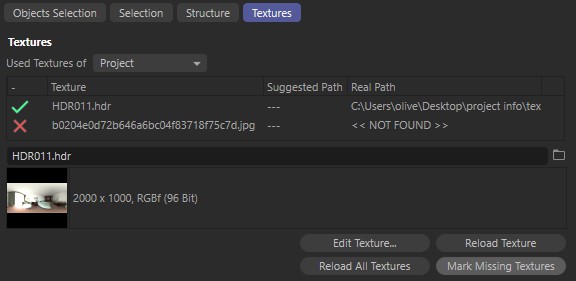
All textures used in the scene as well as missing textures can be listed. Furthermore, textures can be easily replaced anywhere in the scene.
The following options are available:
- Use Textures: If Project is selected, all textures present in the scene will be listed.
- If Selected Materials is selected, only currently selected materials will be shown. The list of textures in the field below will include each texture's name and location. Suggested Path is the path that Cinema 4D expects to find by default; Real Path is the actual path to the a given texture's location. Click on the Mark Missing Textures button To find out which textures are missing.
- If a texture is selected a preview, including a file selection button, will be displayed at the bottom of the dialog window. A texture will be displayed only once, even if it is located in numerous materials (as long as they lie on the same path). This allows the texture to be swapped quite easily. You will be asked for a confirmation before the new texture is applied. Clicking on Edit Texture will open the texture using the image editing application that corresponds to that particular image type. Reload Texture will update the selected texture after it has been edited outside of Cinema 4D. Clicking on Mark Missing Textures will display a check mark or an x, depending on whether or not a texture can be located. If a texture is missing, simply type in the correct path in the field available or search for the path manually.
The Reload All Textures option does just that - reloads all textures in the current scene.
Note:When loading a texture into Cinema 4D you will be asked if it should be saved to the Document Search Path. If you select no, the texture's absolute path will be saved and displayed accordingly.