
Window menu
Most of the following menu entries activate a window or manager. If the window or manager is already open, the call brings it to the front. Otherwise, the window or manager appears in a new, freestanding window. To dock this into the interface, drag the window's icon and drop it where you want the window to be docked. A black line appears while you drag to indicate the docking position.
These menu commands have a colored background when the respective Manager is visible in the layout. Generally speaking, a window's visibility can be enabled or disabled by clicking on a menu command a second time (this does not work with windows that were added as tabs. these cannot be hidden).
The arrow in a square icon next to a menu item can be used to open additional managers.

You can open as many view panels as you wish. The Perspective view can be defined for any view(see Views and Viewports). This also creates a new 3D view, which is initially set as the default 3D perspective view.

You can open multiple texture UV Editors. If you click the lock icon in the top right corner of the Texture UV Editor, the current texture will remain displayed in the view even if you select other objects.
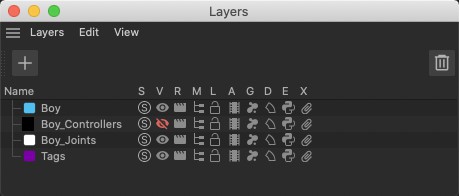
The Layer Manager can be effectively used to maintain a clear overview of large, complex scenes.
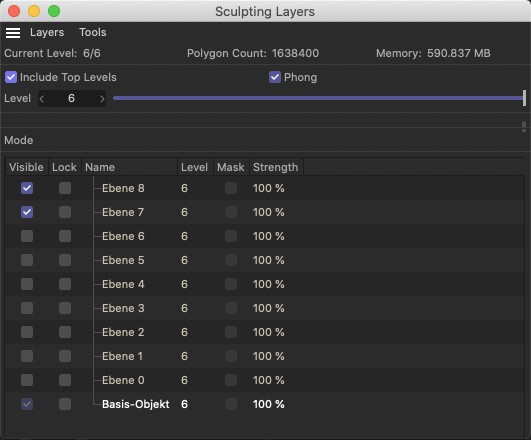
Use the Sculpting Layer Manager to manage Sculpt Layers.
Additional Scene Managers
Up to three additional Objects Managers or Timelines (or Picture Viewers) can be opened. Their various filter properties can be used to display a variety of information. For example, two Timelines can be opened, one to display the Dope Sheet mode, the other to display the F-Curve mode.
Cinema 4D allows you to have multiple scenes loaded. At the foot of the menu, you will find a list of currently opened scenes. To activate one of these scenes, choose the scene's name from the list. Only one scene may be active and editable at a time (indicated by a check mark next to its name in the list). An * (asterix) behind a file name indicates that changes made to the file have not yet been saved. The order of the list is determined by the order in which you opened the scenes.