

Object Properties
Type
There are basically 2 types of motors:
Linear
A linear force is generated parallel to the motor Z-axis.
Angular
Torque is generated around the motor Z-axis.
Linear and Angular
Both of the above types are generated simultaneously.
Drag Rigid Bodies into these two fields (Bullet also allows Soft Bodies).
The two objects can be dragged into the Object A and Object B fields. If you occupy both fields, force or torque is exerted on both objects in accordance with the principle "actio = reactio". The best example is a helicopter: the rotor is driven by a motor and turns accordingly. At the same time, an opposing torque acts on the helicopter fuselage. To compensate for this, there is the tail rotor. Otherwise the fuselage would constantly rotate around its vertical axis.
If you leave one of the two fields empty, the principle of "actio = reactio" is overridden; the force or torque acts virtually out of nowhere.
The order in which the two objects to be connected are assigned to Object A and Object B is irrelevant except for the direction of rotation.
These and the associated settings only work for the old Bullet Dynamics system. For the Simulate system, forces are always introduced at the center of mass.
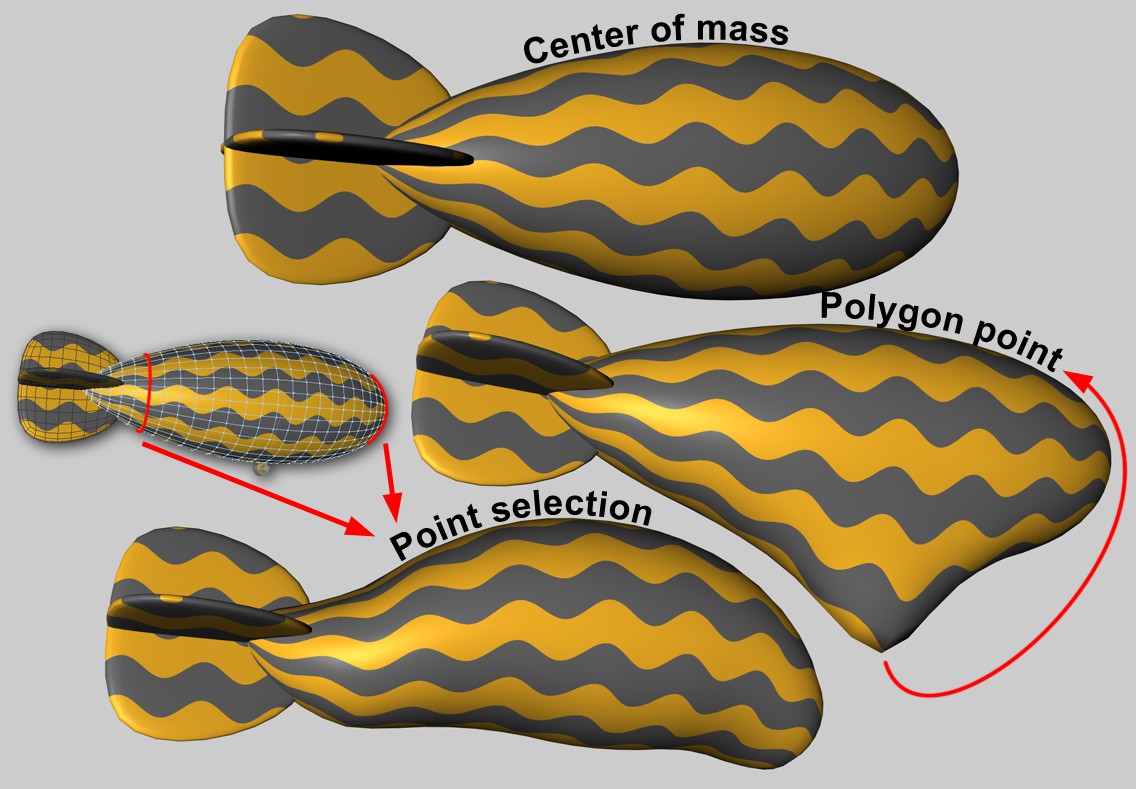
Wherever forces are directed into an object, it is sometimes important in which object area this takes place. If, for example, the motor slides in the center of mass, this will result in a linear movement of the Rigid Body (provided no other forces are acting). If the force acts outside the center of mass, a torque will automatically be generated and the object will attempt to rotate.
The Soft Body is more difficult. Each object point will be connected to other points via springs. If the force is applied at just one point, the results can be unsightly. Here it is possible to initiate the effect over larger areas.
There are no other parameters for this option, the force acts at the center of mass. With Soft Bodies, this does not result in any deformation.
If this option is selected, an object point can be defined where the force is applied. The Area of Influence can be used to extend the force application to a larger area around this object point. This is only relevant for Soft Bodies. This setting has no meaning for the Rigid Bodies/Connectors combination.
Forces can also be applied by map(point Selection tag or vertex maps). There are then some additional parameters that regulate how much the shape of the selected (or weighted) points as a whole may change
For a motor with Linear force, an offset can be defined that defines (starting from the object origin) where the force should touch. If there is an offset, a torque is always generated.
Index[-2147483648..2147483647]
Index[-2147483648..2147483647]
This is the object index number. Internally, all object points of a polygonal object (also for all generated objects) will be numbered consecutively. This will be displayed interactively in the Viewport if you let the values run through here.
Incidentally, all object points (but here only for truly polygonal objects) are listed in the Structure Manager.
You can drag in a Point Selection tag or vertex maps here.
Since it is not easy for Soft Bodies to process force application at a single object point (this often looks unrealistic), the area of Influence can be used to define an adjustable area around this point where the forces are applied with a linearly decreasing effect. With values of 100%, the entire mesh is recorded, whereby the polygon point (or the point selection) is weighted with 100% and the furthest point with 0%. At lower values, fewer and fewer points react to the application of force; at values of around 1%, only one point or only the selection is affected (although larger values then have an effect internally due to protective mechanisms).
On the other hand, a small value can be useful if you want to couple larger areas defined by point selection (think of tubular Soft Bodies that are attached to an end point circuit via a connector) to Connectors, springs or motors.
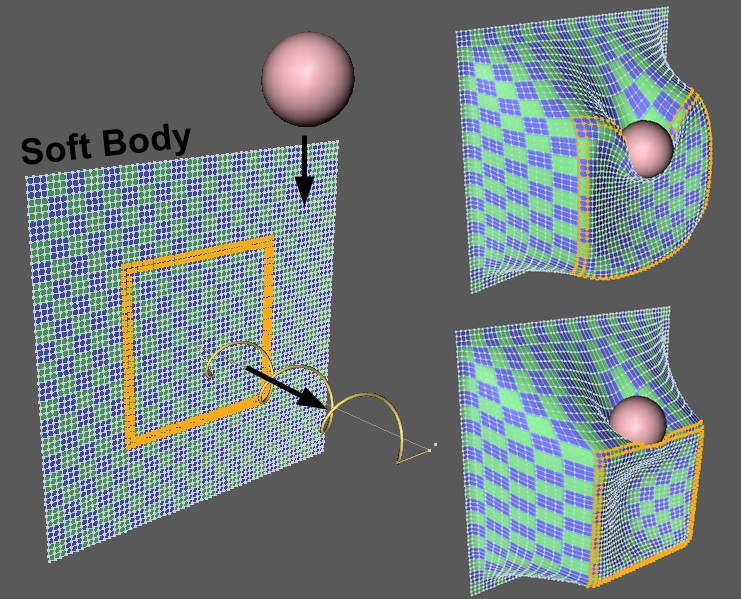 Marked point selection of a Soft Body is pulled by a spring, at the same time a ball falls onto the selection. Smaller value at top-right, larger value at bottom-right for Shape Retention.
Use this value to define the extent to which the selection or the point geometry influenced by the vertex map can be deformed when force is applied. Small values allow strong deformations, large values increasingly weaker deformations.
The shape retention works internally via springs, the damping of which can be adjusted here. Small values cause oscillations to decay more slowly than large ones.
As already mentioned at Object A, "actio = reactio" applies to both objects. If you want to apply force or torque to only one of the two objects in a physically incorrect way (which should be irrelevant in most applications), you can set this in this selection menu.
There are these two modes:
Taking into account the Linear Target Speed or Angular Target Speed, the force or torque is reduced when the respective target speeds are reached. However, never use more force or torque than defined here.
This means that only the defined force or torque acts without taking speeds into account. This means that under certain circumstances the speeds increase immeasurably.
If a maximum speed is defined under Regulate Speed Mode, you can enter a maximum speed here. The force is then reduced internally when this speed is reached. Use the sign to determine the direction of speed.
Although this parameter is called "force", it is actually a linear acceleration (in the direction of the motor Z-axis), i.e., the object mass plays no role here. If you apply a force of e.g., 9.81 vertically upwards, gravity is neutralized and the Rigid Body floats on the spot.
If Regulate Speed is defined under Mode, a maximum angular speed can be defined here. The torque is reduced when this speed is reached.
Use the icon to determine the direction of rotation.
This setting lets you apply a torque (around the motor Z-axis). Here, too, high values may be necessary (especially with large rotating masses and effective friction).