
Options
UV Projection creates new UV coordinates for the active object, the active polygon selection or even the current object hierarchy. Use this option to specify whether a new UVW Tag should be created to store the UV coordinates, or whether the coordinates in an existing UVW Tag should be modified. Each object can have multiple UVW Tags. A Material Tag will use the UVW Tag that lies closest to its right in the Object Manager.
If you want to create a new UVW Tag (see Create New Tag), you can enter the desired name here. Custom names make it easier to identify the tags in the Object Manager, but they do not affect the calculation of the UV coordinates.
The projection types offered here are largely based on the Projection options available in Material Tags and are based on basic geometric shapes. Some of these modes can also be influenced, for example, by the current perspective in the viewport (Projection TypeView) or by additional settings (Projection Axis for the Projection TypeAxis).
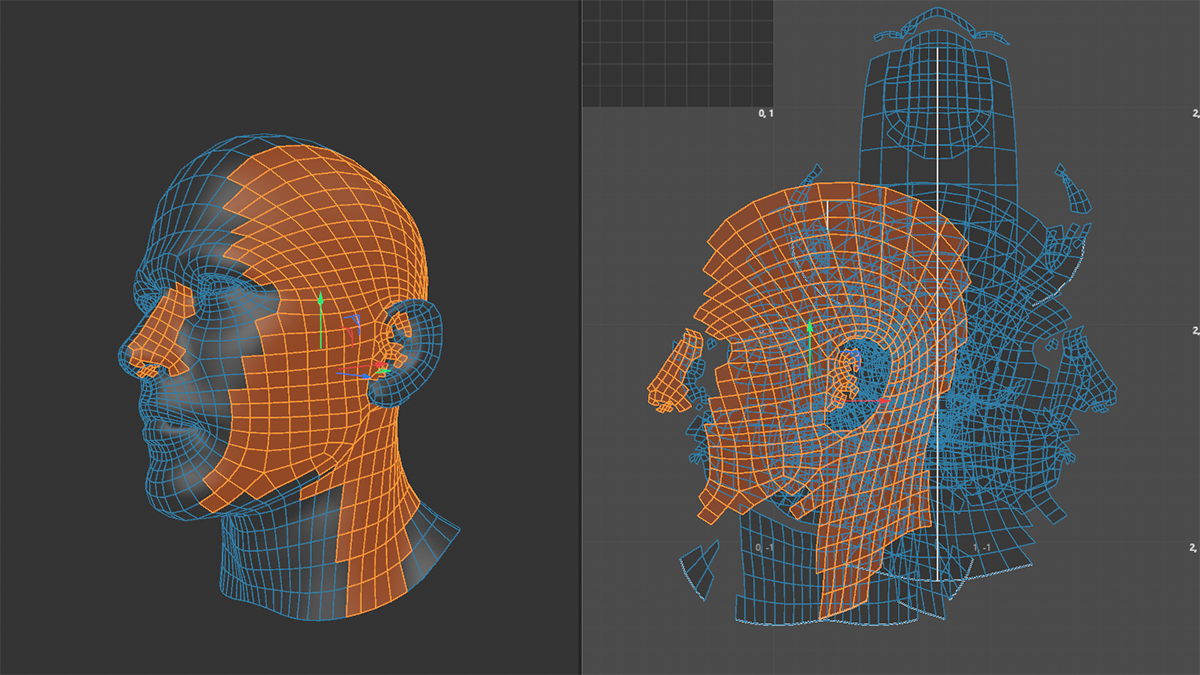 An example of a human head unfolded with Cubic projection.
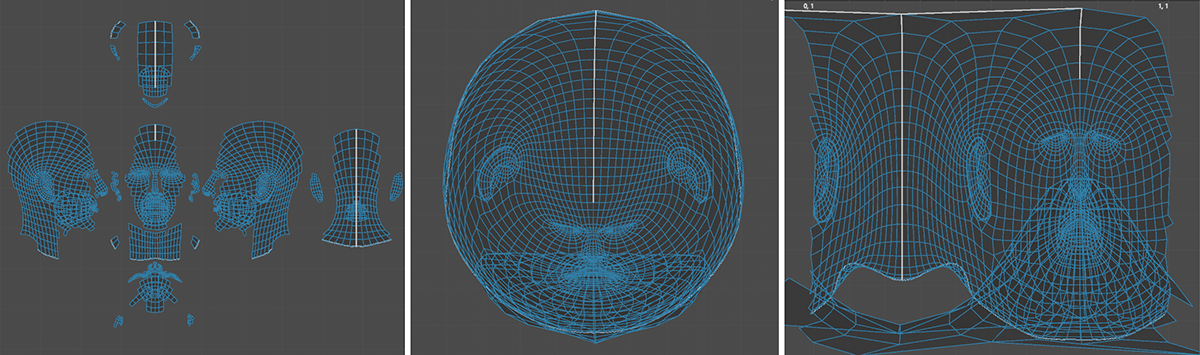 An example of a human head unfolded with Box, Shrink and Sphere projection (left to right).
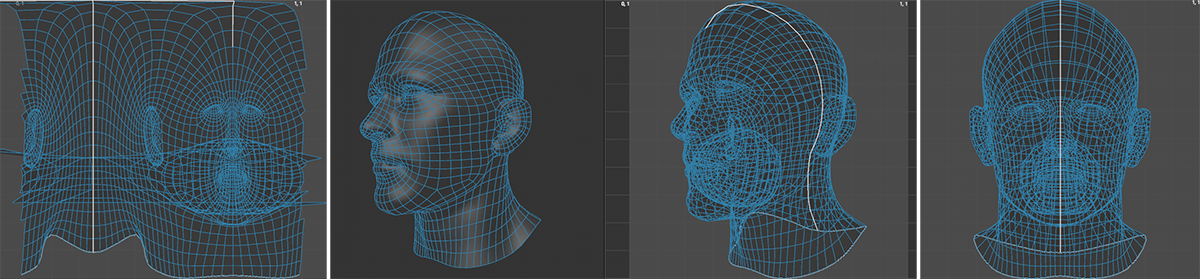 An example of a human head unfolded with Cylinder, View and Axis (along +Z axis in this case) projection (left to right).
This setting is available for all Projection Types except Box and View.
If this option is enabled, the selected Projection Type can also analyze the object's proportions and adjust accordingly. If this option is disabled, however, the standard size for the respective projection is always used.
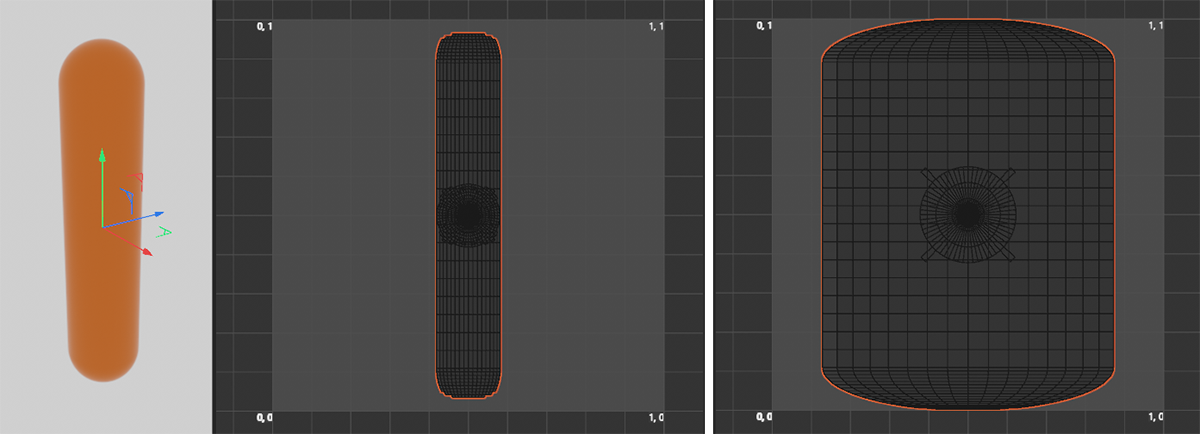 An example of a slim capsule object getting unfolded.
In the example above, a slim capsule shape is processed and unwrapped using the Cubic Projection Type. The Preserve Aspect option is enabled in the center. As a result, the capsule's proportions are preserved in the UV unwrap. On the right, with the option disabled, the Cubic projection uses only the square cube shape for the calculation, which leads to distortion of the UV coordinates.
This setting is only available for the Projection Type Axis and specifies the axis along which the UV coordinates should be projected. You can use the separate Volume Orientation setting to specify which coordinate system should be used. For example, you can use either the Object's coordinate system or the World coordinate system.

This setting is particularly important when multiple objects are to be processed simultaneously and assigned newly projected UV coordinates. In this context, the following option, Include Children in Volume, is also relevant, as it allows child objects of the selected object to be included in the calculation of the projection volume.
-
Per Object: The volume of each individual object is analyzed, and the selected projection type is adjusted accordingly.
-
Per Hierarchy: The volume of the entire object hierarchy is calculated. If multiple hierarchies are selected, each object hierarchy is calculated separately.
-
Use All Objects: All selected objects are analyzed to determine the projection volume. In combination with Include Children in Volume, a total volume is then calculated for the objects that are hierarchically related to the selected objects.
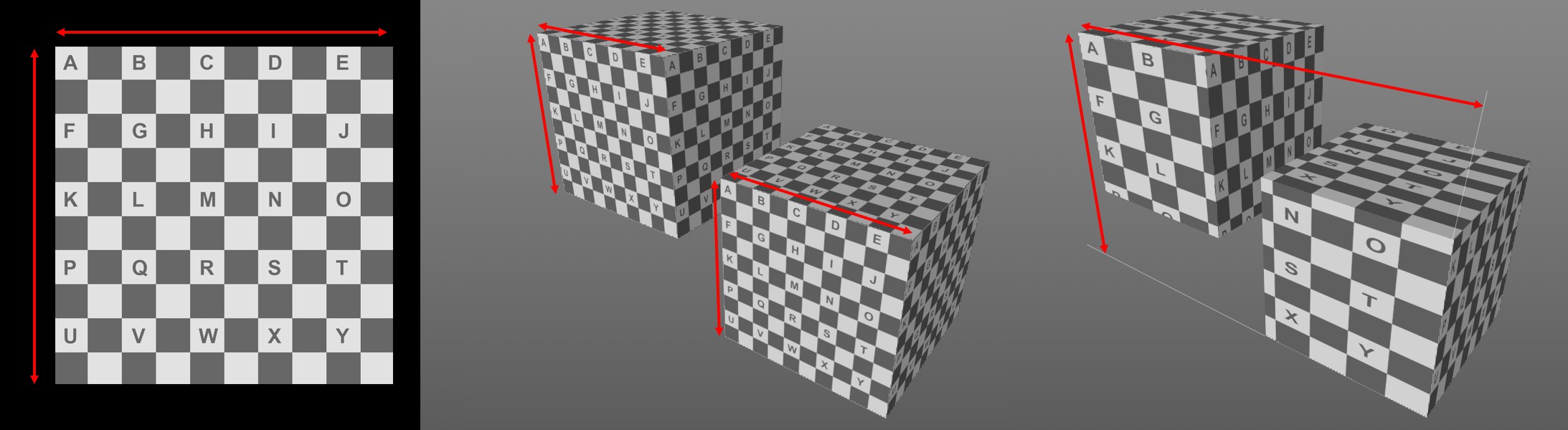 The texture shown at the left with Projection Type set to 'Cubic' and Volume Type set to Per Object and Use All Objects (right).
If the selected object has additional child objects, these can be included in the volume calculation for adjusting the projection.
If you want to assign new UV coordinates to only a specific section of the object rather than the entire object, you can also use a selection of UV polygons with the UV Projection function.
The Fit Volume to Selection option determines whether only the selected volume type—such as the entire object or the selection—is used to calculate the size of the projection.
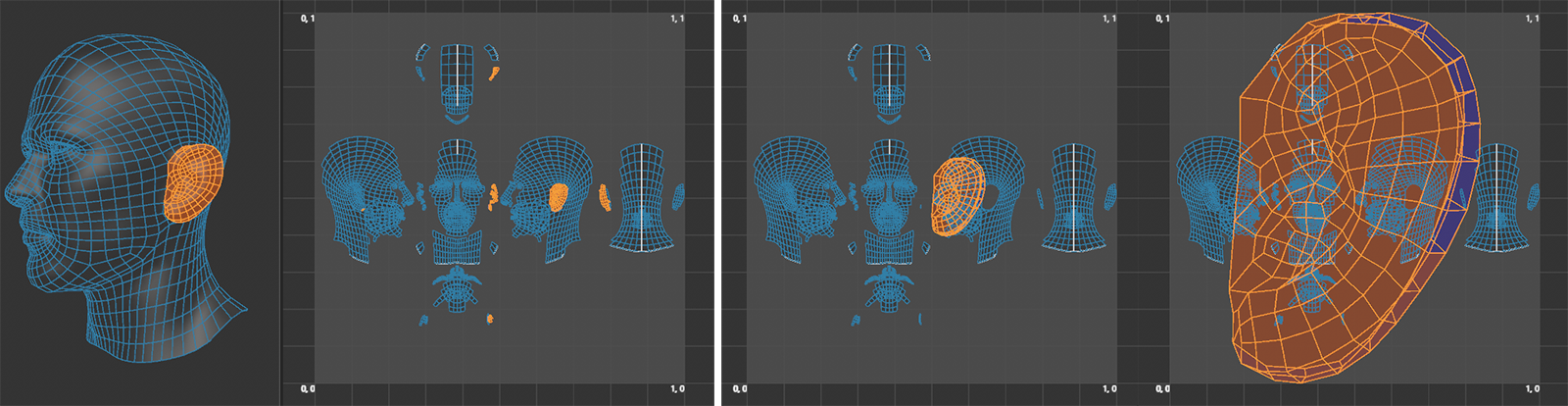 The left half shows the object being used and the selected polygons of the ear. The right half shows the result of an 'Axis' projection in each case: once without and once with Fit Volume to Selection.
Here, you define the coordinate system for the projection volume and the projection axes to be used. The available options are:
-
World: The projection is based on the fixed global coordinate system.
-
Object: The projection is based on the individual coordinate systems of the objects.
-
Average Normal: The Z axis of the projection follows the average direction of the Normal vectors. This is particularly useful when selecting polygons, as it allows you to adjust the projection to their average normal direction.
-
Weighted Normal: The Z axis of the projection follows the summarized Normal vectors (polygons can be selected to which the average can be restricted) whereby the polygon size will be weighted; large polygons will have a greater effect.