

Mass
Here you can choose between Custom Density and Custom Mass.
In the end, this is about assigning a mass to the respective object.
The mass is a measure of the inertia against external forces: if the mass is large, it will also take correspondingly large forces to set the Rigid Body in motion, or to slow it down. Interesting in this context: If you double the mass, a moving object has twice the kinetic energy, but if you double the speed, it has four times the kinetic energy - so the kinetic energy increases with the square of the speed.
If you select Own mass, this can be defined directly with the Mass parameter.
If you select Own density, the volume of the object will be taken into account. The more voluminous the object, the greater the mass. The Density value defines exactly this. Internally, this and the object volume is used to calculate an effective mass.
Using the default document settings, a cube with a side length of 100cm has a mass of 0.01 at a density setting of 1 (when Scene Scale is set to 100).
If you want to set the above parameters individually for each Rigid Body, you can use the small arrow next to most of the parameters described here to make a weighting link field visible. MoGraph weighting tags are stored here - these can be created interactively with  MoGraph Selection or
  MoGraph Weight Paintbrush by painting on the connectors. Alternatively, these can, of course, also be set using fields.
These weightings are always assigned to a parameter value. This parameter value defines a maximum value that is set specifically for the individual Rigid Body by weighting. For example, if the parameter value is set to 200 and a weighting of 0.5 or 50% is defined, the value 100 is applied to this Rigid Body.
The Mass just described has influence on linear movements and collisions only. The Rotational Mass, on the other hand, is exclusively a measure of the force that must be applied to set an object in rotation or to slow down the rotational movement.
Very high values here ensure that the objects are correcpondingly difficult to rotate. For example, you can place a cube on one of its corners and leave it there.
With very small values, even the smallest jolts are enough to set the objects into rapid rotation. However, if the rotational mass is too small, collision problems may occur.
Use this to define whether the Rigid Body is hollow or solid. This has a direct influence on the rotational mass: Imagine a cylinder rolling down an inclined plane. This leads to this (apparent) paradox: A solid cylinder rolls faster than a hollow cylinder of the same mass, because it has the smaller moment of inertia and can therefore accelerate faster. You can enable or disable this special effect here.
However, if you have defined your own density under Use, the mass will also change. After all, a hollow object is generally lighter than a solid one (the volume of the outer, solid shell will then be calculated using Search Radius ). With Custom Mass, the Is Hollow option has no effect on the mass.
If you do not want the center of mass - the point at which the weight force is applied - to be calculated automatically, activate Custom Center and define the coordinates according to the object coordinate system under Center. The center of mass is then also displayed as a point in the view.
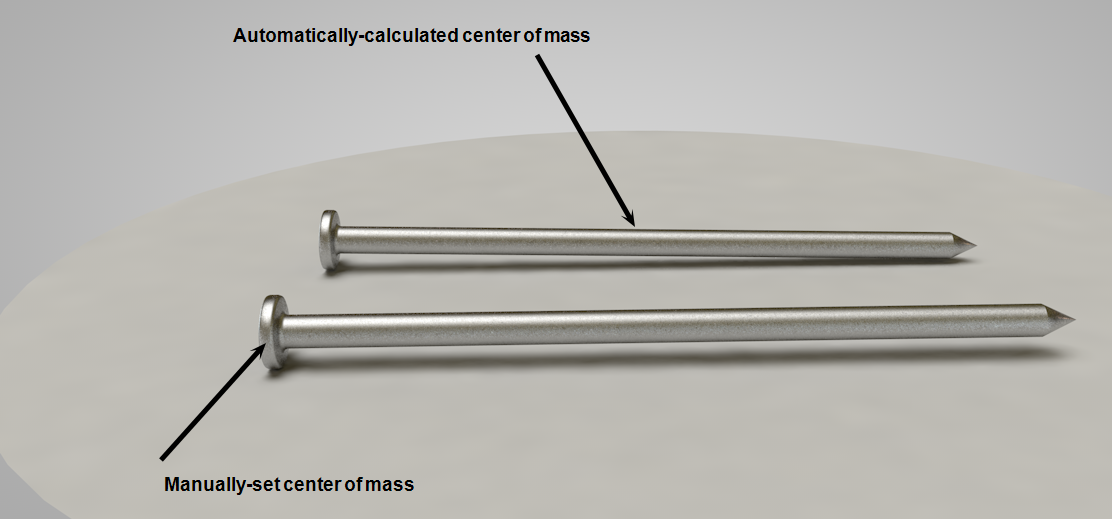
The center of mass is also the point at which a limiting  Field Force begins to act on a Rigid Body. If the center of mass lies outside of the field, nothing will move.