

Object Properties
A Volume object or set is always linked to an external .vdb file. This can initially be non-existent if the Volume was created outside of Cinema 4D (e.g., using a Volume Builder that was made editable). When the scene is saved, a still non-existent *.vdb file will be created and saved with the scene file in a folder named vol. This relative path will be set automatically.
The file path can be changed at any time to create a new link. You can create a new relative path by simply entering a new file name (which will be saved/ found in a vol folder where the scene is saved). You can define an absolute path by clicking on the button at the right of the path and selecting the new path.
If you add new volumes to the Volume Set (or detach existing ones), you can save the current state to the external OpenVDB file using this button. So you can use this to change the contents of the external file (itself not necessarily created in Cinema 4D).
Since volumes stored in external files can change, you can always load the current volume by clicking this button.
Volume objects can be dragged into this list manually or are already present if you have loaded a corresponding OpenVDB file or use the Set Initial State button in the Pyro Scene settings of a Pyro Output object. Behind each list item there is an option box that allows you to disable them. Disabled volumes are neither processed (e.g., by a volume filter) nor displayed in the view.
When you use a Volume Set as the Initial Volume Set in a Pyro simulation, components that are turned off are not included in the volume grid. Below you will also find an information display about the number of Voxels and the file size in the linked .vdb file. The number of voxels and spatial size do not have to be identical to that of the simulation whose initial state you want to control. It is interpolated automatically. Nevertheless, the spatial size of the simulation plays a role. If the simulation contained in the .vdb file specified in the file path is spatially smaller than the simulation currently to be controlled, the start state is only influenced in the area of the intersection. The spatial position of the Volume Grid and the Pyro properties it contains can be directly affected by moving, rotating or scaling the Volume Set object.
 On the left edge you can see the simulation whose current frame was saved in a Volume Set. The elements of the Volume Grid are exemplified by the four images in the right part of the figure. From left to right, these are density, color, temperature and velocity. These properties can also be detached from the Volume Set as separate Volume objects using the Detach button.
Entries in the Volume Grid list can be selected by single clicks, multiple clicks with the Ctrl or Strg keys held down additionally, or Shift-clicks on the first and last elements of a contiguous block, and can then be detached as individual Volume objects by clicking the Detach button. If you have made a mistake, Volume objects can also be dragged and dropped from the Object Manager back into the Volume Grid list. A detached Volume object also causes the Pyro property it contains to be saved as a separate .vdb file in the vol directory.
The advantage of individual Volume objects for individual Pyro properties is that they can also be used to mix the properties of different Pyro simulations into a new initial state by linking them in the Initial Volume Override section within the Pyro Scene. It is also interesting that the Volume objects can be used according to their data type. This means that the color and velocity properties each contain vector values and can therefore be used arbitrarily for colors and velocities of an initial state. The same applies to the float values of density, temperature and fuel. For example, the Volume object with the temperature values can also be used as the density or fuel of an initial state.
The Volume objects for density, temperature or fuel can also be used under a Volume Builder and a Volume Mesher to create geometry from them. The setting for the Surface Threshold value at the Volume Builder controls the order of magnitude of the density, temperature or fuel values from which Voxels are then generated.
The vector information of color and velocities can be read directly by a Field Force object and then used, for example, to control particles.
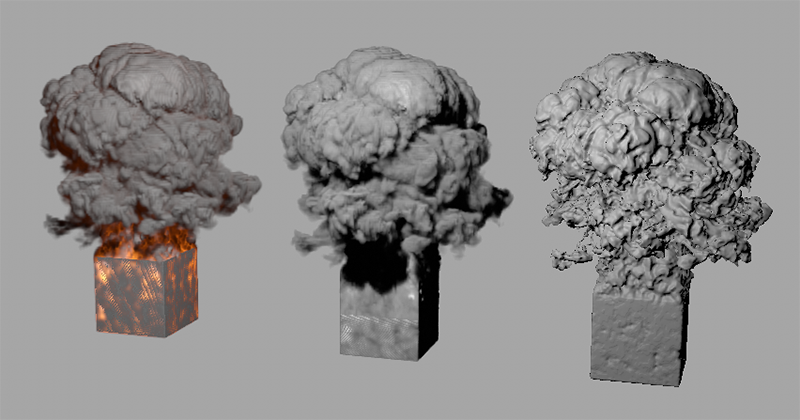 Example for meshing a Volume object. On the left is the original simulation, for which a Volume Set object was created at this time. From this Volume Set, the Volume object for the density was extracted (to be seen in the center). This was then grouped to a Volume Builder, which in turn was grouped to a Volume Mesher (seen on the right).
Info
Here you can still see the number of Voxels used and the memory used for all volumes activated in the list.