

Object Properties
The default guideline Type is Line.
A guide Plane can be created from any guide Line when you select Plane (this can also be done interactively using the  Guide Tool).
The guide Plane has three Handles (and a different icon in the Object Manager).
Depending on the active tool, they work as follows:
- Move tool: 1st Handle moves the complete Plane; 2nd and 3rd Handles extend the Plane in the X and Z directions.
- Guide tool: 1st and 2nd Handles each rotate the Plane around the 3rd Handle; 3rd Handle swivels the Plane around a hinge (that is created by the first two Handles) or expands the Plane.
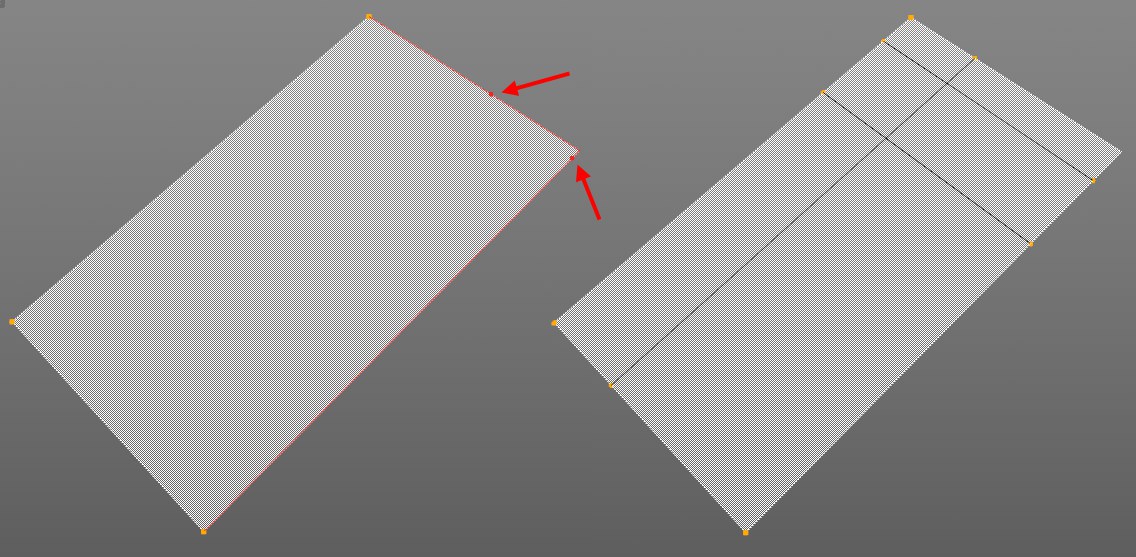
You can also simply create guidelines by running the cursor along both edges that border the corner with no Handle until red points appear. Here you can pull out parallel guidelines that will be made Child objects of the guide Plane. This way you can create additional basic working planes, if necessary.
A guide Line can have an Infinite length in either direction, can stretch in only one direction starting from a defined point (Halfline, or it can be created as a Segment with a starting and an end point.
- Line: Two additional guidelines perpendicular to the guide Line will be displayed as an axis crosshair.
- Plane: Two additional guidelines perpendicular to the Plane will be displayed.
These two settings can be used to define the size of the plane if Type is set to Surface. If Type is set to Linie, the Size Z value defnes the distance between both handles.
Only available if Type is set to Plane and Spatial Mode is enabled. The three guidelines will be centered and thus made symmetrical.