

Effector
As is the case with all Effector, the Strength slider defines the Effector's strength. Values less than 0% and greater than 100% can also be defined.
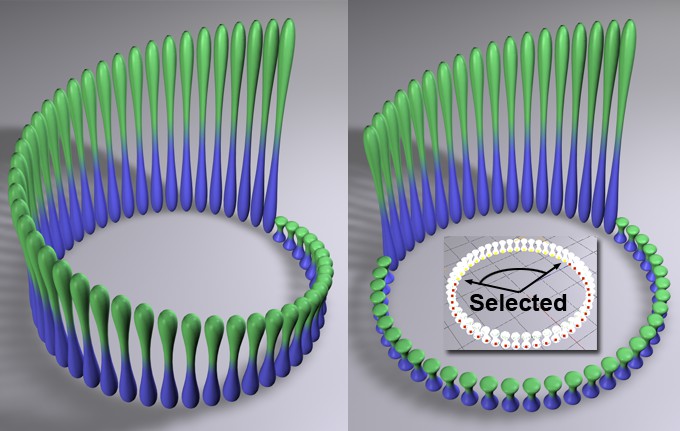 On the left, a Step effector is shown without selection; on the right, it is shown with a selection applied. A Step effector was chosen here as an example of selection; otherwise, selections work differently depending on the type of effector.
A MoGraph Selection or MoGraph Weightmap tag can be dragged into this field or placed automatically by selecting a Cloner object and an existing MoGraph selection/weighting, and creating an Effector.
The Effector will then work as follows, depending on the tag’s settings:
- MoGraph Selection tag: Will only affect the clones belonging to the selection.
- MoGraph Weightmap tag: The clone weighting (values between 0% and 100%) saved in the tag will be multiplied with the effector strength.
Let's say you have used a Group Effector to group several Effectors that have animated settings and the timing is a little off. You can either modify each Effector's animated setting or you can simply activate the ReTime setting and each animation within the Start and End frame range will be compressed. This works best if all animations begin at frame 0.
Define the frame range within which the Effector animation should take place. The smaller the frame range, the faster the animation will run.
Drag all Effectors from the Object Manager into this field that you want to place into the Group Effector. These Effectors will then no longer be assigned individually to the cloned object. Otherwise their effect would be doubled. Only the Group Effector will be present in each Effector's Effector list. The Effectors will be executed in their defined sequence .