

Multi-Group
This page covers the Multi-Group object of the particle system in Cinema 4D. It addresses several Particle Groups at once — so shared Conditions, Forces and Modifiers don't have to be duplicated under each individual group.
This is an element used to arrange particles of multiple groups together.. willThe respective particles remain part of their Particle Groups, but the Multi-Group offers the option of accessing these particles simultaneously. This can be helpful, for example, when using Conditions and Modifiers, which are often sorted directly under a Particle Group in the Object Manager in order to only affect the particles in this group. Here is a simple example:
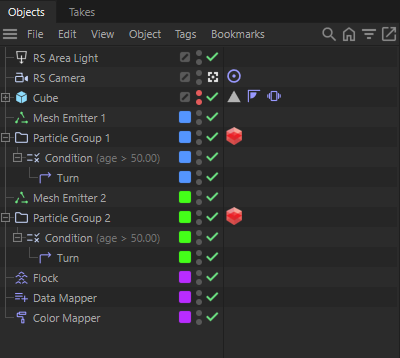 The scene contains two Emitters, each with their own groups (blue and green planes), so that individual trajectories can be conimaged using Conditions and Modifiers. The Modifiers marked in purple will affect all particles, as they are at the top level of the hierarchy and have not been assigned to a group.
The image above shows the structure of an example scene. Two Emitters were used, whose groups have individual Conditions and Modifiers. As a result, each of the two Particle Groups will react individually and independently of the particles in the other group.
The three Modifiers in the lower part (purple level) are not subordinate to any group and will automatically affect all particles. But what happens if further Emitters and groups should be added? If these new particles should not also be affected by the violet Modifiers, we would have to duplicate them as often as necessary and sort them under the existing Particle Groups. This can quickly become annoying with many groups and can also lead to errors if the settings have to be edited for many objects. The solution in such cases is to use Multi-Groups, as shown in the following image.
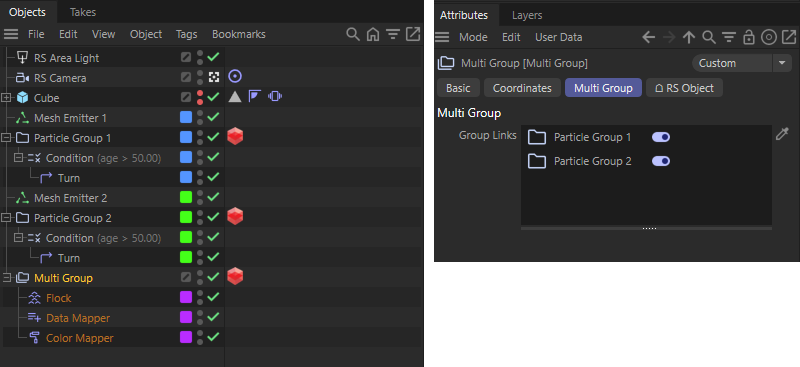 The same scene, only this time with an additional Multi-Group to which the two Particle Groups have been assigned.
You will find a link field for Particle Groups on the Multi-Group. Drag in the existing groups and then arrange the previously ungrouped Modifiers, Conditions and Forces directly under the Multi-Group. Each new Emitter added to the scene from this point onwards will then initially be independent of the influence of the other Particle Groups.
As a useful side effect, the Multi-Group also offers a direct Redshift Object tag, which can now be used to overwrite the display of the linked Particle Groups during rendering. If you select Deactivated Mode in the tag, the individual render options of the linked groups are retained.