
Filter
Here you will find a list of presets saved. These presets can be created in the command described below.
You will be familiar with this functionality from the Viewport Presets. You can create a fitting preset for each animation workflow, which can then be quickly selected.
You can also still work with the bookmarks, which offer a similar and broader functionality.
Use this command to save Viewport variants to the Asset Browser.

If activated, animated items will be shown and items without animation tracks will be hidden.
If deactivated all items will be shown.
One small exception: If automatic mode is deactivated, at most only items that were manually placed into the Timeline per drag & drop will be displayed.

This command is for use in conjunction with the Cinema 4D Take system (Take Manager). If this option is enabled, only the animation Tracks created or modified in the active Take will be shown (i.e., those in the Main Take will be hidden).

If enabled, only the active Animation Layer's Keys will be displayed in the Timeline in Key or F-Curve mode. Otherwise all of a given object's Keys will be displayed, including those that lie on different Animation Layers.

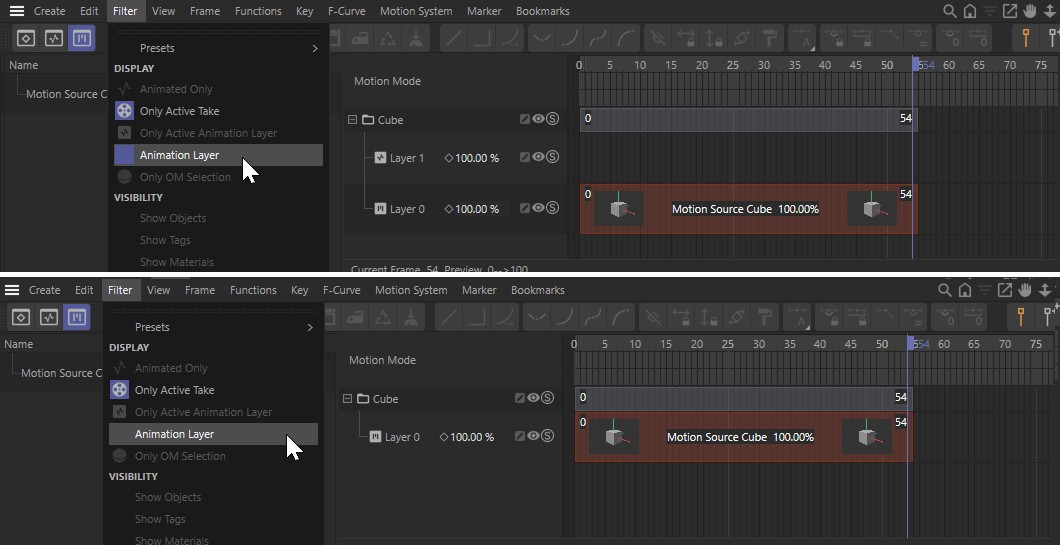
This option is for use in the Timeline's Motion mode. If enabled, all Animation Layers will be displayed. Otherwise only the Motion Layers will be displayed.

If activated, only those objects selected in the Objects Manager (if their Child objects and tags should also be shown can be defined precisely in the Timeline's preferences menu) will be shown. Objects not selected will be hidden. Only relevant objects will be shown – no filters must be defined.
If this mode is enabled, only objects will be displayed in the Timeline that are selected in the Object Manager (if their Child objects and tags should be shown can be defined precisely in the Timeline's preferences settings). Objects that are not selected will be hidden.
In this mode, only relevant objects will be shown even without the definition of filters.
Quick Filters
The following options can be used to hide or show complete element types in the Timeline.
Use this option to hide or show objects, including Animation Tracks.
Use this option to hide or show tags, including Animation Tracks.
Use this option to hide or show materials, including Animation Tracks.
Use this option to hide or show project settings, including Animation Tracks (e.g., Dynamics settings). This option will otherwise affect all other elements that are not covered by the element types described above.