
This Capsule is exclusively for subscribers

Modify Data
This allows you to change the order of the displayed data:
- None: The original order of the data is preserved.
- Width: The displayed values are sorted according to their width. If all values have an equal width, the order will remain unchanged.
- Height: The values are sorted in order from smallest to largest.
- Shuffle: The values are rearranged randomly. This random calculation is based on the Shuffle Seed value.
Here, bar charts and line charts (Bar, Line and Step) can be mirrored. The base line of a bar chart is then, for example, no longer at the bottom but at the top.
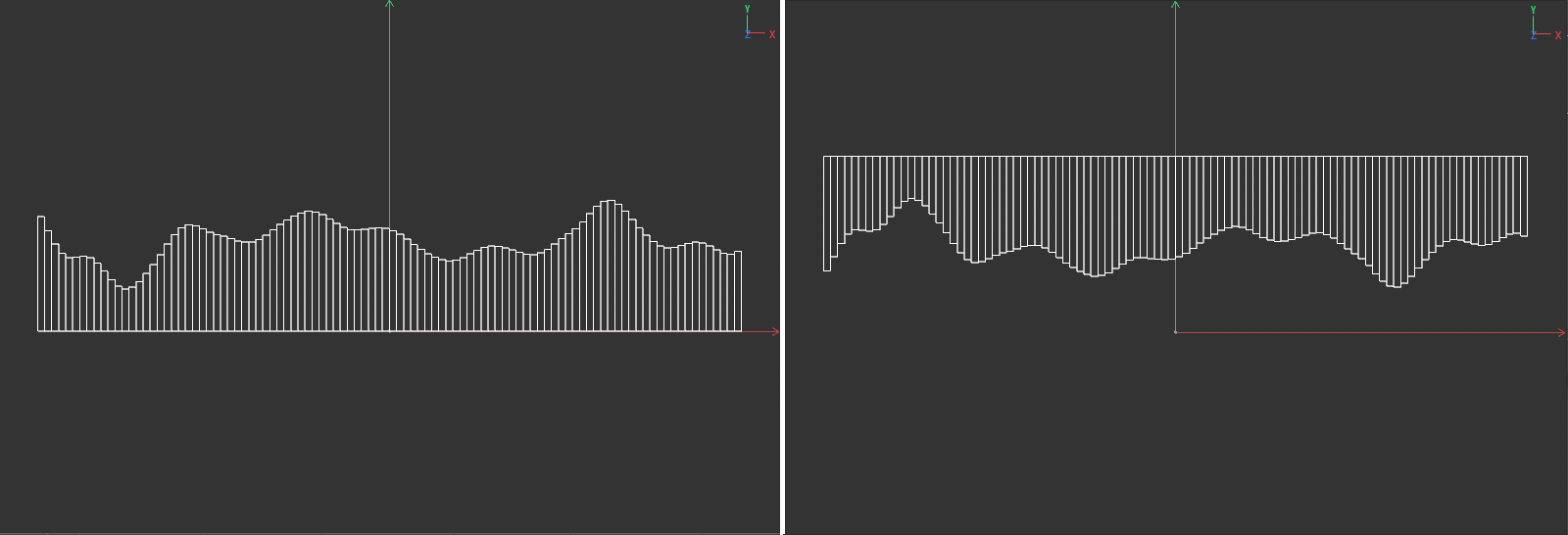 On the left you can see the original bar chart, on the right the same chart with the Flip option active.
This mirrors the order of the values. The order will then begin at the last data set and end with the first data set.
Allows you to define the index number of the data set to be used for the first bar, the first pie slice in the chart or the starting point of the line chart.
This is the starting value for the random calculation used for the Shuffle sort mode. Modifying this value will product a new random arrangement of the values in the diagram.

This spline curve is multiplied by the ascertained values and can therefore be used to individually shape the height of the bars or the outer radius of a pie chart without having to change the values themselves.
This can be used to softly mix between a Bezier spline and a B-spline. For a span of 100%, the curve will run exactly through the points and the tangents at the points will shape the curve shape between the points. For a span of 0%, the tangents will lose their purpose and the curve will oscillate between the points without necessarily running through the points.
Here you define the minima and maxima of the value range on the graph. Normally, Min defines the X and Y coordinates of the bottom left corner point on the spline graph and Max defines the X and Y coordinates of the top right corner point.
This option synchronizes the tangents at the first and last points of the curve so that a harmonic connection is created between the ends of the spline curve. This can, for example, be helpful if you want to move or animate the data evaluation of the curve using the Offset value.
This option synchronizes the Y coordinates of the first and the last point on the curve. As previously described for the Connect Tangential option, it can be helpful for ensuring harmonious transitions when moving spline curves via the Offset value.
If you want to define the exact position of a selected point on the curve, you can enter the X and Y coordinates of the point directly here.
These options can be used to lock the position of a selected point to prevent unintended movement in the X or Y direction.
Details about using the color gradient can be found under Color Gradient in Nodes.
Allows you to define the length and slope separately for the left and right tangents of a selected spline point. Tangents can also be edited directly with the mouse in spline graphs by dragging their end points.
When this option is selected, the left and right tangents of a selected point can be rotated and scaled independently. This can also be done automatically by Shift + clicking on a tangent on the spline graph during modification. Broken tangents can also be "repaired" if the Break Tangent option is disabled.
If there is already a broken tangent at the selected point, activating this option will fix the angle between the left and right tangents. If a tangent is then rotate, the other tangents will rotate to the same degree. The length of the tangents can still be defined individually for both sides.
The tangents at a selected point can no longer be changed in direction. Only the lengths of both tangents can then still be individually
The length of the tangents at a selected point can no longer be edited. Only the tangent's direction can be modified.