
Moves by Maxon Dialog
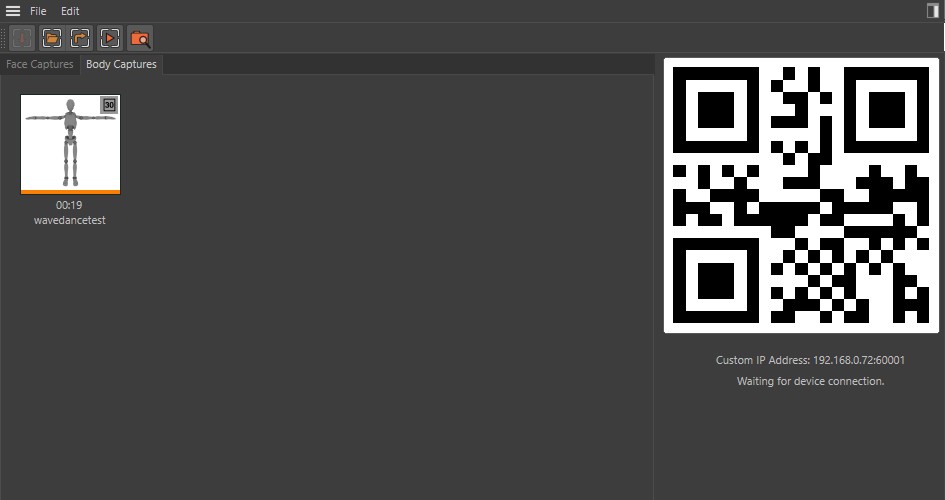
Overview
Thumbnails
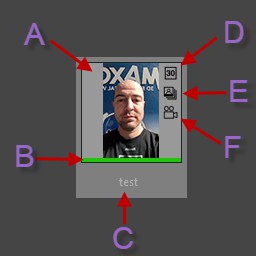
A: The first image captured
B: The color indicates the what type of capture and if it was downloaded or not.
- Green: This capture is transferred via WiFi using the QR code system to Cinema 4D.
- Orange: Image was imported from a zip file.
- Blue: Progress information when downloading from the iPhone or iPad.
- Gray: This is a preview only, no data has been downloaded yet from the iPhone or iPad.
- Red: The connection was lost while downloading. Only part of the capture was transferred from the device. In this case try to start a new transfer from your device.
C: The name of the capture, this matches the name given to it on the iPhone or iPad.
D: Indicates if the captures is 30 FPS or 60 FPS (D, E, F are not available for all capture types).
E: Indicates if the capture contains all the images

for every frame or only the first image

.
F: Indicates if there is a movie for this capture, if no movie is found then right clicking on the thumbnail will show Play Sound rather than Play Movie in the menu.
Drag & Drop
Clicking and dragging an capture will allow you to change an existing capture objects source data. But clicking and dragging it into the Capture field on the Capture Object it will change the source file to be the new one dragged in.
The right half of the window
You will find this option in the right half of the window next to the information if and which OS device is currently sending Capture Data.
Announcing the service in the local network
This option at the bottom right must be enabled if you want to download capture data directly from your OS device (see also Announce Service to Local Network).
Open the Moves by Maxon App on your . Select a Capture and press click on the Maxon icon in the Capture window that opens.

The icon at the top right can be used to show or hide the right half of the window
Menu
Note that several of the following commands do now work with the object captures since these are organized in the Asset Browser.
File

This command is available if a Capture is selected and has been downloaded completely (or imported via a .zip file).
Call up this command to load into the scene the currently selected Capture data via a Capture object.
Alternatively you can also drag captures into the Viewport (pressing Shift simultaneously will open a new document) or into the Object Manager.

Here you can add the currently selected Face or Body Capture to the currently open scene.

Execute this command to play the video or sound file (if present) for the active Face or Body Capture in your operating system's video/sound player.

This will open the operating system's Explorer/Finder to the path of the files of the currently selected Capture.

Delete the capture from your computer.
Edit

When you are connected to C4D with your device, this menu option will resync with the captures on the iPhone (or iPad) and redownload any required captures previews.

This will remove any preview images that have not been fully downloaded to your computer. These appear in the UI with a gray bar, or red bar if partially downloaded, along the bottom of the preview.

This will display the Moves by Maxon preferences.

This command, which is currently only available in the context menu, can be used to calculate a three-dimensional object, including textures/materials, using the currently selected Object Capture. This can be found in the Asset Browser in the Uncategorized category.
Note that the calculation can end with an error message, for example, if you have too few or low-quality images (see also General tips for photographing objects).