

Options
Note that these settings are not interactive but must be defined prior to creating cuts.
Most of these settings are only useful in conjunction with cutting polygon meshes. Most of these settings will have no effect when cutting splines.
If this option is enabled, only visible edges and polygons will be cut, i.e., no back sides will be cut. Regions covered by other objects are not included.
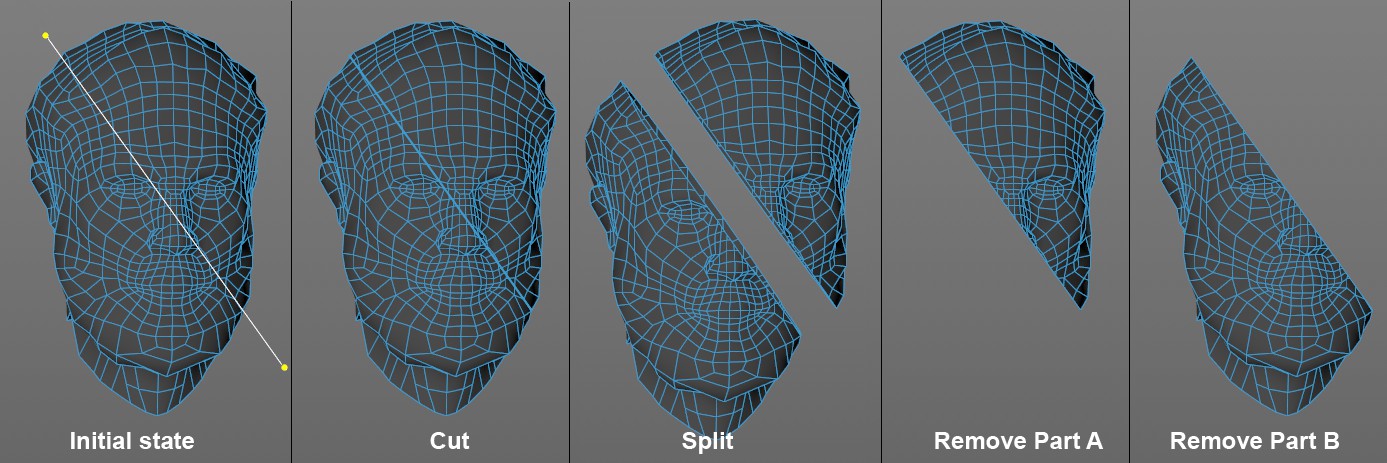 The cut shown on the left in various modes (for Split, both halves were moved apart for demonstration purposes).
Use this setting to define how precisely a cut should be made:
- Cut: The normal cut mode in which a cut line cuts edges or polygons and a single cut point is created on each edge or polygon edge. Nothing will be removed.
- Split: When cut, two identical but disconnected vertices will be created along the cut line, along which the elements will be split.
- Remove Part A/B: One of the halves of the cut element will be removed. It's not possible to determine which is half A and which B. If the wrong half is deleted, simply undo the operation and remove the other half (reversing the vertex order can also reverse the result). Deletion works best if the cut line's start and end points lie outside of the object to be cut. The cut line must run across the entire object for this mode to work.
If this option is enabled, the cut line will always be made up of only 2 control points. This makes it possible to quickly create successive cuts: click and drag the cut line, then release the mouse button; repeat as often as needed. You can still click on a visible cut line to create a control point.
This setting will extend the cut line indefinitely, which makes it possible to also cut (selected) objects or mesh outside of the Viewport view.
If enabled, only selected polygons or edges will be cut.
If enabled, newly created cut lines will be selected (visible only in Use Edge mode).
If enabled, polygons will also be cut. Otherwise only edges will be cut.
If this option is disabled, the cut will be made linearly through the non-planar n-gons, i.e., the n-gon’s shape will be modified; if this option is enabled, the function will attempt to maintain the original shape by creating new points (at the cut location with the n-gon lines).
The tool existed before Cinema 4D had its own snapping functionality and therefore comes with its own snapping. You can deactivate this here and activate global snapping or not use snapping at all.
The tool's own snapping marks the cutting start point depending on the element approached:
- Point: green
- Edge: red
- Polygon: blue
If this option is enabled, the cut line will be constrained to the angle interval defined by the Angle value. This can also be done without enabling this option by pressing the Shift key while creating cuts.
If cut line control points are moved, the resulting cut points will normally be displayed in white. For objects with very high subdivision (e.g, with more than 1 million points), the calculation of the preview can take quite some time, which bogs down interactivity. In such cases, this option should be disabled. The preview will then be created when you release the mouse button.