

Shader properties
When loading a new Substance 3D asset (e.g., via Extensions/Substance-Engine/Load Substance...), a classic Cinema 4D material will be created in which the material properties will already be defined and Substance Shaders used in the material have already configured a connection to the loaded asset. However, if you have created the Substance Shader manually, the required link to a Substance Asset will still be missing and the shader cannot function. In this case, a warning symbol will be displayed as a preview image of the shader (see image below).
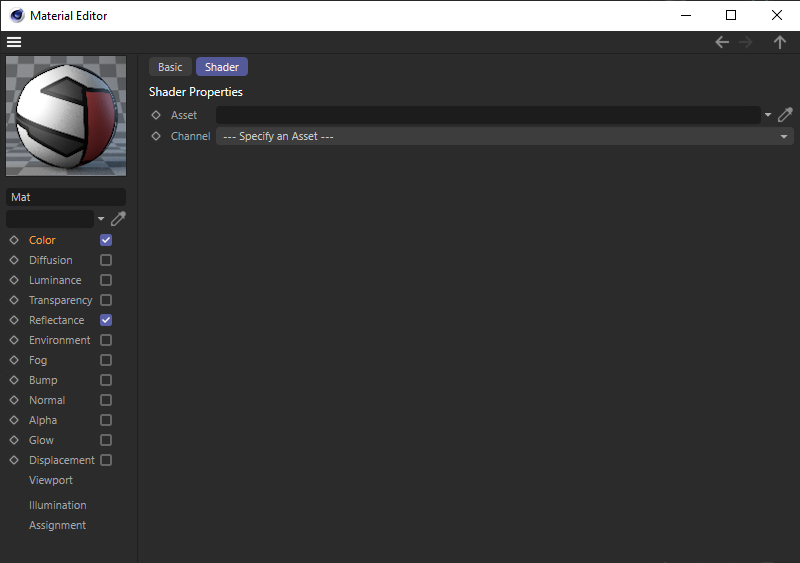
Without a correct link to a Substance Asset, the Substance Shader cannot function and channel selection will also not be possible.
Here you will find the link to the corresponding Substance 3D Asset. Select an asset from the Substance Asset Manager here (unless one is already linked). To do this, you can assign a loaded asset from the open Substance Asset Manager using drag & drop, or first click on the pipette symbol to the right of the Asset field and then on the desired asset in the Substance Asset Manager. Without a valid link to a substance asset, the subsequent Channel parameter cannot be used, either.
Use the small triangular menu to the right of the Asset field to access commands for deleting the link and for selecting or displaying the linked asset.
For manual assignment, you can find the Substance Asset Manager in the Extensions menu under the Substance Engine entry.
Of all the output channels provided by the linked asset, one can be selected here. The corresponding texture will then be displayed by the Substance Shader. The resolution of these textures can be specified via Width and Height in the settings of the linked substance asset in the Attribute Manager. To do this, select the relevant asset in the Substance Asset Manager to display its settings in the Attribute Manager.