
Object
This setting is used to select how the spline is to be divided into individual line segments. The following options are available:
- Length: The maximum length of an individual stroke can be specified here as an absolute distance. In this mode, the total number of strokes created depends on the total length of the spline.
- Count: The desired number of lines along the spline can be specified directly. In this case, the length of these lines depends on the length of the spline.
- Percentage: The maximum length of the strokes is specified as a percentage of the length of the spline. The number of strokes remains constant even if the length of the spline is changed.
In Length mode, the maximum length of the dashes is specified here, which always includes all segments.
In Percentage Mode, enter a percentage value here that is evaluated in relation to the total length of the spline or the individual length of each spline segment if the Per Segments option is active. The length determined in this way becomes the maximum length of the strokes.
In Count Mode, this specifies the number of strokes along the spline. If the Apply Per Segment option has been activated, this number is applied to each segment of the spline, which can result in strokes of different lengths.
In Percentage Mode, this controls whether each spline segment is evaluated individually on a percentage basis, which can then lead to strokes of different lengths on the segments, or whether only the total length of the spline, including all its segments, is included in the calculation. In this case, the strokes are then the same length on all segments.
This option ensures that there is always a complete bar gap at the end of the spline or spline segment. However, this also means that the specified gap width for all bars is automatically adjusted accordingly. This option is not available in Count Mode, where the maximum stroke lengths are always automatically adjusted to the length of the spline.
This option is only available in Count Mode and controls whether the specified number of strokes should be used individually for each spline segment or only in relation to the total length of the spline. Different stroke lengths and gap sizes may occur if applied individually to all segments.
This option only works together with the snapping option and then ensures that the end of the spline or the end of each spline segment ends with the rear boundary of a line. In this way, no gap remains at the end of the spline. This option can also be used to change the specified size of the gap between the lines.
With this option, the gaps become dashes and the dashes become gaps.
This can be used to move the lines along the spline. Please note that this function can only work as desired if End Snap is switched off. Depending on the Mode setting, an absolute distance value or a percentage value relating to the spline length is offered for the offset.
This can be used to automatically animate the Offset displacement of the strokes along the spline. The specified value refers to the length of the spline or a distance per second. A Rate of 10% means, for example, that the strokes are displaced once over the entire spline length in 10 seconds (or cover one tenth of the spline per second). This calculation is based on the assumption that a frame rate of 30 per second is used.
In Length Mode, an absolute distance value is used here for the displacement within one second. Otherwise, a percentage value is used that refers to the spline length.
Here you set how large the proportion of a gap should be in relation to the maximum length of the stroke. The stroke length selected in the upper part of the dialog is therefore shortened or divided even more finely in order to display the gap between the strokes. The following modes are available for selection:
- Percentage: A Visible value can be used to describe the proportion of strokes that should remain visible. The remaining section of each stroke is hidden and thus becomes a gap.
- Custom: In this mode, each stroke can be subdivided even more finely into any number of equally sized sections. Each of these subdivisions can be switched on or off using a separate option, allowing you to create individual stroke patterns, such as short strokes followed by long strokes.
Use this button to specify the desired number of stroke subdivisions in Custom Mode. An option automatically appears for each subdivision, which can be used to switch the stroke subdivisions on and off individually.
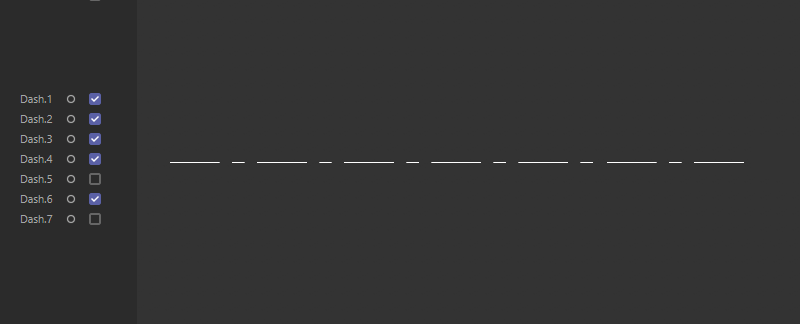 Example design of a dash line in user-defined mode.
This mode is somewhat inefficient for a classic dash line, as a very large number of subdivisions would have to be created for each dash. It is therefore simpler and also less computationally intensive to combine two modifiers and simply use (visible) dashes of different lengths. The number of dashes created should be identical.
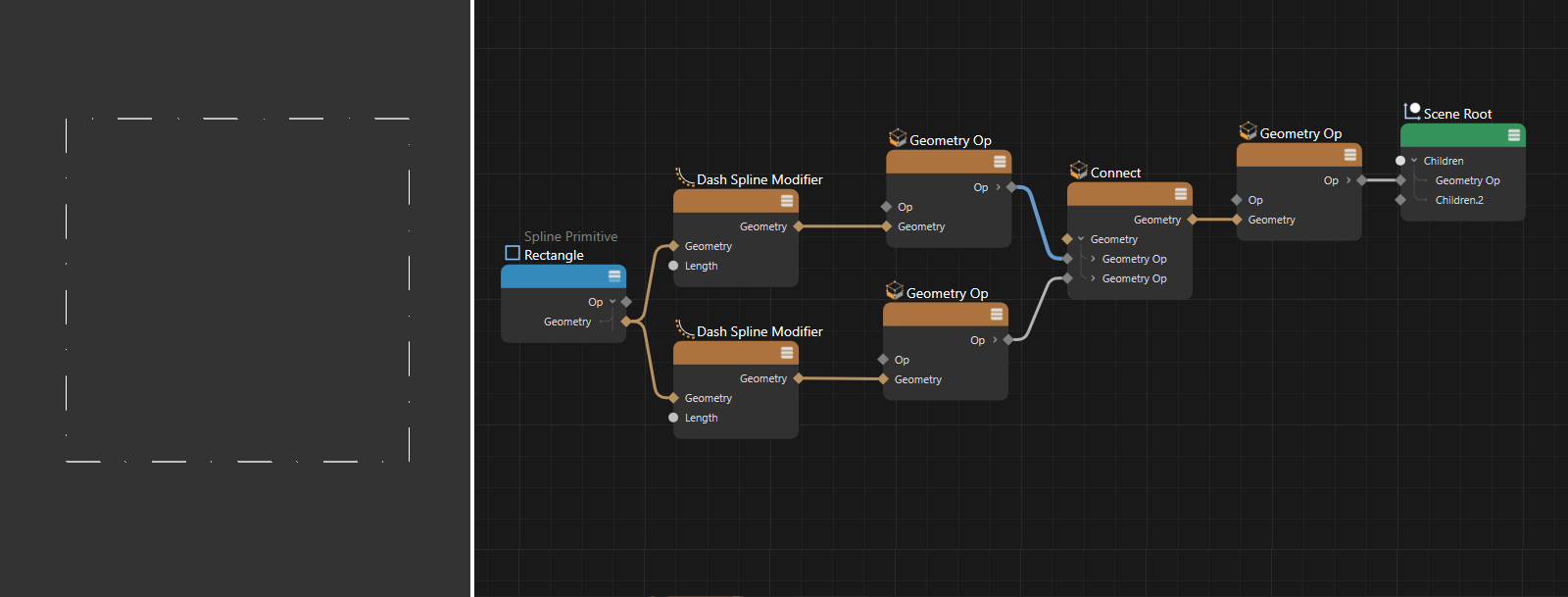 Combination of two modifiers to create a dash-point-line.