

Cache
Simulations are calculated frame-by-frame and develop by evaluating properties, forces and boundary conditions over the course of the animation. It is not possible, for example, to always display the correct state of the simulation by navigating manually during the animation. The solution is to save the simulation as a RAM or cache. A common practice for all simulation systems in Cinema 4D and also for the particles. You will find the necessary settings for calculating or reading an Alembic file here. If this is present and loaded in the Particle Group, the particles no longer need to be simulated. You can move around in time as you wish and always see the correct status of the particles. In this way, simulations can also be archived and exchanged between different scenes or even different 3D programs, since the Alembic data format is a standard format for exchanging simulations and animations.
Saving as a cache file is also generally recommended before rendering, since this is the only way that motion blur can be calculated for the particles, for example.
Calculating and saving a new cache file automatically activates this option once the calculations have been completed. If an Alembic file with the particle simulation is defined in the Path to Alembic File field, this option can be used to define whether this file should be read or not. When a cache file is read, all simulation elements in this Particle Group will automatically lose their function. The particle properties and movements are taken exclusively from the file, at least if these properties are also contained in the file. The active reading of the Alembic file also deactivates the display options for the particles in the Particle Group.
Here you will find two options for selecting the reference system for saving the particle properties:
- Local: The particles are stored relative to the axis system of the particle group. This means that you can still change the positions and flight directions of these particles manually after baking, e.g. by moving the particle group.
- Global: The particles are stored relative to the world origin and the world axes. This means that the particle movements are always reproduced exactly as they were when the recording was created. In this mode, the particles become independent of the position of the particle group in the room.
You can use the folder icon to the right of the field to manually load a particle simulation file that has already been saved. This is then read out when the Cache Mode option is activated.
If you want to create a new cache file, simply click on the Cache Object button. You will then be asked for a storage location and name for this file. Once the calculation is complete, the path to the file is automatically entered in this field and the evaluation is enabled by activating Cache Mode.
This abbreviation indicates the identification of the particle data within the loaded Alembic file. For files created by Cinema 4D, this is always /hash_0/hash_0Cloud. In the case of a simulation generated by other programs, this ID may be different.
Loaded particle data can be individually scaled using this value and adapted to the scale of your scene. This can be particularly interesting for loaded data from other simulation systems that may use different units of measurement.
Cache Export Settings
Here you will find individual options for the properties of the particles that you want to save in the Alembic file. These options must be configured before the cache file is calculated. Normally, all properties can always remain activated here. Only if you are sure that you do not need individual properties, such as colors, because you want to bind objects with their own materials to the particles, should you disable these properties and thus reduce the size of the file, if necessary.
Use this button to trigger the calculation of the cache file. You will automatically be asked for a storage location and name for this file. During the cache calculation, the simulation is played frame by frame in the Timeline. If you are using several Particle Groups in the simulation or if the scene also contains other simulation systems, e.g., for Rigid Bodies, you can also have these automatically saved as caches by clicking on Cache Scene.
While only the particles of the current Particle Group are saved with Cache Object, this can be used to calculate and save everything in the scene as a cache. This action is not only limited to Particle Groups, but also includes other simulation systems, such as Pyro simulations. You will also be asked for a storage location when you click on the button. By default, the directory in which the scene was saved is used for this.
Please note that the use of Cache Scene only takes into account simulation systems that use the same simulation scene. If, for example, you manage several particle simulations in different simulation scenes, you must calculate these separately as a cache. The use of simulation scenes with particles is described on the introductory page to particle simulation.
This deactivates the Cache Mode and removes the cache from the working memory. The saved Alembic file is retained and can be reactivated at any time by switching on the Cache Mode.
This option only has an effect if an Alembic file has been defined under Path to Alembic File and Cache Mode is switched on. In this case, the Alembic file is then automatically run through according to the following settings and automatically read out when the animation is played. If this option is disabled, you can define the simulation image to be read out in the Alembic file under Frame. This enables, for example, individual playback of the Alembic file using keyframes for the frame number of the simulation to be read out.
This setting is only available if Use Animation is disabled and a cache file is accessed in the Particle Group (Cache Mode enabled). You can then enter the frame number of the simulation you want to read from the file under Frame. Since this value can also be animated using keyframes, for example, all individual simulation frames in the Alembic file can be accessed individually in this way.
If Use Animation is active, an image offset between the loaded Alembic file and the current animation time in your scene can be set here. With negative values, for example, the Alembic file can be read out at a later stage of the simulation, even though you are still at frame 0 in Cinema 4D. Positive values also mean that the simulation starts later than it originally did when the cache file was saved, for example.
Here you can influence the playback speed of the saved simulation as a percentage. At values below 100%, for example, the particles move correspondingly slower than in the original simulation. Values above 100% speed up the reading of the Alembic file.
With this setting, you can define how to proceed with Alembic files whose simulation is shorter than the animation in your current scene:
- Play: The simulation is played once according to the above settings, e.g.,Ooffset and Speed, and then ends automatically with the last simulation frame contained in the file.
- Loop: If the end of the simulation is reached within the Alembic file, playback of the simulation starts again.
- Ping Pong: When the end of the saved simulation is reached, it is played backwards until the first saved simulation frame is reached. Playback then starts again in the normal playback direction.
The data saved in the cache is stored there frame by frame. You can therefore use this setting to define how intermediate values can be generated, e.g. to calculate motion blur or to compensate for different frame rates between the cache and the scene:
- Linear: A simple, linear interpolation between the values stored in the cache. This corresponds to the standard interpolation of older Cinema 4D versions when reading out particle caches.
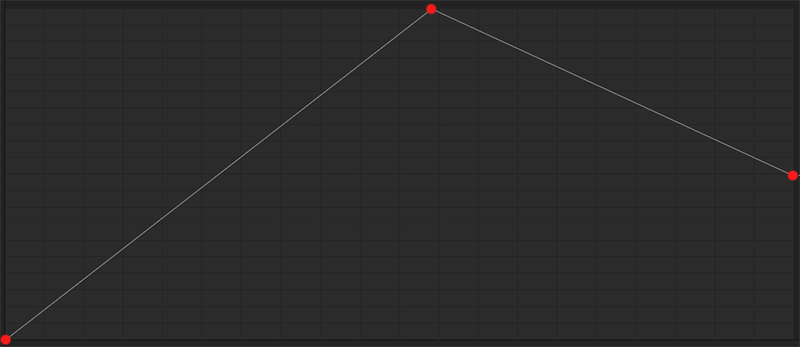 Here, three values stored in the cache are symbolically represented by red dots. In order to be able to output intermediate values, linear transitions are calculated between the cache values, along which new, interpolated values can be calculated.
- Cubic: Cubic interpolation between the stored particle values ensures a smooth, harmonious transition. In this mode, however, values can also overshoot, which means that position values can also result that lie outside the originally saved value spectrum. The weighting of this interpolation can be influenced via the value for Tangent Scale. The larger this is selected, the further the interpolation of the neighboring values is shifted to the time center between two stored values. The stored values are therefore retained for longer, even if a slightly earlier or later time is interpolated from the cache.
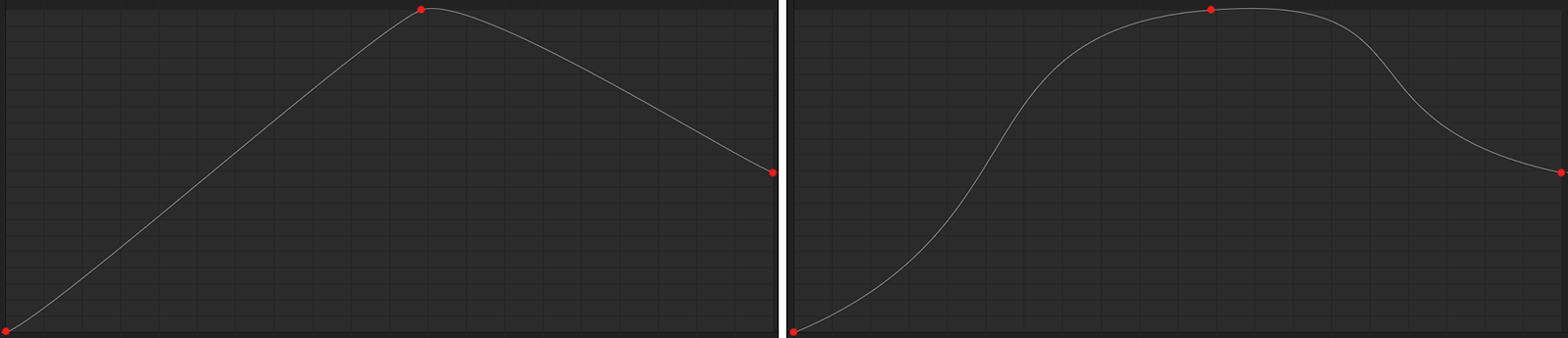 Here, three values stored in the cache are symbolically represented by red dots. In order to be able to output intermediate values, cubic transitions are calculated between the cache values, along which new, interpolated values can be calculated. These cubic transitions can be controlled by Tangent Scale. A small Tangent Scale is shown on the left and a large tangent size on the right. As can be seen to the right of the middle data point, overshooting can occur in this mode. Values are then also output in this time range that may lie outside the value range defined by the neighboring data packets.
- Cubic Monotone: This type of interpolation works in exactly the same way as Cubic, except that overshooting values cannot occur. All interpolated position values of the particles remain within the range defined by the values stored in the cache. Otherwise, the interpolation can also be influenced in this mode by the value for Tangent Scale.
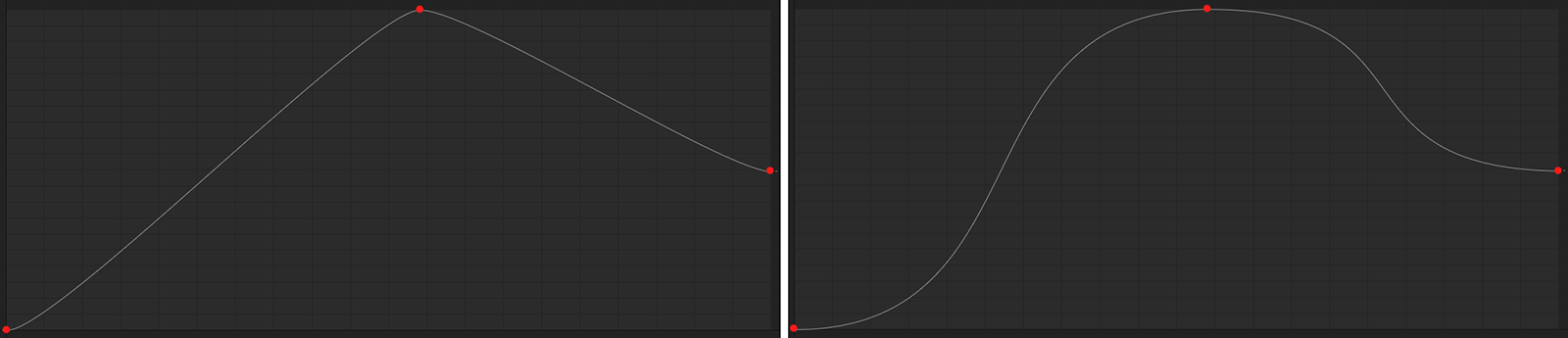 Here, three values stored in the cache are symbolically represented by red dots. In order to be able to output intermediate values, cubic transitions are calculated between the cache values, along which new, interpolated values can be calculated. These cubic transitions can be controlled by Tangent Scale. A small Tangent Scale is shown on the left and a large Tangent Scale on the right. This avoids overshooting interpolations.
This setting can be used to control the Cubic and Cubic Monotone interpolations. The larger this value is, the longer the stored cache values are held before interpolation with a neighboring cache value takes place. Take a look at the example images above.

You can use this curve to influence the playback speed of the simulation in the Alembic file. Normally, a frame of the simulation is read from the file for each new animation frame of your scene. The playback speeds remain unchanged as a result. This corresponds to the use of 100% Speed and a linear curve running from bottom_left to top-right. Accordingly, the left edge of the graph represents the start of the saved simulation and the right edge represents its end. The height of the curve represents the progress of the readout in percentage terms. Using a sweeping curve, for example, a Bullet time effect can be simulated, i.e., a frozen time in which the simulation is slowed down or even frozen for a short time before it picks up speed again. The more horizontal the curve is, the slower or even frozen in time the simulation appears. The steeper the curve, the faster the simulation playback. The following video provides a simple example of this.
The simulation can also be reversed at any time if a curve section runs from top-left to bottom-right.
As is usual with such curve elements, created curves can also be saved for reuse in other projects or other Simulation groups using the Save Preset... button. Stored presets for such curves can be accessed at any time using Load Preset....