
Basic
This setting can be used to change the Node’s name. If you happen to forget what function a given Node has due to its modified name, its original name will still be shown in the Info area of the Node Editor when the Node is selected.
Each Node can be modified due to program updates or other changes. This is why the Nodes use a type of version number internally. Using this menu, the desired version can be selected or the latest version can be used to ensure that the most current version of the Node is used.
More information about versioning can be found under the Version tag.
To maintain an overview when working with complex Node setups, Nodes can be colored individually (some Node types already have a color assigned to them).
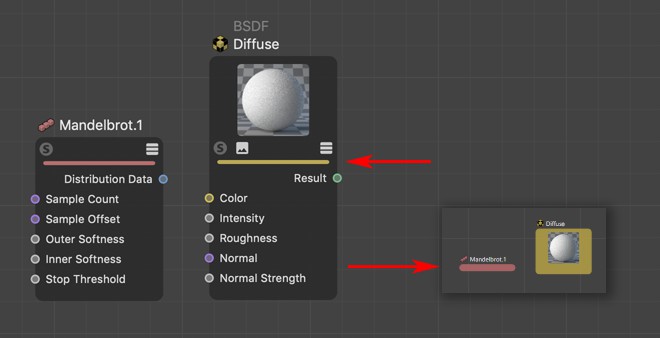 Right: Node display when zooming out.
For Notes, this also defines the color of the background. Activate the Transparent Background option if you want to use only the comment as text, without any colored background.
These 3 options reflect the 3 port commands in the Node menu of the Node Editor for the respective options. Here you can essentially define if and which ports should be shown.
- Expanded/Collapsed: See Show All Ports.
- Connected: See Show Connected Ports.
Here you can define for each Node individually, if a preview - not all Nodes have one - should be displayed.
This can also be done interactively directly in the Node view by clicking on the 2nd icon from the left over the color bar.
In the Preferences menu (Node Editor tab), you can also define the preview display visibility for all new Nodes that will be created.
Here you can define if any Node comments should be displayed in the Node view under the respective Node:
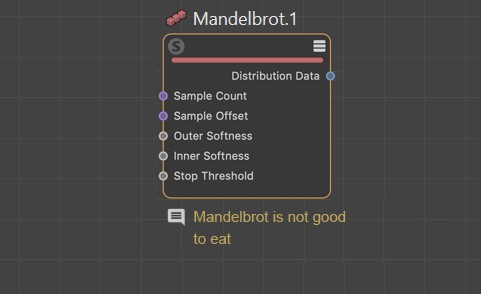
This can be done interactively in the Node view for existing comments by clicking on the Comment icon on the left under the Node.
Here you can enter your comment. Longer texts will be displayed in abbreviated form in the Node Editor.
Here you can find different presets for the size of the displayed Note texts in the Node Editor.
Enabling this option will hide the Color field and the Note outline, so that only your text appears in the Node Editor. The Note can still be selected by clicking on the displayed text in the Node Editor. The outer boundary of the Note will then also be visible and can be dragged sideways directly with the mouse to customize the width of the Note and thus the formatting of the text within it.