
Pins
Here you can select the appearance of the symbols to be displayed at the readout locations. You can choose between:
-
None: No symbols are drawn on the locations.
-
Thumbtack: The locations are marked with a thumbtack.
-
Pin: The locations are marked with a pin. This form is much thinner than the thumbtack, but still easily recognizable by the small ball at the top.
-
Flag: The places are marked by a symbolic flag.
-
Marker: A teardrop-shaped symbol with a circular opening at the top. Similar to the symbol used by navigation systems to mark locations.
-
Button: A teardrop shape, but this time flat, containing a circular depression at the top.
-
Icon: Similar to the button shape, but with a flag icon in the header.
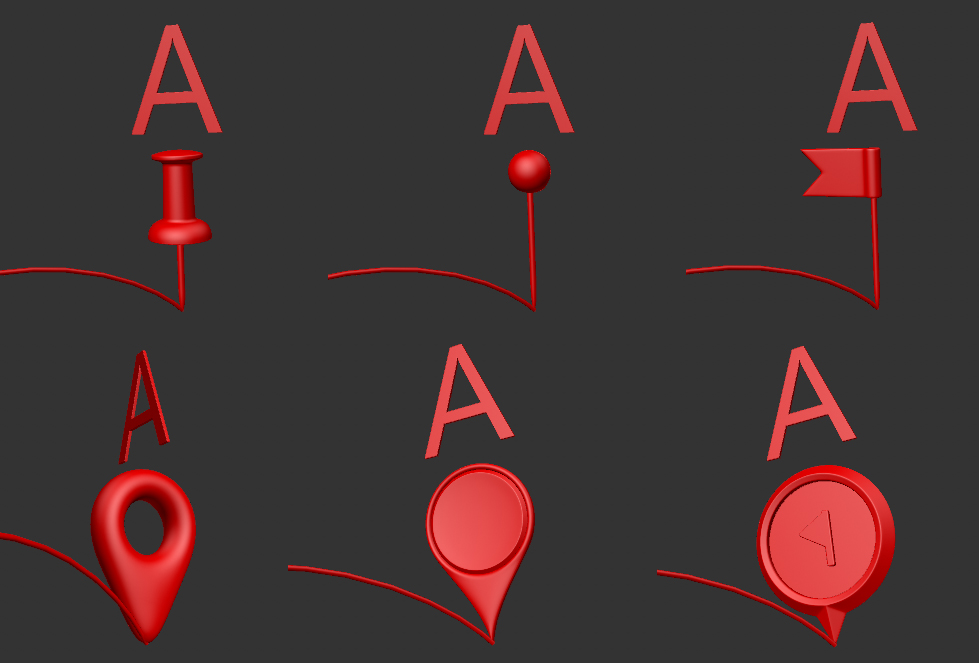 The top row shows from left to right the shapes thumbtack, pin and flag. Below it, from left to right, are marker, button and icon.
This value can be used to select the size of the selected pin symbols. Negative values are also possible, whereby the markings are then displayed within the surface of the sphere.
This menu allows you to define the color scheme of the pins and the place names on them. Alternatively, materials can also be assigned. The following modes are available:
-
Constant: A simple color value is used, which is used for all pins and place names.
-
Map Height: If available, the height values from your CSV file are evaluated and internally sorted by size. The place with the lowest height gets the color from the left edge of the gradient, the place with the highest height is colored with the color from the right edge of the gradient. The remaining location will receive corresponding colors from the appropriate position within the gradient.
-
From color column: Here the HEX color values from your CSV file are evaluated. This way you can even assign each pin and place name its own color value.
In the "Constant" color mode, the desired color can be specified here.
Details about using the color gradient can be found under Color Gradient in Nodes.
The percentage position of a selected color gripper on the gradient.
Sets the blend point to the following color gripper. Only in the case of step interpolation does this value no longer have any function, since in this case there is an abrupt transition between the colors.
Here you can assign a material by dragging it from the "Material Manager", which will then be used for the lower part of the pin symbol.
Here you can assign a material by dragging it from the "Material Manager", which will then be used for the header of the selected pin shape.