
Face and body captures
General
As soon as you start a capture session on the Captures home page using the Face or Body buttons, you will be presented with an interface which, in the case of face captures (for everything concerning object captures: see there. and it looks something like this:
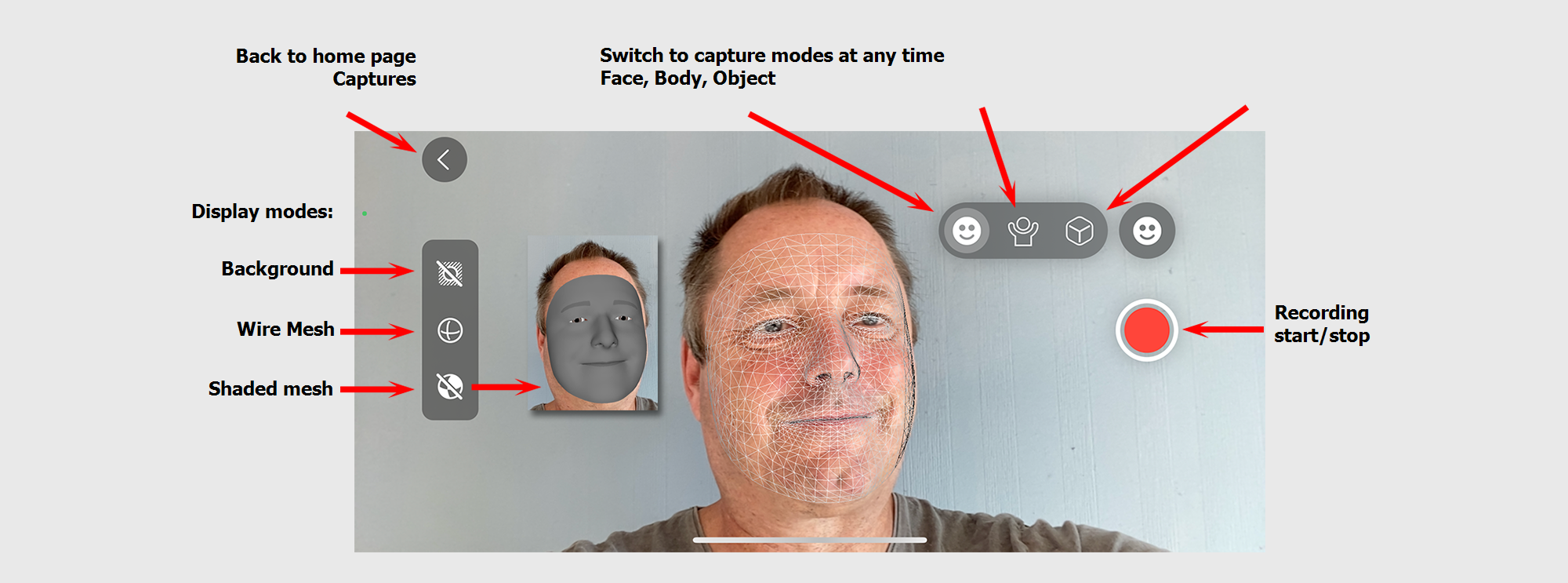
You will find these controls, which may be located in different positions depending on the device and orientation:
Record button
Press the red record button located on the right to start recording. Press it again to stop recording. For face captures, the camera located on the front is used, for body and object captures, the one on the back of your device is used.
Back button
This will take you back to the Captures home page. Any recordings that may be running are stopped.
Display modes
Here you can set how your face or body should be superimposed when recording. In a face capture, the detected face can be displayed as an overlay in the form of a polygon mesh with or without a wireframe.
You have the following choices (see also image above):
- Background: Define here whether only your face (as wireframe or mesh) or skeleton or also the - filmed - background should be displayed.
- Wireframe mesh: Set here whether the detected face should be displayed as a wireframe. The wire mesh can be combined with the next option.
- Shaded mesh: Here you decide whether the detected face should be displayed as a shaded polygon mesh. This can be combined with the previous option.
With these 3 options you can switch between the 3 capture modes at any time: Face, Body or Object.
If you are recording and change the mode, the recording will be stopped and saved.
Body Capture Tips
When you switch to body capture mode, you are prompted to point the camera at your actor. Once the app has detected the actor, a skeleton overlay will appear and you can now press the record button.
Motion capture tips
- Your actor should wear contrasting clothes with regard the background. For example, if the background is dark, the clothes should have a light color.
- Wearing loose-fitting clothing such as baggy jackets or skirts/dresses is not recommended, as these will cover the performer's arms and legs.
- When recording, the performer should make slow movements and try not to cross their arms or legs too much.
- The capture quality is affected by many different parameters, including how up-to-date your Apple device is, how good the lighting quality of the scenery is, the actor movements, and other factors.