

Object
Here you will find various options for subdividing the inserted spline, allowing you to control the arrangement and number of segments:
- Length: The Length value can be used here to specify the desired length for each segment. Depending on the length of the output spline, there may still be segments with a different length.
- Count: Use the Count value to set the number of segments.
- Percentage: In this mode, you enter a percentage value for Percentage that relates to the total length of the spline. This percentage value then indirectly describes the length of each segment created. As with Length, it is also possible that residual pieces of the spline remain and therefore not all calculated segments are the same length.
- Angle: The course of the spline is scanned for changes in direction. Wherever a change in direction exceeds the angle specified under Angle, a segment is ended or restarted.
- Points: Each existing spline point is used as a separation between the segments in this mode.
In Percentage Break mode, the percentage value is entered here, which refers to the total length of the spline entered and specifies the length of the segments as a percentage. Depending on the percentage value, segments with a different length may also be created at the end of the spline.
In Length Break mode, use this to specify the desired length for the segments to be created. Depending on the initial length of the spline geometry, segments may still be created at the ends of the spline that are shorter.
In Number Break mode, enter the desired number of segments here. This is the only mode that ensures that all segments have an identical length.
Use Angle Break mode to enter the limit angle at which a new segment is to be cut off at the spline.
The modes and settings described above ensure that additional points are added to the spline. The two options here determine what should happen with these subdivisions:
- Subdivide: In this mode, the new points are added to the spline without creating new segments.
- Split: The new points along the spline also create new segments, which can also be provided with a gap before the start and end of each segment via the Gap value.
In Separate Mode, an absolute distance can be specified here, which should be the gap between the segments. The length of the segments is shortened accordingly by this gap.
Without this option, the spline output already begins and ends at the gap specified under Gap. If this option is activated, the first and last points of the original spline remain unchanged and directly specify the boundaries of the first and last segments.
With an Offset of 0%, the calculation of the subdivisions and segments starts directly at the first point of the spline. By changing the Offset, the starting point for the additional subdivision and segment calculation can be moved along the initial spline.
Positive bias values automatically shorten segments the closer they are to the start point of the spline. Negative bias values shorten the segments at the end of the spline. Only with a value of 0% can the segment lengths be calculated evenly along the entire spline. In any case, the calculation of the Gap sections between the segments remains the same size. Note this when using larger or more negative bias values. The segments can become so small near the ends of the spline that they disappear completely after deducting the Gap sections.
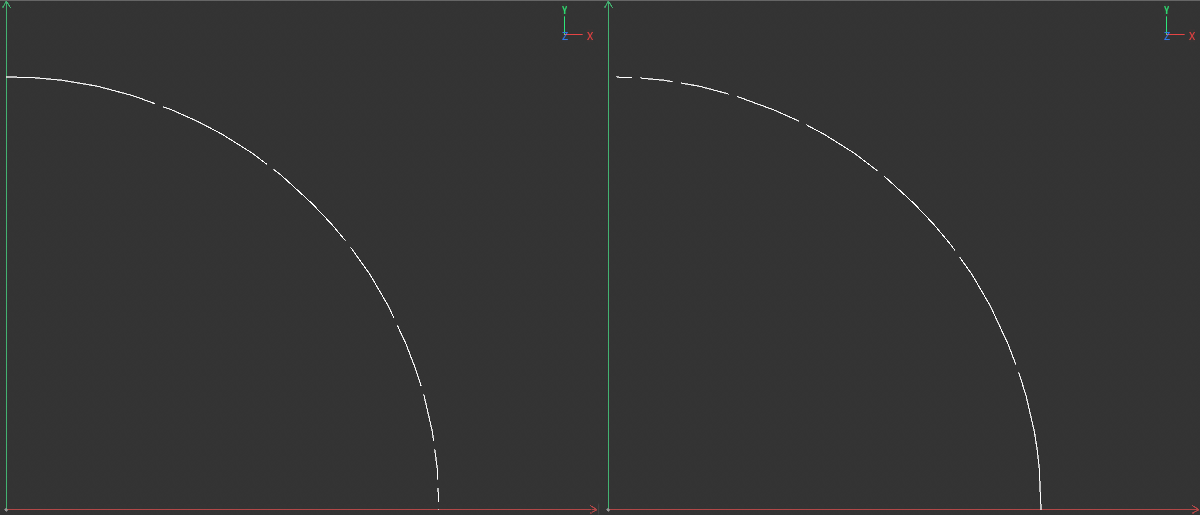 Here, a simple arc spline has been assigned and subdivided by the spline interpolation modifier with additional segments and gaps. On the left, a slightly positive value for start/end bias has been used. This shortens the segments near the start of the spline. Negative bias values have the opposite effect, as can be seen on the right.
The lengths of the segments can also be varied randomly. You control the intensity of this variation using the Randomness value. Two methods are available for calculating the new segment lengths:
- Random: This results in a completely random variation of the segment lengths. The result can only be changed by changing the Seed value.
- Noise: You can choose between known noise structures that are sampled to control the segment lengths.
The higher the percentage value, the stronger the influence on the Random or Noise-controlled variation of the segment lengths.
 Noise
Noise
Here you select the desired noise pattern that is sampled in Noise Random Mode to vary the segment lengths. You can find an overview of the different types of noise here, for example.
This value controls the amount of detail and density of the selected Noise pattern. Higher values sharpen the noise structure and result in more structural variation. Lower values soften the noise and therefore result in less detail.
The larger this value is, the greater the variations between the segments will be. With small values, the Noise structure used increases so much that changes between neighboring segments are less pronounced.
The Noise structure can be automatically animated and varied over time. The higher this value, the faster the noise changes. At a Speed of 0%, the noise remains static.
If the change in the Noise structure is to be repeated at a specific time rhythm, you can enter the desired time period here. If you enter 0, the noise calculation will not be repeated.
You use these values to define the brightness range that should occur in the Noise structure. The value range between Low Clip and High Clip therefore specifies which and how many different values can be generated.
This can be used to adjust the overall brightness of the noise structure. In practice, it can be used to shift the result of the noise sampling towards the Low Clip or High Clip value.
This sets the contrast of the Noise structure.
The random calculations and also the selected Noise structures are based on this numerical value for the variation of the segment lengths. A change in this value will therefore also lead to a recalculation of the segment lengths.