
Thumbnail View
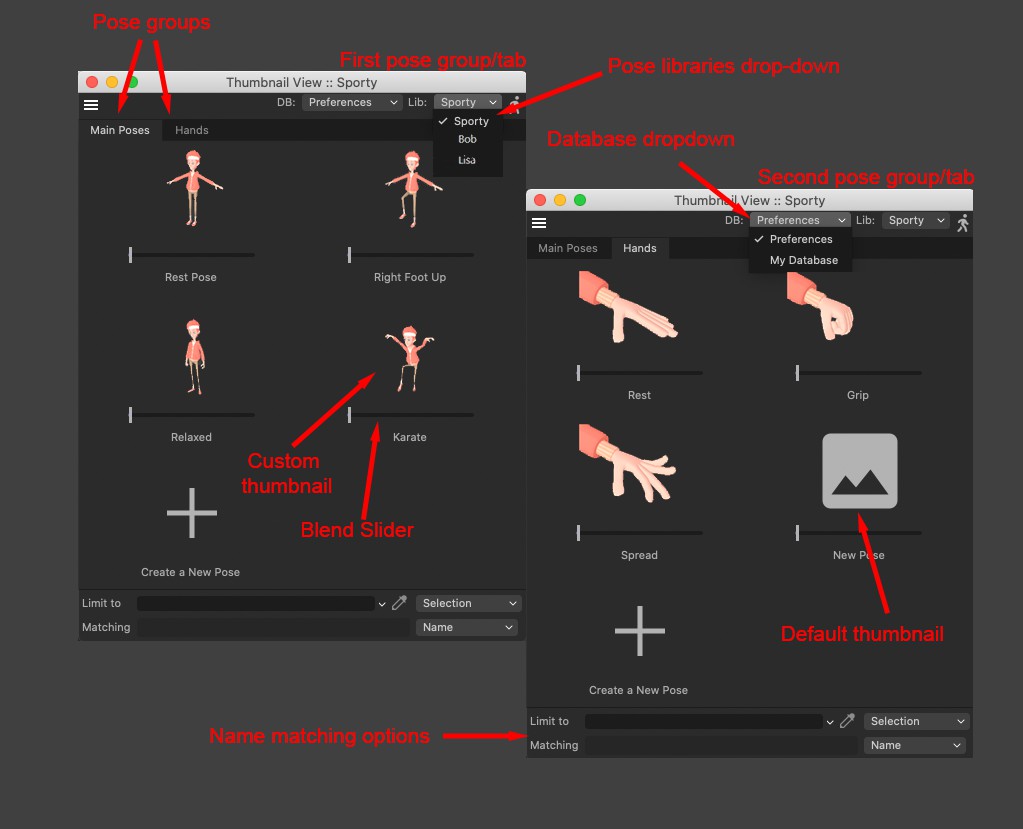 The Thumbnail view is organized by tabs, each tab representing a group of poses. You can double-click thumbnails to apply poses at 100% strength, or use the blend sliders to create a blend between several poses.
This manager is mostly used when applying poses. It focuses on visual identification of poses via thumbnails and allows the user to blend and apply poses easily. This view is tied to the Pose Library Browser, and reflects what has been added there.
Pose Groups Tabs
Each Group added to the Pose Library Browser list will be displayed as tabs in the Thumbnail View. Switch between tabs to access the poses for each group. This is useful to organize your poses into their relevant groups (for example, full body poses, hand poses and so on…).
DB Drop-down Menu
This menu allows you to easily switch between databases and display their contents in the Thumbnail view.
Lib Drop-down Menu
This menu allows you to easily switch between libraries stored in the currently displayed database.
Open Browser View
Use this command at the top right to open the Pose Library Browser.
Pose Thumbnails/Apply Pose
Each pose is represented by a thumbnail. If no thumbnail has been created, a default thumbnail will be displayed. Click on a thumbnail to apply the pose at 100% strength.
Blend Slider
When you apply a pose using blend sliders, you enter a "Blend session”. This means that you can adjust and blend poses as much as needed, but they will only be applied once you hit the Enter key or click outside the Thumbnail View manager to confirm the pose. If you wish to cancel your blend session without applying a pose, use the Escape key, and the character/object will revert to its previous pose.
Create a New Pose
You can also quickly add poses from the Thumbnail View if needed, by using this command. Note that this command will also create a thumbnail automatically, along with the pose.
In S24, tags are now fully supported and can be stored in a pose. To store a tag from the Thumbnail view, select the object to which the tag is applied to and record a new pose. The object PSR values will be added by default, so you will need to remove them from the Pose Library Browser's Content field manually if you wish to only record the tag's parameters.
Note that only tag parameters that are part of a keyframe selection or contain an animation track will be taken into consideration.
Limit To
Since poses are not saved with the scene file, applying a pose to an object is done by matching the names of the objects in your scene, to the names of the objects recorded into your pose. Use these matching and filtering rules to define how the search for name matching is restricted and applied. This is extremely useful to restrict poses to a specific character or part of a character, for example.
Global
This mode will apply the pose without any restriction. It will search the whole scene for objects with matching names. If your scene contains several characters with similar naming conventions (for example, the left hand controllers of all the characters in your scene are labelled "Hand_Left”), it will apply the selected pose to all characters at once.
Selection
This mode will restrict posing to the currently selected objects. This can be useful if you want to do partial posing, for example, by restricting the pose to the hand controller only, or maybe by posing the whole body without affecting the head orientation of a character, for example.
Sel. Hierarchy
This mode will restrict posing to the currently selected object and its hierarchy. It allows to easily restrict posing to specific objects and their hierarchies, without having to select each object individually. Much like the Selection mode, it can also be used to assign partial posing to your characters or objects, but without having to select each individual controller to do so.
Limit To Field
Use this field to define which object and subsequent hierarchy you would like the pose to be applied to. If you have two characters in a scene that share the same naming convention for their objects, for example, this is a useful way to restrict the posing to a specific character without affecting the other. It also allows you to always assign the poses to the same objects or character or set of controllers, regardless of what is currently selected in the Object manager.
Matching
Use these options to restrict the application of poses by using name modifiers.
As a user case example, let's assume we have two characters in the scene, the first character has a hand controller named "Character1_Hand” and the second character has a hand controller named "Character2_Hand”. The recorded pose we are trying to apply is recorded with an object named "Hand”.
One the other hand, if your scene contains several characters, and each character uses a similar naming convention, then you can either restrict the application of poses using the Limit to options if you do not wish to rename your objects, or rename each character's objects with a prefix to allow the Pose tools to identify which one you would like to target.
Name
The Pose Library will look for objects matching the name of our posed object one to one. In our case, none of the hand controllers of our characters are labeled "Hand”, so the pose will not be applied to any of them.
Namespace
Using this mode, you can add a prefix to be used when matching for names. If we add the prefix "Character1_” to the text field, the pose will then be matched and restricted to the hand controller named "Character1_Hand” in our example.
Match to End
This mode will start from the end of the object names and will be stopped once the name searched is complete. In our example, both our characters’ hands controllers have the word "Hand” at the end of their names, so both controllers will be posed.
Separator
This mode is usually intended to be used with Xrefs, but can also apply to other cases where your naming convention makes use of separator characters. In our example, adding the "underscore” separator ("_”) to the text field will match both our characters’ hands controllers, since they both contain an underscore character in their names.