
Tips and Tricks
Interaction between Dynamics and Cloner Objects / Effectors
The workflow is generally as follows:
- Use clone-generating objects and Effectors to create an initial state on which Dynamics, in a second step, can have an effect.
- Assign a Dynamics Body Tag to all respective objects. As soon as Dynamics takes effect it will take over control of these objects.
- You can still animate back-and-forth between Dynamics and non-Dynamics states.
Primitives
Clones that are made up of Primitives and are affected by Dynamics should not be made editable unless absolutely necessary. The internal collision algorithms that are used will automatically be optimized when used on spheres or cubes. Primitives that have been made editable should be defined as a Box or Ellipsoid in the Collision menu's Shapeparameter.
Stacking
How can objects be stacked in order to create an initial state from which the objects can be made to collapse?
Simply stack the Clones flush on top of each other - with no gaps between them. If you want to eliminate a moving of the Clones or a damping effect between them when the animation starts, increase the Steps per Frame value ().
Alternatively you can first activate the Dynamics effect when an object collides with the stack (Trigger On Collision). The stack will be at complete rest until the moment of impact, upon which Dynamics will take effect.
If you want to try your hand and exploding a stack of Clones you can take advantage of a special feature of the Bullet engine: if the Clones overlap when the animation is started they will fly apart with more force. The more they overlap, the greater the force with which they will fly apart.
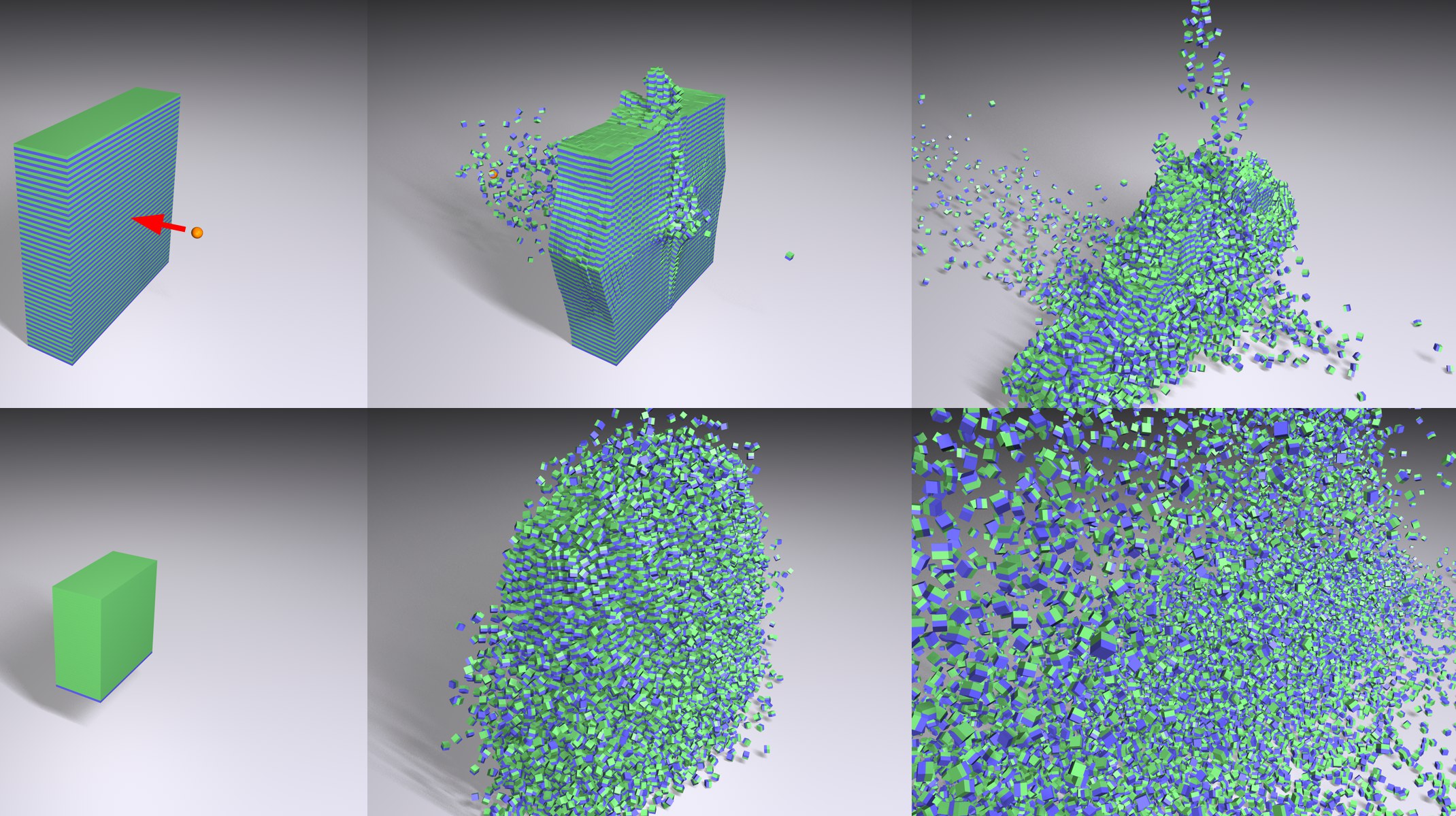 At top: an object passes through a stack to make it collapse. At bottom: a stack of overlapping Clones explodes.
The Party's Over
Let's say you create an animation in which you pour a large number of Clones into a box. After you render the scene you notice that the Clones still have not completely come to rest, even ten seconds into the animation. There are several ways to keep these Clones quiet:
- Increase the Linear Damping and Angular Damping values.
- Reducing the Bounce value and increasing the Friction value will also help take the energy out of the Clones.
- Increase the Linear Velocity Threshold and Angular Velocity Threshold values.
- If this doesn't help just use steamroller tactics: If Time Scale is set to 0 the simulation will freeze instantly.
Generally speaking, Damping are well-suited for bringing dynamic movements to a rest. For Soft Bodies, damping can even be defined precisely at vertex level.
Different Simulations Using the Same Parameters
Physical simulations tend to deliver different results if even the slightest "environmental" factor is altered. A different operating system, processor or Cinema 4D version, a different FPS value in the Scene Settings, a further object included in the simulation (does not even have to take part in the collisions), an approaching thunderstorm (well, maybe not the thunderstorm … ) can all lead to entirely different results. There is a solution, though, with which a single simulation process can be set for eternity (this is also very advisable when using Team Render): a simulation can be baked using the Dynamics Cache Functionality. Then it will be set for life.
Dynamics and Priorities
Internally, the MoGraph Dynamics’ Priority is fixed to Generators/400. Normally, this is a value that you will not have to change. If, for example, Dynamics should affect other areas (e.g., HAIR) the priorities will have to be modified (i.e. those for HAIR):
- If objects moved by Dynamics should in turn affect HAIR the Priority must be set to 401.
-
If data from objects moved by Dynamics should be output via XPresso, the following applies to the XPresso Tag’s Priority:
- If the priority is less than 0 the data of the MoDynamics Clones from the previous animation frame will be output.
- If the Dynamics priority is greater than 0 and less than 400 the data will be output as if Dynamics had no effect at all (i.e. the Clone object or Effector effect only).
- If the priority is greater than 400 the Dynamics data of the current animation frame will be output.