
Sprite
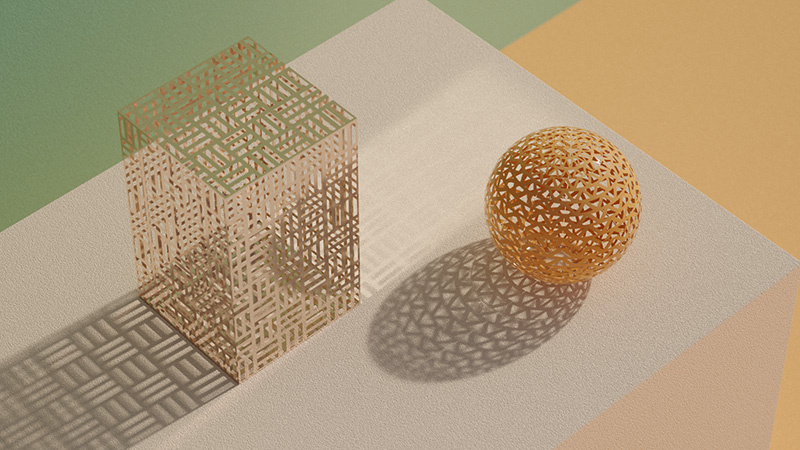
This page documents the Sprite node of the Redshift renderer in Cinema 4D. It renders hard opacity cutouts far faster than standard transparency — ideal for leaves, grass cards and billboards — at the cost of semi-transparency support.
The Sprite node can render transparencies much faster than standard Opacity cutouts and does not rely on Transparency Trace Depth. However, the Sprite node does not support semi-transparency and the stencil textures cannot go out-of-core.
|

|

|

|
| Scenes by Saul Espinosa | |||
Sprite vs Opacity
When a ray hits a polygon using opacity, Redshift has to execute operations to read the texture at that location, setup the next transparency or refraction ray and so on. These operations are wasteful if the ray hits an area that is completely transparent but the process can't be skipped because that part may be semi-transparent and Redshift cannot assume otherwise. Because of this, the transparency trace depth has to be increased in order to prevent rays from being terminated prematurely which introduces visual artifacts. The Sprite node, on the other hand, is optimized to skip fully transparent parts of a polygon and with very few operations.
In the examples below trees are rendered using Opacity for transparency effects and the Transparency Trace Depth is animated from 0 to 24. Note that when the trace depth is low transparency rays are terminated too early resulting in a tree that looks sparsely covered in leaves when it should be dense. This artifact becomes even more apparent when you have multiple trees like a forest setting.
| Method: Opacity Transparency Trace Depth: 0 - 24 |
|
| Tree model from the C4D asset library by Laubwerk | |
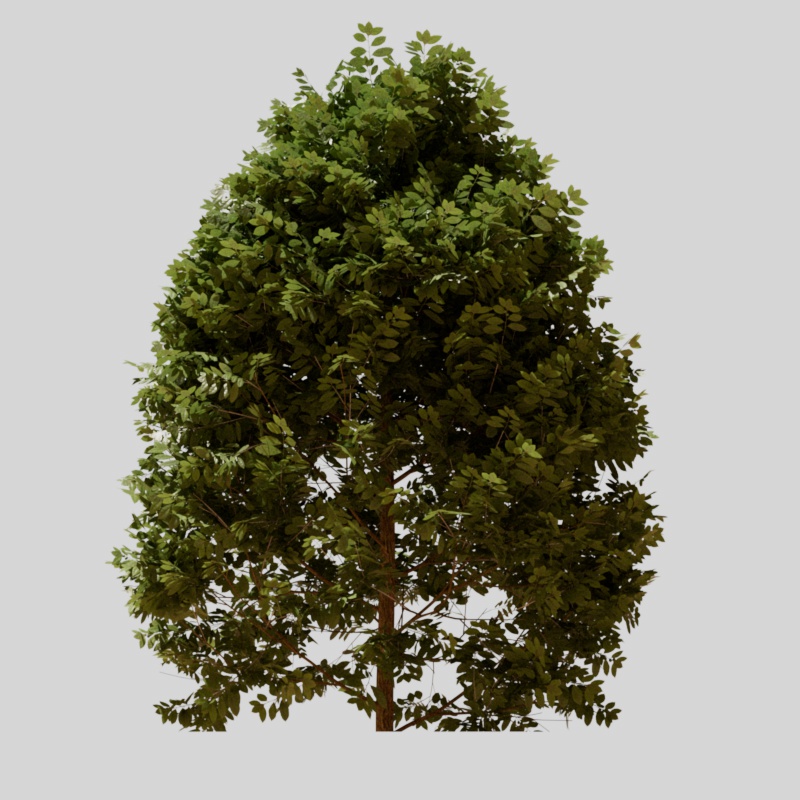
To fix this, the Transparency Trace Depth must be raised but this comes at the cost of performance depending on how high you need to go. In the examples below the render settings are exactly the same except the Transparency Trace Depth has been set to 32 for the Opacity method while the Sprite method can be set to 0. The Sprite method is able to render ten times faster than the Opacity method with no impact to image quality.

|
|
| Method: Opacity Render Time: 2:26 Transparency Trace Depth: 32 |
Sprite 0:14 0 |
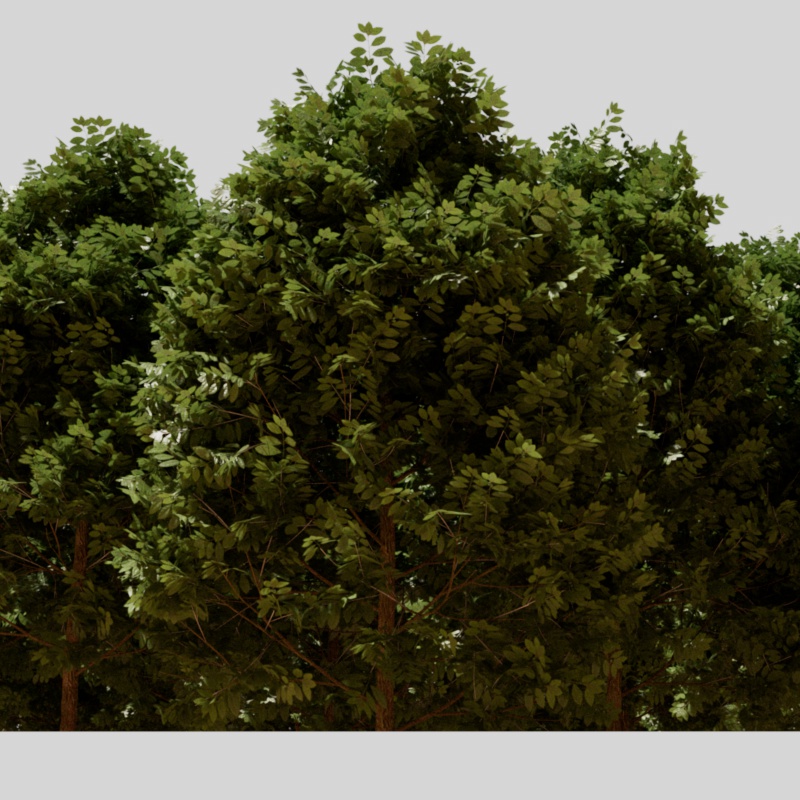
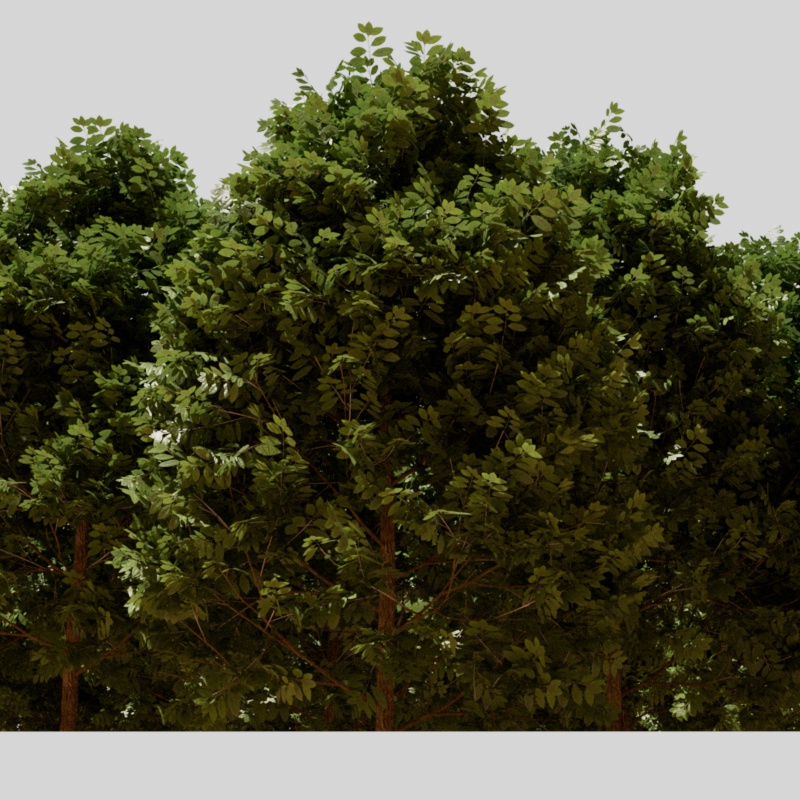
The difference is compounded when you need more Transparency rays, this time the Sprite method renders almost fourteen times faster than Opacity. Again, the render settings are identical except for a Transparency Trace Depth of 32 for the Opacity method and 0 for the Sprite method.
|
|
| Method: Opacity Render Time: 6:21 Transparency Trace Depth: 32 |
Sprite 0:28 0 |
Limitations
The Sprite node's ability to render transparency more efficiently comes with some limitations.
- The Sprite node does not support semi-transparency.
- Stencil textures used by the Sprite node cannot go out-of-core. If too many high-resolution stencil textures are used Redshift may run out of GPU memory.
Because the Sprite node does not support semi-transparency it will always result in a harsh cutoff. Meanwhile, opacity supports a soft transition from opaque to fully transparent. In the examples below a black and white gradient has had its contrast animated from 0 to 1. This results in the transition between black and white shifting over the course of the animation, the transition starts slowly until it becomes abrupt. Take note of how the sprite node cannot demonstrate any sort of soft transition, instead the Opacity Threshold cutoff of 0.5 moves with the contrast animation as the color values change. This demonstrates the main difference between sprite vs opacity.
| Method: Sprite | Sprite |
| Method: Opacity | Opacity |
Example
There are 3 requirements for setting up a Sprite shader.
-
The Sprite node must be the last shader in the node graph before the Material Output.
-
A material shader, like a Standard Material, must be routed into the Shader Input. This is responsible for the primary beauty rendering.
-
A texture must be connected to the Stencil Shader input or (not shown) loaded externally via the file path to perform the cut out.
The example below illustrates the Sprite Node using texture baking via the Stencil Shader input.
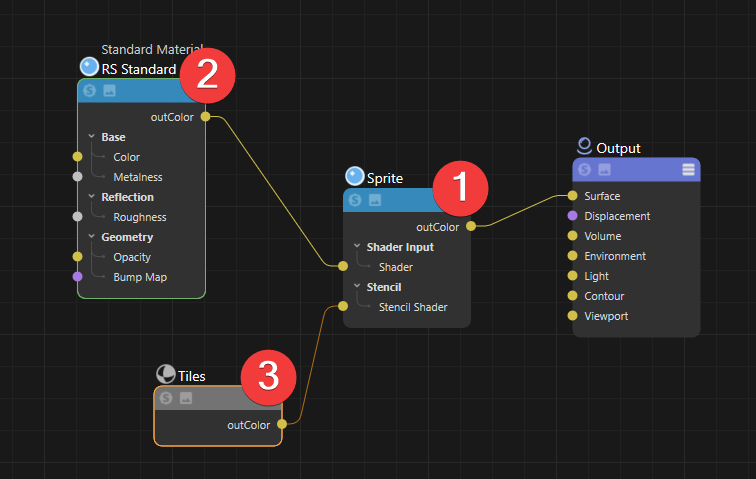
|
Warnings and Errors
The Sprite shader node settings must be correct in order for it to function. Here are the conditions:
- A texture map file must be assigned.
- The texture space uv channel assignment must exist in the mesh the material is assigned to.
If one or more of these conditions are not met, the sprite shader will be disabled. When there is a texture space miss-match, Redshift will also issue a warning or an error ( see below).
Proxy Mesh
If you wish to assign a new material with a sprite node to an imported proxy mesh, it is important to make sure the texture space uv channel property that your new sprite shader will use was exported with the proxy. If the proxy mesh does not contain the named uv channel, you will see this warning:
Mesh 'NAME' is a proxy and is using a sprite shader node that is referencing a uv channel that does not exist on the original exported proxy.
Instanced Mesh
As with Proxy Meshes, an instanced mesh (or model) template must contain the texture space uv channel property that your new sprite shader will use. If the instanced mesh does not contain the named uv channel, you will see this warning:
Mesh 'NAME' is instanced and its instances are using a sprite shader node that is referencing a uv channel that does not exist."
Another more problematic situation will arise if your instanced mesh template uses a sprite shader that references a
different uv channel to the instance, but both channels exist. In this case, you will actually get the following error message and rendering will be aborted:
Mesh 'NAME' is instanced and its instances are using a sprite shader node that is referencing a different uv channel to the template. Aborting rendering.
Instanced Proxy Mesh
An instanced proxy mesh will have had its sprite node uv channel baked into it on export (if it exists and is even using a sprite node shader). So, bearing this in mind, if you instance a proxy mesh, the original proxy material must also be using a sprite node with a matching uv channel to your instance. Failure to do this will result in the following error and rendering will be aborted:
Mesh 'NAME' is instanced and its instances are using a sprite shader node that is referencing a different uv channel to the one exported with proxy template. Aborting rendering.