

Flock
This value is used to regulate the overall strength of the Modifier with all its effects, which are controlled via the following parameters.
The simulation of attractive and repulsive forces also leads to changes in the individual velocities of the particles. This setting can be used to define a maximum speed that cannot be exceeded.
This sets which accuracy and which method is used to determine the immediate neighbors of each particle. This setting is particularly important for simulations with a large number of particles. This also affects the Closest Particle ID and Neighbour Count Outputs.
The term 'particle neighbors' used in this context depends on the radii that you find in the Flock settings of the modifier. The largest value set for the Cohesion Radius, Separation Radius and Velocity Alignment Radius parameters is generally used. All particles that are within this distance of the particle currently under consideration are evaluated for the modes described below:
- Fixed: This procedure was used as standard in C4D versions prior to 2025.2. Although it can be calculated quickly, it is not very precise for simulations with many particles. This is because there is an internally defined upper limit for the search for neighboring particles. This fixed limit is approx. 3500 neighboring particles. If more particles have to be checked in the immediate vicinity than this limit allows, these surplus particles are simply ignored. The value issued is therefore limited. For simulations in which the number of neighboring particles is not higher than this limit, this method can still be accurate enough. Otherwise, the Dynamic setting offers greater precision for simulations with a large number of particles.
- Dynamic: This mode is an improvement on the Fixed mode, because here you can specify an upper limit for the search for neighboring particles yourself via the value for Maximum Checks. You can find this setting by opening the small triangle to the left of Neighbour Search.
If you adapt Maximum Checks individually so that the number of neighboring particles found is lower than this upper limit, a precise result is always achieved. In addition to this setting option, the method used to search for neighboring particles is also different. This is more flexible and efficient compared to the Fixed mode. - Full: This mode works in the same way as Dynamic, except that you do not have to specify an upper limit for the number of neighboring particles. The counting of neighboring particles is always complete and therefore 100% accurate. However, this is also the most time-consuming and therefore slowest method, as there is no termination criterion for the search for neighboring particles due to the lack of an upper limit. All particles are always run through and checked to see whether they are within the maximum permissible distance.
The following illustration clearly compares the practical differences between these methods. This is the same simulation in each case, in which three million particles are emitted. These particles react to a Flock modifier, which also saves the number of neighbor particles in a custom property (see Output settings on the modifier). This number is finally made visible via a Color Mapper by coloring particles with many neighbors white and with few neighbors bluish. For this purpose, the Color Mapper uses a Lower default of 0 neighbors with blue and a Upper default of 5000 neighbor particles for white.
The following illustration shows the result in Fixed mode on the left. Since a process that is less optimized for very high particle numbers and also has an upper limit is used there, no area of the simulation achieves a perfectly white coloration.
The Dynamic mode can be seen in the middle, where the default value 6912 is used for Maximum Checks. Although we do not know the actual number of neighboring particles, this high value at least allows us to be more precise than with Fixed particles. The bright areas, which also achieve perfect white, are displayed correspondingly larger.
Finally, the result on the far right of the figure shows the use of Full mode, in which the precise number of neighboring particles is always output. This comes at the cost of a correspondingly longer calculation time, especially for simulations with a large number of particles.
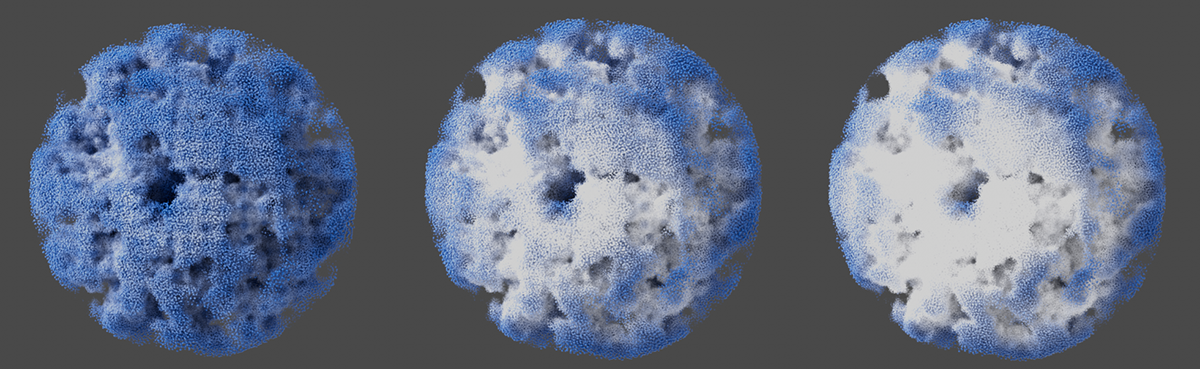 Here you can see the same image of a simulation with 5 million particles, which is colored according to the determined number of neighboring particles. Fixed mode was used on the left, Dynamic mode in the middle and Full mode on the right.
This setting is only available for the Dynamic Neighbour Search and sets the upper limit for the search for neighboring particles. This value may therefore need to be increased further for very dense simulations with a large number of particles. The aim here should be that the number of neighboring particles detected should always be less than Maximum Checks. This is the only way to ensure that the actual number of neighbors can be determined for each particle.
Otherwise, if the value is too small, the same problem may occur as with the Fixed Neighbour Search, where an unchangeable upper limit is used to search for neighboring particles.
The advantage over the Full setting for the Neighbour Search is that an individually adjusted value for Maximum Checks automatically aborts the calculation when all neighbors have been found, thus skipping unnecessary checks of more distant particles.

This controls the intensity with which neighboring particles attract each other. The radius in which this force of attraction acts is controlled by the following Cohesion Radius parameter.
This is the maximum distance from a particle at which a Cohesive Strength will still act on neighboring particles.
This is the intensity with which neighboring particles will repel each other. The radius in which the repulsive force acts is controlled by the following Separation Radius parameter.
This is the maximum distance from a particle at which a Separation Strength still acts on neighboring particles.
Velocity Alignment Strength[0.00..+∞]
This lets the flight directions of adjacent particles to be synchronized. This affects their flight direction and flight speed.
Velocity Alignment Radius[0..+∞m]
This is the maximum distance from a particle at which the velocities will still be equalized.
It can sometimes be helpful to transfer the movements of one Particle Group to the particles of other groups or to synchronize their behaviour. For these cases, you can link the particles whose behavior should not be changed here. Nevertheless, the positions and speeds of these particles will be evaluated in order to influence all other particles to which the Modifier has access. The following video shows an example of this. The green particles are generated by a circular spline and set in motion by a rotational force. The colored particles are generated to the side and then controlled exclusively via a Flock modifier. Within this modifier, the group with the green particles was excluded, which is why they remain unaffected.
This button can be used to create a new Particle Group that is automatically used as the Excluded Group(s).
This can be used to incorporate randomness into the application of the Flock modification.
This lets you control the influence that the noise structure has on the application of the calculated attractive and repulsive forces. The noise can lead to a loosening of the particle movements, especially when strong attractive or repulsive forces are used.
The Noise uses a three-dimensional structure, the size of which can be adjusted. A larger structure results in neighboring particles with similar noise values being affected. With a small noise, the probability that all particles use individual noise values increases.
The noise structure can change over time. This value controls the speed at which this change takes place.
The relationships between the particles controlled by the above parameters are all dependent on the distances between the particles. You can use these settings to influence the calculation of this radius and, for example, restrict it to an area in the direction of flight of the particles. Please note that this restriction is not used to Separate the particles.
The following angles require a reference direction from which these angles are plotted. Select this reference direction here:
- Velocity: The reference direction for the particles is defined by their individual direction of flight.
- Alignment Forward: The positive Z-axis of the particles is used as the reference direction
This defines the size of the opening angle around the selected View Direction. Each particle only reacts to its neighbors within this opening angle (depending on the different Radius settings). With the default 360°, the View Direction setting no longer plays a role, as each particle checks all the other particles all around it, regardless of its own flight direction and orientation. Please note that the separating forces on the particles cannot be restricted by the field of vision.
You can use this to control the influence of other particles that lie within the line of vision and within the Radius settings. The greater the decrease, the weaker the effect of particles as a function of their distance. For the full effect, particles must lie very close together. With a decrease of 0%, it no longer matters at what distance the particles are from each other, as long as they are only within the radius distances. Please note that the separating forces on the particles cannot be restricted by the field of vision.