

Options
Use this option to define how precise the cuts will be:
- Cut All: A single cut point along an edge or an edge on a polygon will be created where cut lines cut edges and polygons
- Split: 2 identical but disconnected points will be created at along the cut edges, which will split the mesh. If multiple cuts are defined, separate slices will be created.
- Remove Part A/B: One of the cut halves (behind the last cut plane) will be removed. Since it is not possible to accurately define which half will be removed, repeat the function with the alternative option if the wrong half was removed the first time (reversing the point order for the cut line will have the same effect). Make sure that the Cut Polygon option is enabled.
This works as described on the Introduction page.
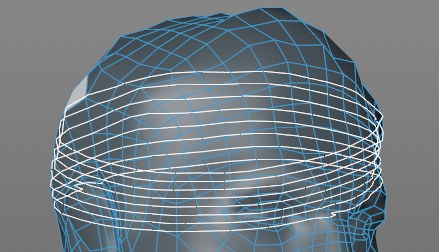
In this mode, white cut planes that can be moved with the mouse are used that are oriented to a certain coordinate system (Local = object coordinate system; World = world coordinate system; Camera = camera coordinate system). The cut planes along the coordinate system are defined using the following Plane setting.
There is no manipulator for these modes as is the case with the Plane Mode Free.
The layer cuts will be made here via mouse click.
Use this setting to define the coordinate system to which the cut layers should lie parallel.
When interactively creating cut planes, the plane position and rotation (and therewith also the manipulator) are entered into the world coordinates. If you want to enter these manually, you can do this at any time. At the far right you will find a drop-down menu whose settings let you rotate the cut plane parallel to a specific plane in the world coordinate system. For example, +X will rotate the cut plane perpendicular to the positive X axis. If the cut plane was positioned freely, Custom will be displayed automatically.
This value can be used to move the cut layers to one side of the cut line or the other (negative values can also be entered).
The Number of Cuts setting can be used to define any number of parallel cut planes. The Spacing value defines the distance between individual planes. Enable the Regular Slice option if the number of cuts should be spread evenly across the object's width.
If enabled, only selected polygons or edges will be cut.
If enabled, newly created cut lines will be selected (visible only in Use Edge mode).
If enabled, polygons will also be cut. Otherwise only edges will be cut.
If this option is disabled, the cut will be made linearly through the non-planar n-gons, i.e., the n-gon’s shape will be modified; if this option is enabled, the function will attempt to maintain the original shape by creating new points (at the cut location with the n-gon lines).
The tool existed before Cinema 4D had its own snapping functionality and therefore comes with its own snapping. You can deactivate this here and activate global snapping or not use snapping at all.
The tool's own snapping marks the cutting start point depending on the element approached:
- Point: green
- Edge: red
- Polygon: blue
This option can be enabled in the Plane mode, local, world, camera, to distribute the Number of Cuts evenly across a selected surface.
If this option is enabled, the cut line will be constrained to the angle interval defined by the Angle value. This can also be done without enabling this option by pressing the Shift key while creating cuts.
When editing the manipulator, the currently selected cut line ( white) can be displayed in realtime (option enabled; slower) or after the mouse button is released (option disabled; faster). A speed advantage can also be achieved when adjusting the manipulator.
Disabling this option is advantageous with regard to workflow speed when working with objects with very high subdivisions (e.g., 1 million or more points).