

XRef Objects
Use the Include or Exclude options to define whether the objects in this list should be included or excluded in the current scene. The checkmark or x-icon can be used to define how an element should be included or excluded. Note that when an element's icon is bold this setting will override the display defined for this element in the master scene. See below for more details.
The reference scene's entire hierarchy is displayed in this field. This hierarchy cannot be edited and serves the following purposes:
••
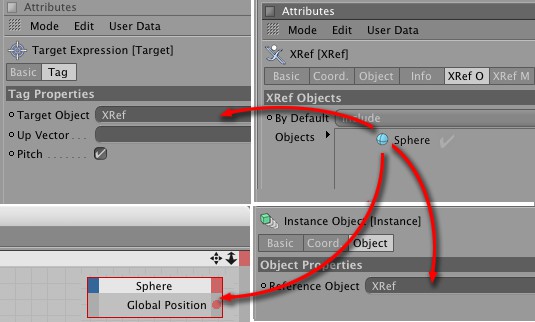 Referenced objects can be dragged into other fields or windows.
The reference scene's objects can be accesses from here. Simply drag the reference object onto an object field (or other location into which an object can be dragged) in the master scene.
-
From here objects can be dragged into the Object Manager in order to create a copy of that object in the master scene (this copy will be independent of changes made to the reference scene, with the exception of any materials that may have been assigned to the object, whose path will point to the reference material).
-
At the side of each listed object is an icon that can be selected:
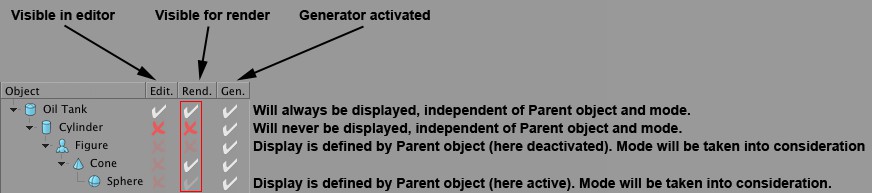 Relevant for the Include mode. Its behavior is the exact opposite when in Exclude mode.
The three columns, from left to right, define the following in the master scene:- Edit: Visible in editor
- Render: Visible for render
- Gen.: (Generator) object activated
If an icon is faded the corresponding element's state will be determined by its Parent object (does not apply to the Gen. column - the activation state of objects is hierarchy-independent). Entire hierarchies be quickly activated or deactivated simply by changing the state of the hierarchy's top-most object.Tip:If the icon is bold the Include or Exclude modes will be ignored and the element's display state will be defined directly in the scene itself. -
Right-clicking on an object will open a small menu with the following options:
Set Object As XRef Center: The XRef object's axis will be set to the selected object.
Reset World Center: Sets the XRef object's axis to the world center.