

Reproduce
You can use this option to switch the creation of particles on or off. There is also the option of controlling the reproduction individually, e.g., via keyframes.
Enter the number of new particles to be created here. The Scatter selected is decisive here.
This is where you control where the new particles are to be created:
- Per Particle: Each original particle will break down into a Count of new particles. This count can also be varied per particle.
- Distribute: The new particles will be distributed in the area between the original particles. This means that only as many new particles will be created as defined under Count.
With the Per Particle Scatter setting, the maximum change in the Count of particles that will occur per original particle can be defined.
The original particles will be automatically deleted. This is particularly advantageous when generating new particles per original particle, as it will actually create the illusion of particle decay.
If this option is disabled, you will have access to an additional Mode setting that can also be used to control the evaluation of the original particles.
If Kill Source is disabled, you will have access to these options:
- Once: Each original particle can only generate new particles once. The original particle will be retained.
- Constant: Each original particle will generate new particles in each frame and will also be retained. This means that many new particles can be produced very quickly. Therefore, only use a very small Count value in this mode at first and only increase it in small steps until you achieve the desired effect.
This option is active by default and ensures that particles will also be created in the time between the animation frames. This prevents gaps or steps in the particle flow.
The new particles will be generated on spherical surfaces whose radius you can define with this value.
Here you can define a maximum deviation from the position on a spherical surface originally defined via Offset for each newly-created particle.
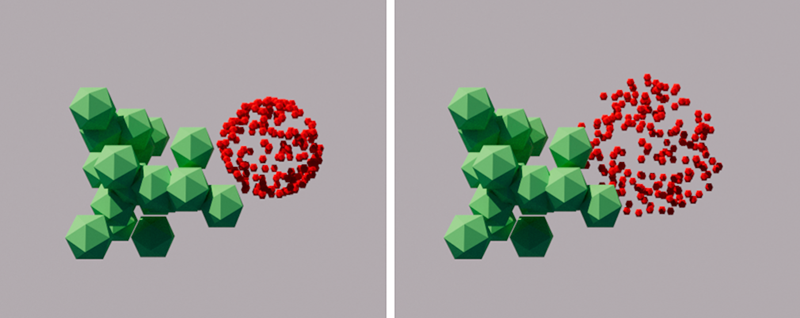 Here you can see the decay of a green particle into red particles. The new particles will be created on the left on a spherical surface with the radius Offset. On the right is the same scene, this time with an additional Offset Variance.
This value forms the basis for all random calculations of the Emitter. There are also many Properties settings that offer a random variation. These also use this Seed value.

Activate this option to manage the new particles in the same group as the original particles.
Here you can create the link to a Particle Group in which the particles generated by the Emitter should be managed. You can call up new groups at any time via the Simulate menu and assign them by dragging them into this field or use an existing group. This step is shortened by clicking the Create Group button. A new group is automatically created, which is linked for this Emitter. Clicking on the pipette symbol to the right of the group field activates a selection tool that lets you click directly on a Particle Group in the Object Manager to create a link.