
Object settings
The object of the list displayed above will be linked here. This link will be defined automatically if you selected objects during connector creation or dragged and dropped Rigid Bodies into the list.
You have the option of placing a MoGraph Selection tag here. All clones selected here can be assigned a connector. Deselected clones will remain connector-free!
Reference axes are required wherever angles are measured. This is the case with a Hinge Connector, for example. Here, the rotary movement can be limited to a specific angle range.
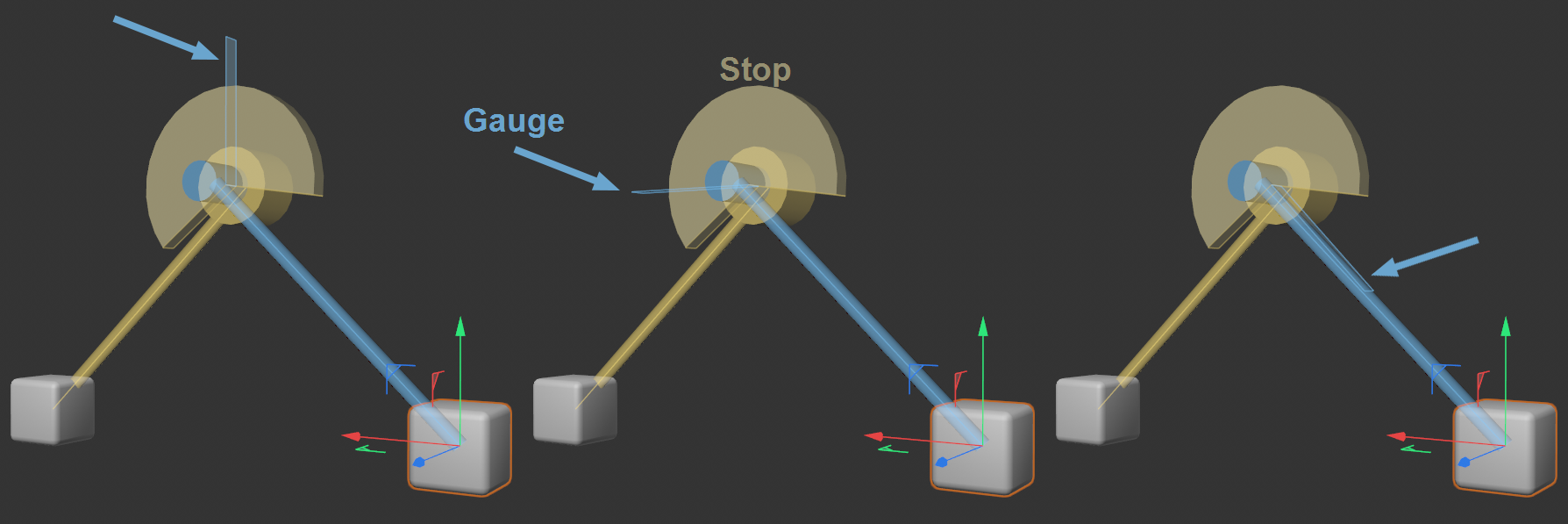 Angle Range limits are visualized with a blue stop pointer and a yellow stop. From left to right, Reference Axis Object Y-axis, Object X-axis and Direction to object. Object Z-axis would be meaningless here, as this is perpendicular to the plane of rotation.
The image shows how an angle range limitation is displayed:
- The first Rigid Body in the object list defines the blue rotation stop pointer
- The second Rigid Body defines the yellow rotation stop itself.
The possible rotation sector for the blue stop pointer is the free area of the stop.
The reference axis - particularly easy to recognize on the blue stop pointer - defines the alignment of the same. You can select from the following options:
- Object X/Y/Z axis: Here, the stop pointer or the stop will be aligned parallel to the coordinate system of the Rigid Body. This can be seen clearly in the image above with the Rigid Body coordinate system displayed at the same time.
- Direction to the object: Here, the stop pointer or the stop will be aligned from the connector origin to the Rigid Body origin (top-right in the image).
It all sounds a bit complicated, but in the end it can be done by trial and error, if necessary. Simply keep an eye on the stop and stop pointer when changing the settings:
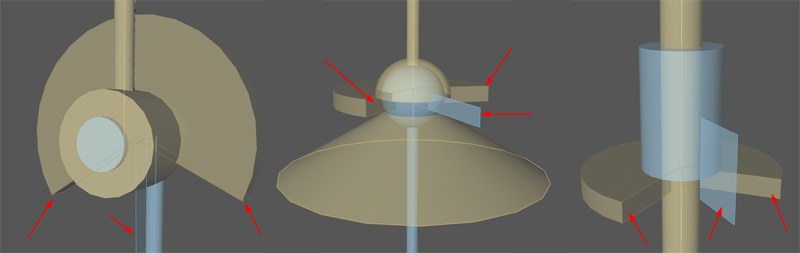 Stop and stop pointer for various connectors.
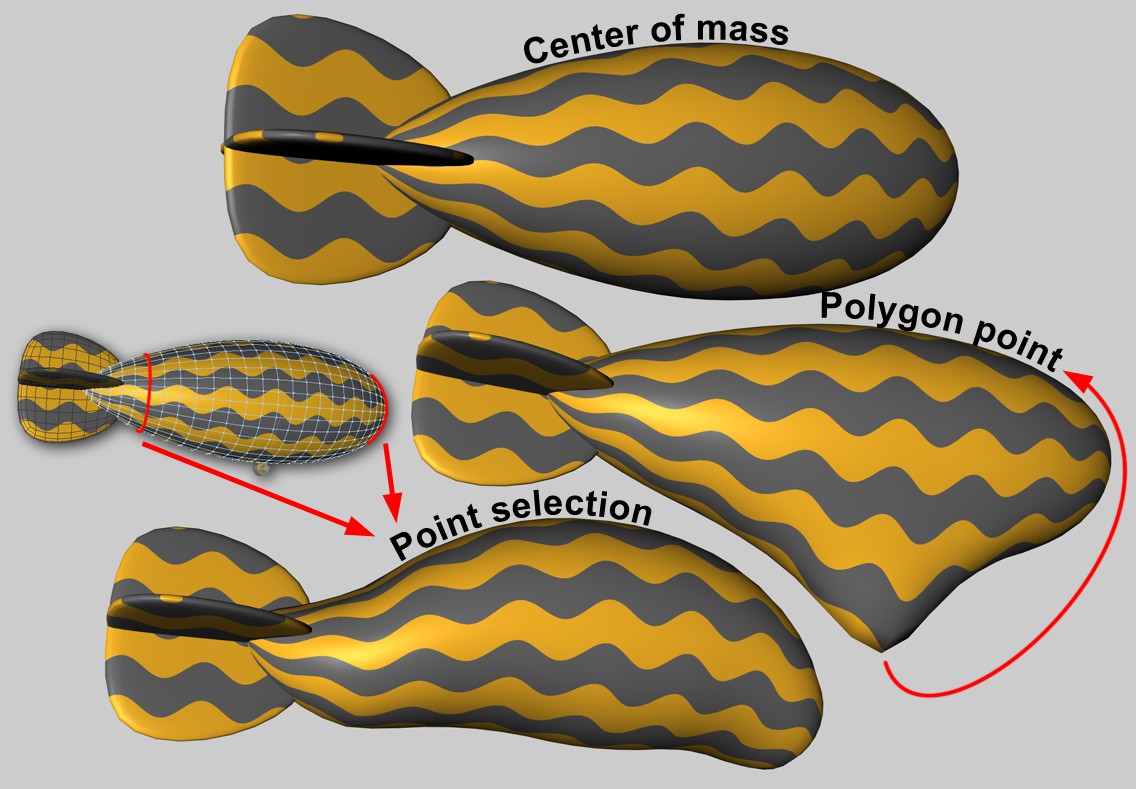 An ascending zeppelin will be held by a connector with various bindings. Correct, nothing will happen at the center of mass.
Wherever forces are directed into an object, it is sometimes important in which object area this takes place. If, for example, the motor slides in the center of mass, this will result in a linear movement of the Rigid Body (provided no other forces are acting). If the force acts outside the center of mass, a torque will automatically be generated and the object will attempt to rotate.
The Soft Body is more difficult. Each object point will be connected to other points via springs. If the force will be applied at just one point, the results can be unsightly. Here it is possible to initiate the effect over larger areas.
There are no other parameters for this option, the force acts at the center of mass. With Soft Bodies, this does not result in any deformation.
If this option is selected, an object point can be defined where the force is applied. The Area of Influence can be used to extend the force application to a larger area around this object point. This is only relevant for Soft Bodies. This setting has no meaning for the Rigid Bodies/Connectors combination.
Forces can also be applied by map (Point Selection tag or vertex maps). There will then be some additional parameters that regulate how much the shape of the selected (or weighted) points as a whole may change.
You can drag a Point Selection tag or vertex maps here.
Index[-2147483648..2147483647]
This is the object index number. Internally, all object points of a polygonal object (also for all generated objects) will be numbered consecutively. This will be displayed interactively in the editor if you let the values run through here.
Incidentally, all object points (but here only for truly polygonal objects) are listed in the Structure Manager.
Since it is not easy for Soft Bodies to process force application at a single object point (this often looks unrealistic), the area of influence can be used to define an adjustable area around this point where the forces are applied with a linearly decreasing effect. With values of 100%, the entire mesh will be recorded, whereby the polygon point (or the point selection) is weighted with 100% and the furthest point with 0%. At lower values, fewer and fewer points will react to the application of force; at values of around 1%, only one point or only the selection will be affected (although larger values then have an effect internally due to protective mechanisms).
On the other hand, a small value can be useful if you want to couple larger areas defined by point selection (think of tubular Soft Bodies that are attached to an end point circuit via a connector) to Connectors, springs or motors.
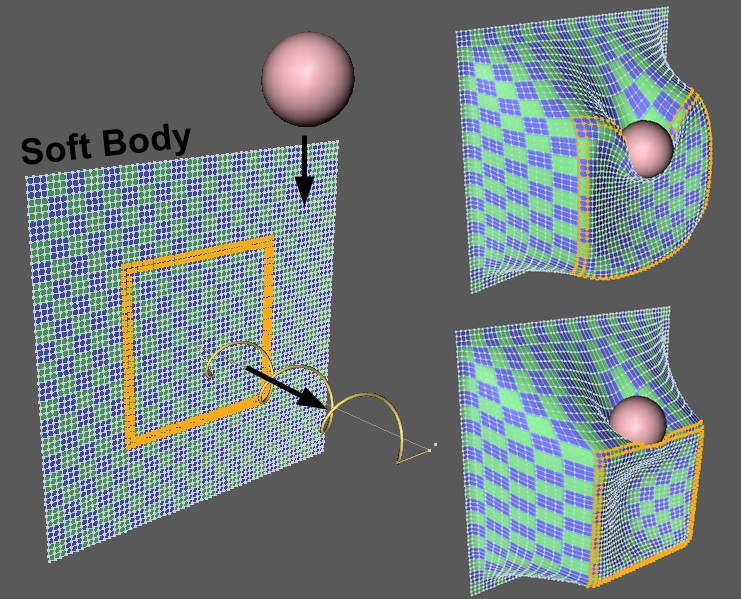 Marked point selection of a Soft Body is pulled by a spring, at the same time a ball falls onto the selection. Smaller value at top-right, larger value at bottom-right for Shape Retention.
Use this value to define the extent to which the selection or the point geometry influenced by the vertex map can be deformed when force is applied. Small values allow strong deformations, large values increasingly weaker deformations.
The shape retention works internally via springs, the damping of which can be adjusted here. Small values cause oscillations to decay more slowly than large ones.
This lets a Rigid Body to be fixed at its current world position (internally with a Connector of the same Connector Object mode at the position of the Rigid Body).
This is particularly useful if you want to fix specific MoGraph clones, as a MoGraph Selection tag can then be included in the selection. Selection will then only be displayed for MoGraph objects.
The selected clones saved in the tag will then remain fixed.