
Bridge
This page describes the Bridge tool in Cinema 4D, a core polygon-modeling function. It builds connecting geometry between separate points, edges or polygons — closing gaps, joining edge loops or linking mesh parts without manual polygon construction.

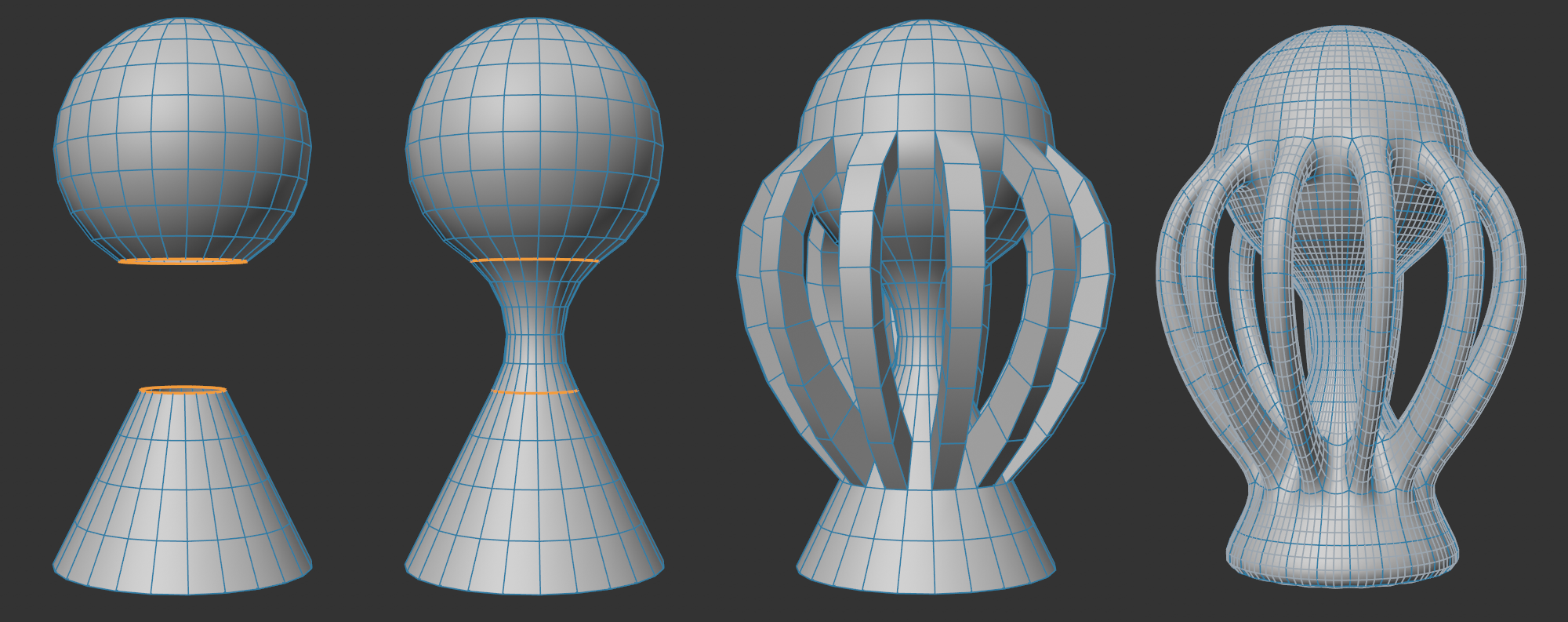 A sphere and a cone are combined to create complex geometric shapes using the Bridge tool.
The Bridge tool works in all three modes (point, edge and polygon)and enables you to create connections between unconnected surfaces.
Selections are not necessarily required. You can click on individual edges or polygons, which will be connected with a subsequently selected edge or polygon (if Restrict to Selection is disabled). If you want to connect edge loops or polygon groups you first have to select them correctly and connect them using the Bridge tool. Help guides will be displayed that will show you the result before the bridge is created.
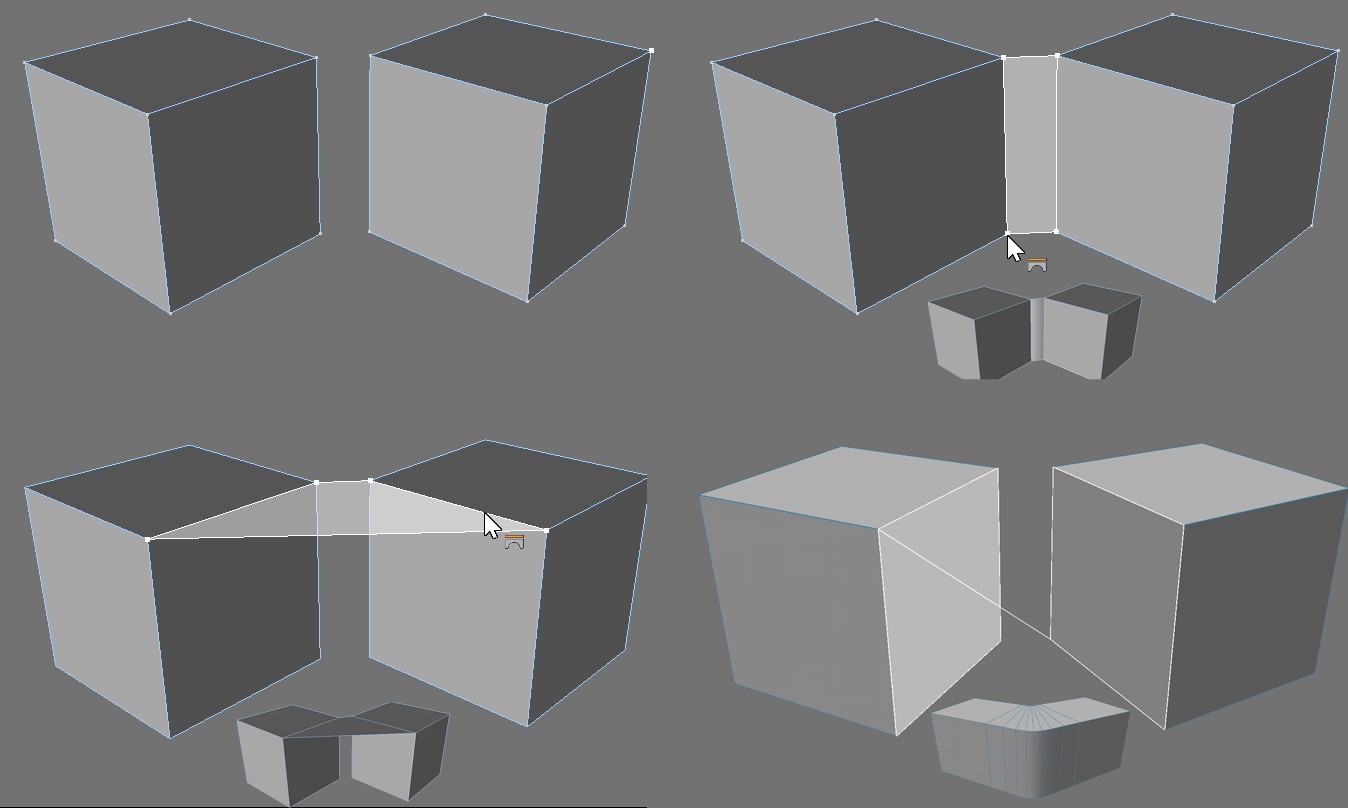 Original object, Point mode, Edge mode, Polygon mode and the respective results. Note that a preview of the bridge that will be created will be shown.
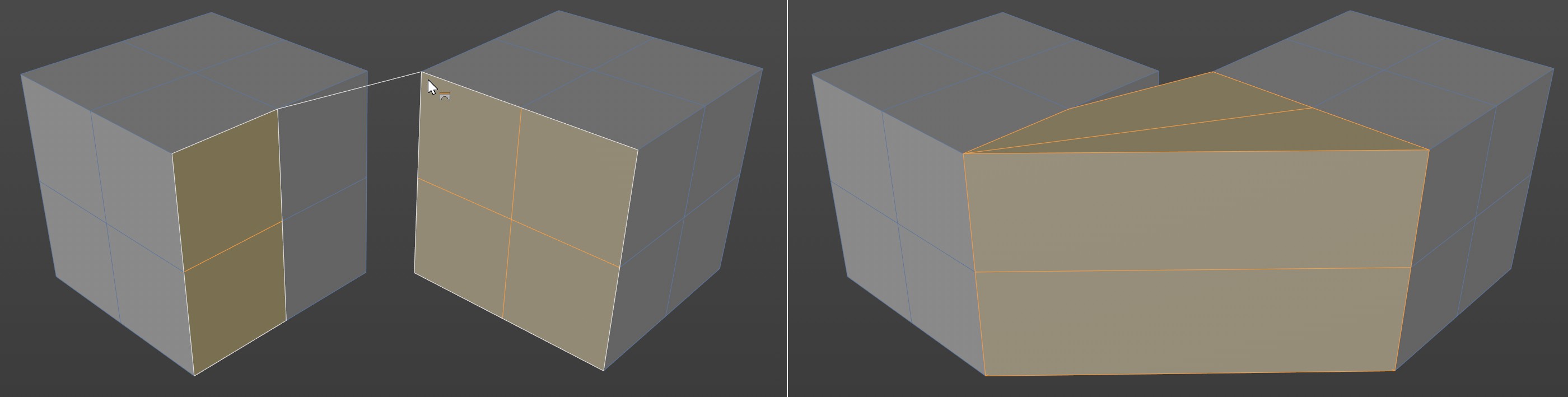
We will now use this technique to create a few polygons from scratch. The same technique applies to creating hundreds of polygons.
- Choose Create / Mesh / Empty Polygon to create an empty object to which we can add points and polygons.
- On the center toolbar at top, select the Points tool.
- On the top toolbar, ensure that the Move tool is selected.
- Ctrl+click six times in various places within the Viewport to create two rows of points in roughly the same positions as those below.

- Choose Mesh / Add / Bridge to activate the Bridge tool.
- In the Viewport, drag from the left point of the bottom row to the left point of the top row and release the mouse button (a highlighted line will appear between the two points while you drag).

- Now drag from the middle point of the bottom row point to the middle point of the top row and release the mouse button. The polygon is created.
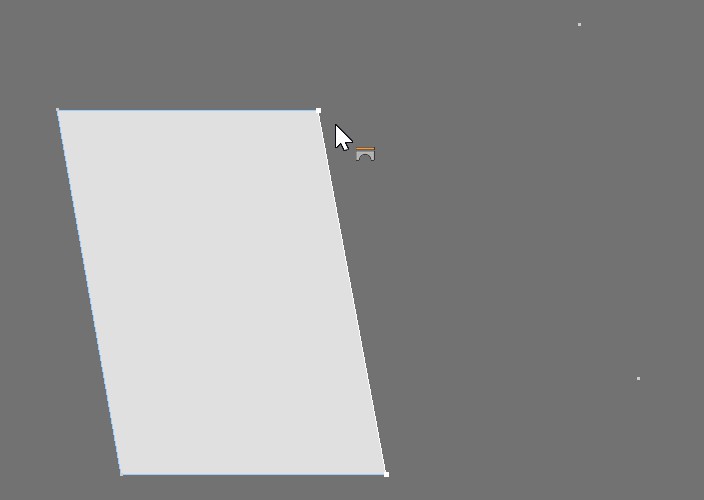
- Drag from the right point of the bottom row to the right point of the top row and release the mouse button. The second polygon is created.
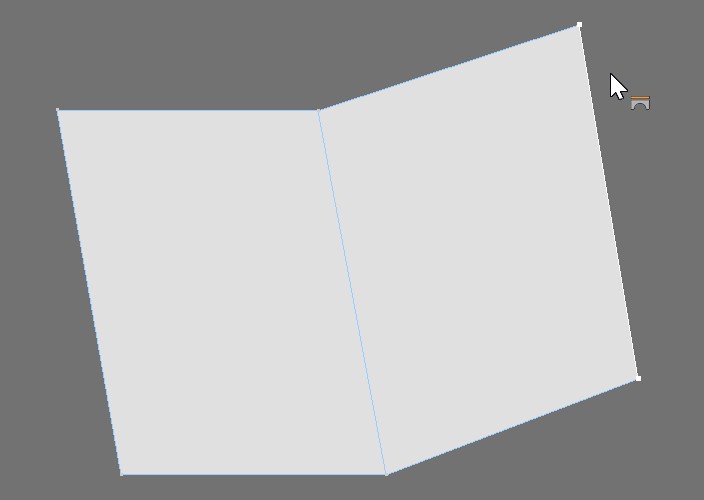
Using Esc to reset Bridge
If you click in the wrong place, you can quickly reset the Bridge tool by pressing the Esc key.
In the example above, note that you had to drag & drop twice to create the first polygon, but only once to create the second polygon. This is because Cinema 4D assumes that you want the next polygon that you create to be connected to the one you have just created. This is ideal for quickly building a row or loop of polygons. However, if you don't want the current polygon and next polygon to be connected to each other, press Esc to reset Bridge. You can then drag & drop twice to create the next polygon in any position on the mesh.