
Replace with

Use this command to replace an object, or parts of an object (such as tags, User Data and so on … ) with another one. Simply select the object to replace, then run the command to enter a pick session and select the object that will replace it. During the pick session, the object can be selected either in the Viewport or in the Object Manager.
This command can be used on a variety of tasks, as it will not only replace an object entirely, but can be made to replace just the name, the object type, the parameters, etc. of an object by those of another one.
If only one object is picked, then this object will be used for the replacement. If more than one object is selected, the replacement order will be based on the selection order, both before activating the command and during the multi-pick session (first object selected to be replaced will be switched with the first selected object during the multi-pick session, and so on).
Options
Note that the Options pop-up (when called up via a hotkey) can be activated every time you run the command if you enable Options mode for the command, in the Window / Customization / Command Manager.
Object
Replaces the selected object by the picked object.
Children
Replaces the parameters of the selected object and its children by the picked object and its children. Objects that can't be matched with an equivalent object within their respective hierarchies won't be affected.
Remove
Removes the picked object, allowing you to create objects whenever you want, to be used as replacements for selected objects and removing those picked objects automatically in the process.
Name
Replaces the name of the selected object by the name of the picked object.
Tags
Replaces the tags of the selected object with the tags of the picked object.
Layers
Replaces the layer of the selected object with the layer of the picked object.
Transform
Replaces the selected object Position, Scale and Rotation with the picked object's Position, Scale and Rotation.
Animation
Replaces the selected object animation with the picked object animation. If no animation is set on the picked object, it will remove the animation information of the selected object.
Parameter
Replaces the parameters of the selected object with the parameters of the picked object. Parameters can only be replaced objects that have parameters, such as primitives, generators and so on … Edited geometry does not have parameters.
User Data
Replaces the User Data of the selected object with the User Data of the picked object.
Geometry
Replaces the geometry of the selected object with the geometry of the picked object. This option does not work with Generators.
Keep Center
When replacing the geometry of the selected object, use this option to define if you want the picked geometry to be centered with the axis of the selected object, or keep its original position relative to the axis.
Keep Dimensions
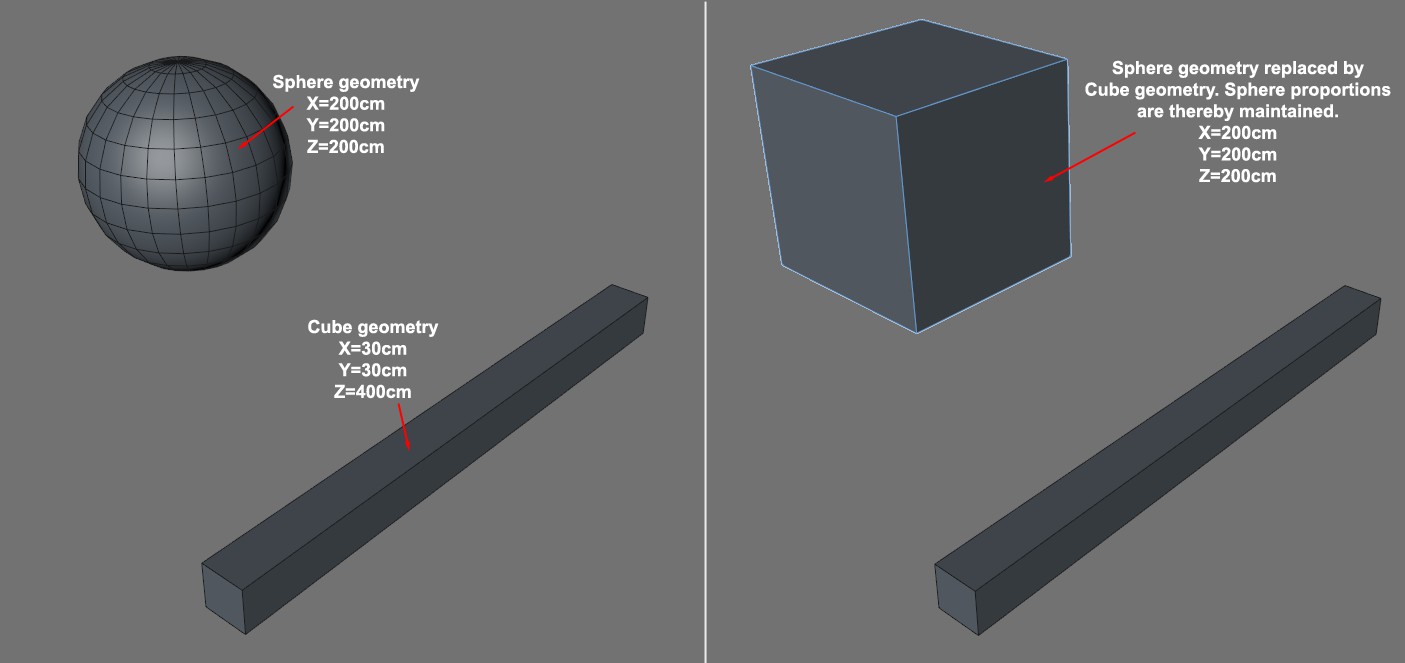 Results with Keep Dimensions enabled.
When replacing the geometry of the selected object, use this option if you want the picked object geometry dimensions to match the dimensions of the selected object geometry. The new geometry will be scaled automatically to match the old geometry's volume, in other terms. Keep in mind that by doing so, it will change the geometry's proportions, if they are not similar.