
Dynamic Place
This page covers the Dynamic Place tool in Cinema 4D. It drops and settles objects with collision and friction while dragging — naturally resting props without manual rotation or simulation setup.

Dynamic Place
The Dynamic Place tool can be used to orient individual or multiple objects that are affected by friction or collision to other objects.
How does this work? Simple: Select an object or objects to be placed and drag them freely or using the handles described below into place:
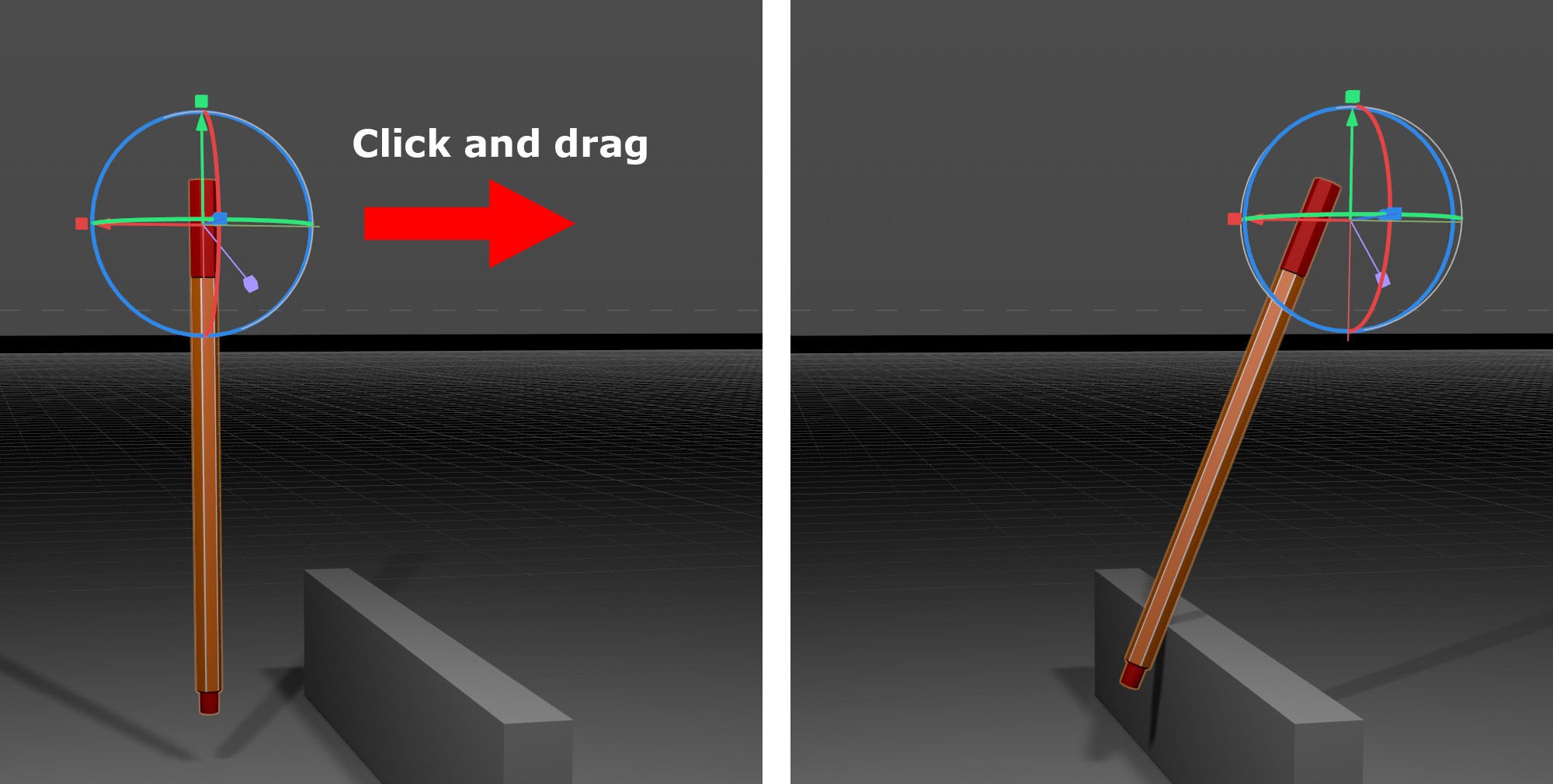
At the selected object's origin (or the center of the bounding box for multiple selected objects) a handle will be displayed in the Viewport.
Now imagine strong springs between the handle object and the objects to be placed: as long as the LMB is pressed, the objects to be placed can be dragged dynamically and will react to other objects according to the physics assigned.
As soon as the LMB is released, the current state will be "frozen" or in other words, the new coordinates will be permanently assigned to the objects.
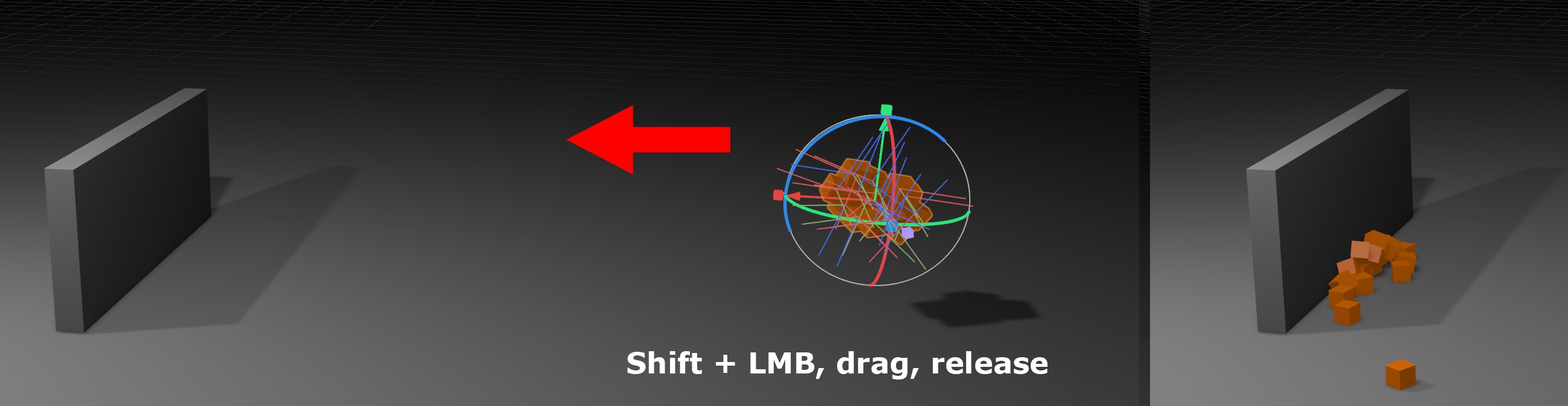
Objects can even be tossed. To do so, move the objects interactively, then press the Shift key (before the objects come to rest) and release the LMB right away. The object's velocity will be maintained and the object will be affected by gravity. This lets you literally throw a group of cubes against a wall, for example:
If you select an object that has Child objects, the object and Child objects will be combined into a single, rigid object.
Handle Object
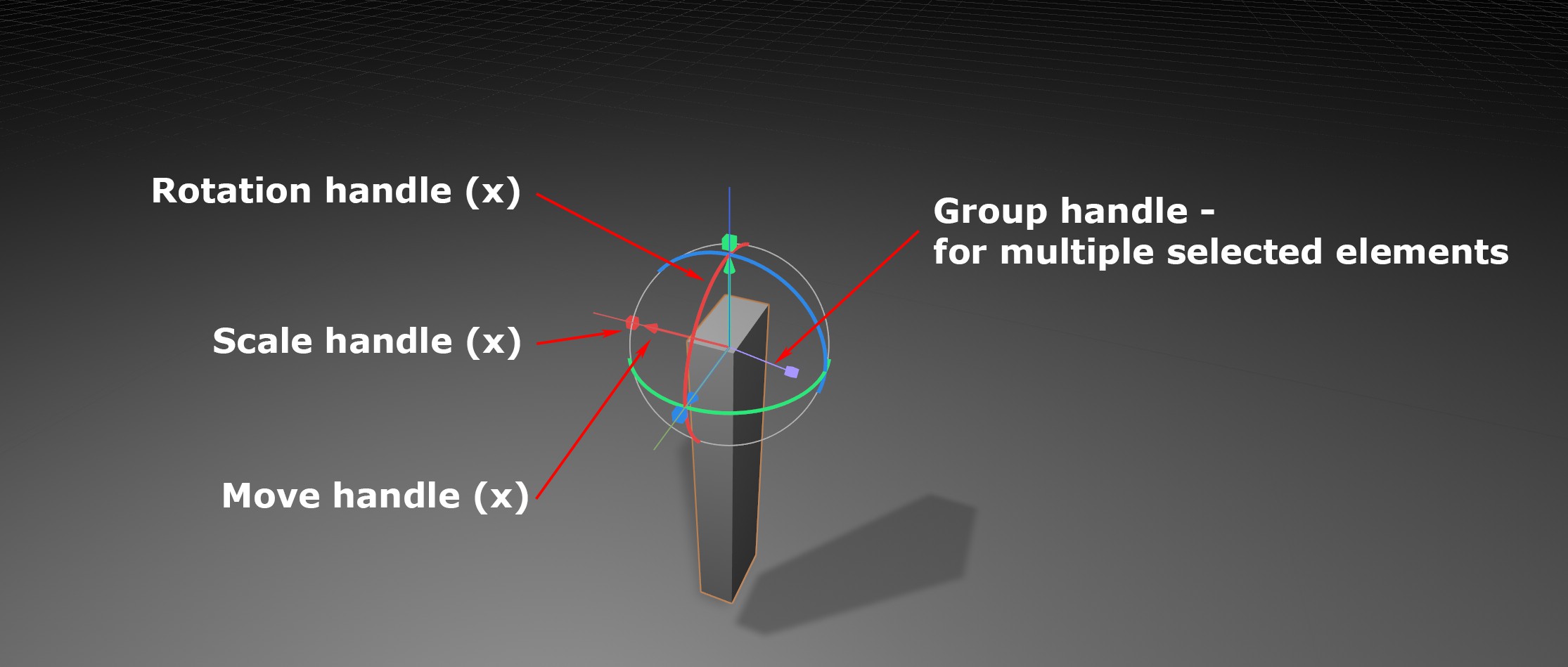
If the tool is active, a Handle object will be displayed in the Viewport. Similar to the Move, Rotate and Scale tools, you can use these handles as described in the image above to move, rotate or scale in the respective direction using the respective colored axes.
A special case is the purple group handle, which will move multiple selected objects concentrically to or away from the center point.