

Nonclamped Color Attenuation
Using the parameters on this page, you can restrict the glow to rendered pixels that are within a defined brightness range. Set this range by entering values into the boxes for Min Intensity and Max Intensity, where 100% represents bright white (RGB 255/255/255). Enter values above 100% if you want restrict the glow to non-clamped colors (i.e. colors above RGB 255/255/255). Even though non-clamped colors are no brighter on screen than pure white, this helps you to create a sense of intense light in these special picture areas.
These values define a brightness range. Each rendered pixel that falls within this range will generate glow. You can restrict the glow to non-clamped colors (see paragraph above) by setting Min Intensity and Max Intensity to values greater than 100%.
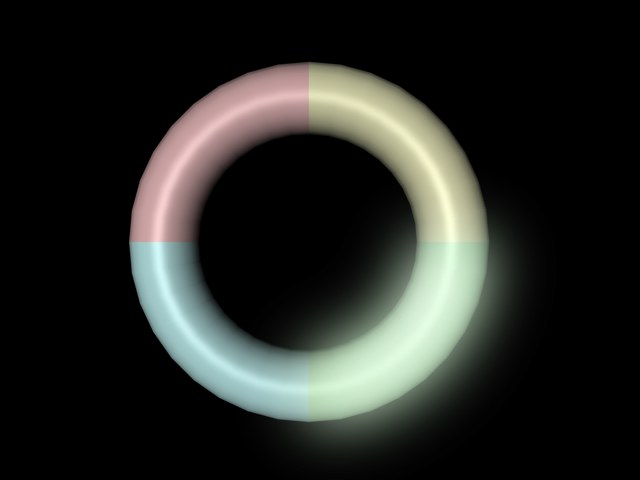 Glow restricted to a key color.
You can restrict the glow to a particular color. Use the color box to choose this key color. Since most rendered surfaces are gradations of color rather than a single tone, you can also specify a tolerance value for the key color, which you enter into the Color Variation box. If you set Color Variation to a value that is too low, such as 0%, you may find that only a few pixels will glow.
You can use gradients to refine the following properties from the Glow page: Size, Density, Luminosity and Color (see Glow entry).

Think of these gradients as running from the Min value to the Max value (or within the color variation). In the gradient, black represents a value of 0, white represents the value defined on the Glow page.