

Tag Properties
Set Bind Pose saves the current Joint Hierarchy's coordinates as the initial state, i.e., if all of the hierarchy's Joint Objects are located at these coordinates, no deformation will take place.
The Shift key can also be pressed while clicking on the button. The Bind Pose will then be saved in its currently modified state. This is also useful when modeling because the mesh itself will change even if the Weight tag is removed from the mesh.
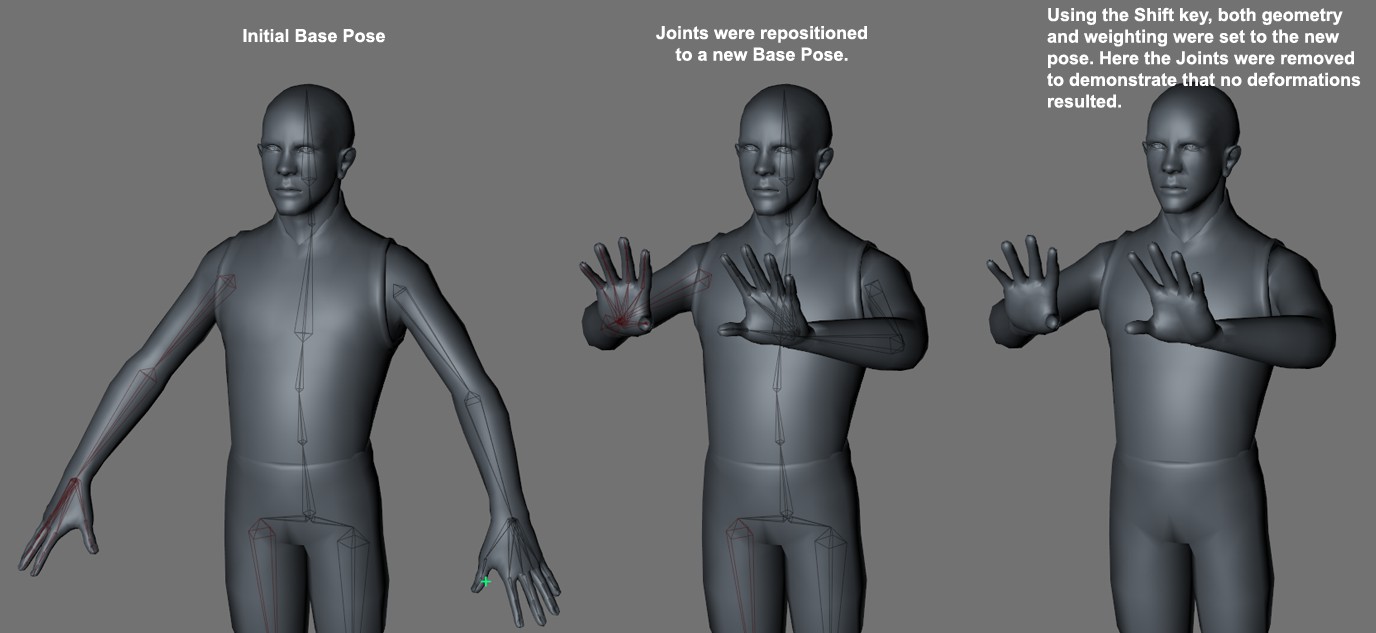 Here the geometry was set to a new Rest Pose and the Joints are automatically bound to this new pose.
Set Selected Joints Poses
Binds the currently selected joints (from the Weight tag's list) with the geometry and sets its initial pose. Here you will receive the same results as with pressing Ctrl/Cmd + Set Pose.
Set Deformed Mesh
Binds the joints to the mesh and sets the current mesh deformations as the rest pose. This is helpful if you want to adjust the character's rest state together with the joints’ rest state. This command offers the same results as with pressing Shift + Set Pose
Reset Pose
Resets the Joint Objects to their initial set state. Note that certain expressions such as IK or constraints can cause this initial state to be altered when reset. Turn these expressions off to make absolutely sure the Joint Objects are reset to their initial state (e.g., by deactivating the Use Expressions command in the Mode/Execution menu).
Reset Selected Joints Pose
Similar to the Reset Bind Pose command, the joints will be reset to the recorded initial state - however, the effect on the joints selected in the Weight tag's Joints list reflects the effect of calling up the Cmd/Ctrl + Reset Pose.
If more than one Weight tag is applied to a given object, this slider can be used to individually adjust their influence.
Joints
Any object can be dragged into this list. All objects in this list can be assigned weighting that can be used by a character's Skin object for deformation. Weighting is normally applied to Joint objects since they have additional options with regard to display and IK. However, weighting can be applied to any other object as well.
You can Drag & drop Weight Falloff directly onto the joints they should be assigned to.
A vertex map can be dragged into this field which will be used in place of the Weighting defined in the Weight tag which, in turn, is used for the deformation using the Joint selected in the Object list field.
Contextual Menu
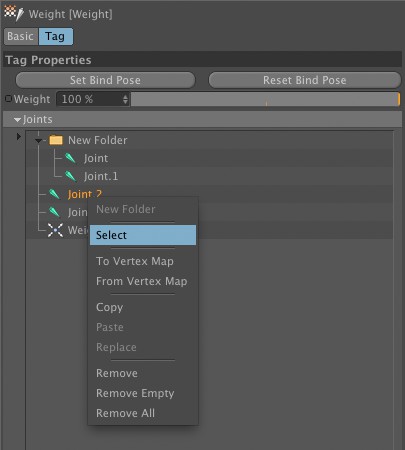
Objects can now be organized inside folders. Simply create the folder by right-clicking on an empty space of the Objects list, then select and drag your objects on top of it to place them inside the folder.
Will select the active object in the Object Manager.
If a Vertex Map is assigned to an object (select an object from the list, then drag a vertex map previously applied to the mesh in the target field), weights from that object can be transferred automatically to the Vertex Map using this command.
If a Vertex Map is assigned to an object (select an object from the list, then drag a vertex map previously applied to the mesh in the target field), weights from that Vertex Map can be transferred automatically to the selected object using this command.
Will copy the selected object's weights.
Will paste the previously copied Joint to a different object's Weight tag (select the joint from a first object's Weight tag, then copy it. Now select a second object's Weight tag and paste the joint in its list).
Will replace the current object's weights with the ones previously copied.
Removes the selected object from the list. Multiple objects can be selected and removed at once using this command.
Removes any object from the list that has no weight applied to it.
Removes all objects from the list, regardless of their weight values.