
Conversion
The character menu contains various commands that are designed to make character animation easier. The commands have no dialog window. You can integrate the commands freely into the interface for rapid access using the Command manager.

Converts a spline object to a chain of joints. A joint object is created for each spline point. To convert the spline to joints, choose the desired spline in the Object Manager and choose this command.

Converts a chain of joints to a spline object. A spline point is created for each joint. The spline's Type is set to Linear.

Creates a null object for each joint object selected in the Object Manager, including entire hierarchies. The joint objects' tags are also transferred.
Note that only a series of connected joints can be converted at once. If there is an interruption in this chain of joints only the first connected series of joints will be converted.
Pressing the Shift key while executing this command will keep any frozen coordinates values set on the source object, and apply them to the converted Null. Pressing the Ctrl/Cmd key will also convert the tags of the source object onto the converted object.

Allows you to create joint objects for the selected objects in the Object Manager.
Pressing the Shift key while executing this command will keep any frozen coordinates values set on the source object, and apply them to the converted Null. Pressing the Ctrl/Cmd key will also convert the tags of the source object onto the converted object.

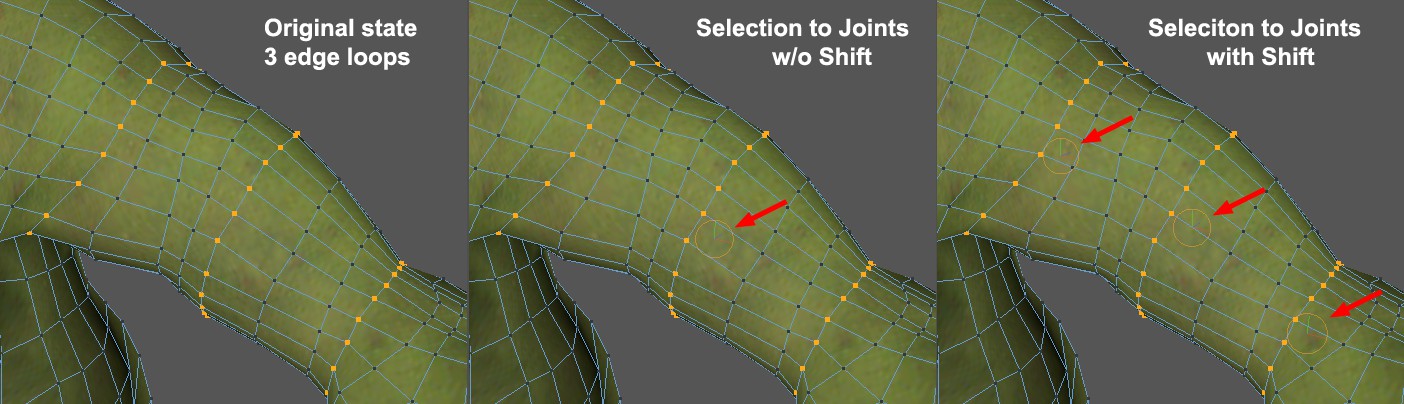
Creates a joint object in the center of the selected points. If you hold down Shift when choosing the command, a joint object (edge or polygon selections will be converted to point selections internally; only separate joints for non-neighboring point groups will be created) is created for each coherent point group, see also Selection to Nulls which has an identical assignment algorithm. The command also works with polygon selections and edge selections.
It is often necessary to generate Null objects on selected components (mesh points, edges, polygons or spline points). This can, for example, be control objects for character animations.
The Selection to Nulls function generates a Null object for each component selection at the center of a coherent selection. Spline point selections will only be assigned a single Null object at their center.
Point selections will basically be taken into consideration when the command is executed. The following keys have the following effect when pressed:
- Shift: Selections made in Use Edge or Polygon mode will be assigned a Null object at their center (the respective mode must be enabled). In Use Point mode, pressing this key will determine if coherent point selections should each be assigned a Null object; otherwise only one Null object will be generated at the center.
- Ctrl: The Null objects will be arranged hierarchically, each as a Child object of the previously created Null object.
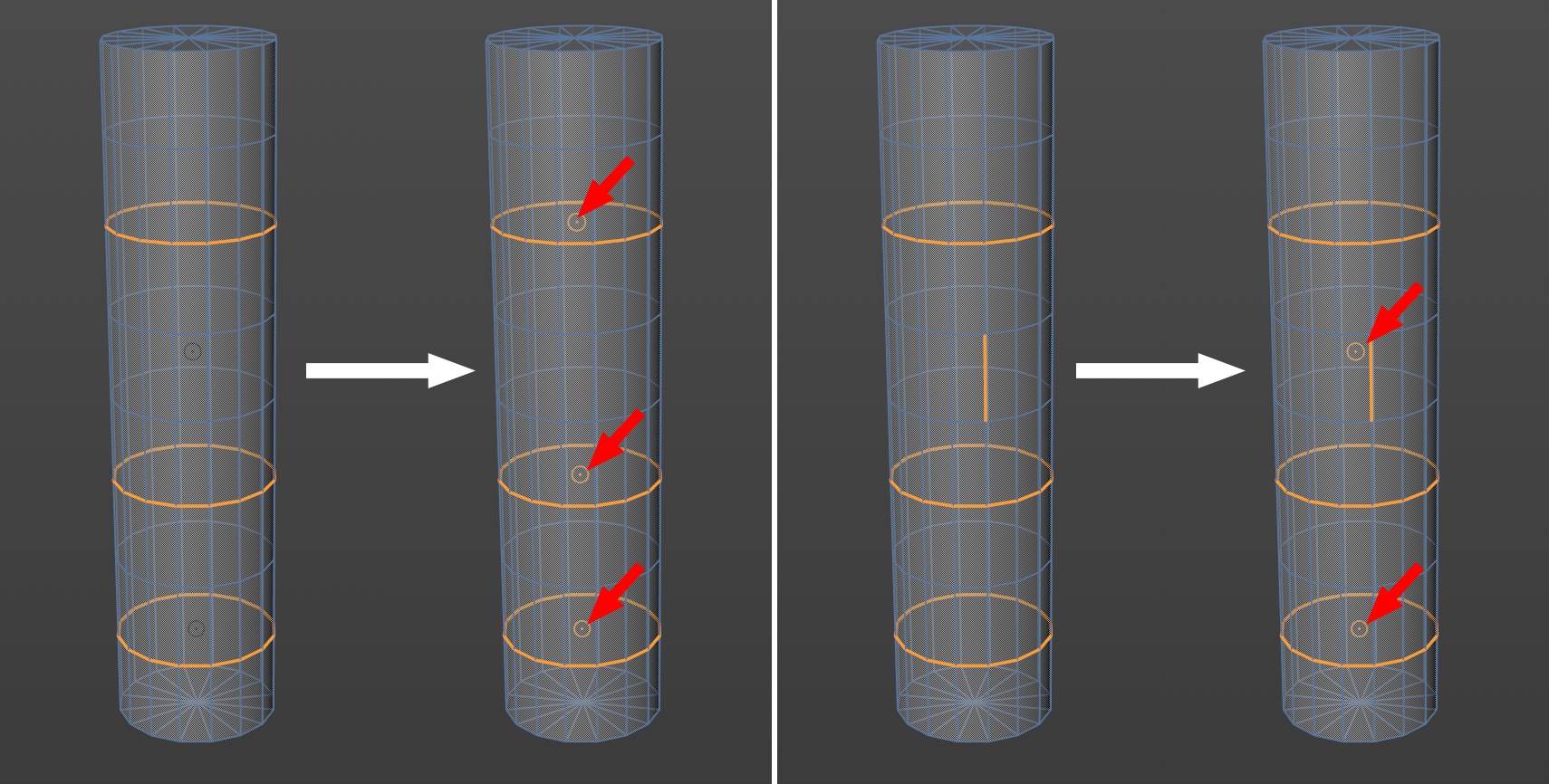 Selections and the resulting Null objects (marked red). Note how at the right the individual perpendicular selected edges ensure that they and both neighboring loop selections are seen as a coherent component selection.
Converts the selected joint into a polygonal object. The shape of the object created will be based on the bone Display mode set in the Object tab of each joint.
Note that Line mode will be converted to a polygonal object based on the Standard bone display (since polygons cannot have only 2 points).