

Caustics
Enables or disables the rendering of Caustics.
Selects the engine used to render caustics from the following options:
- Brute Force
- Photon
|
|
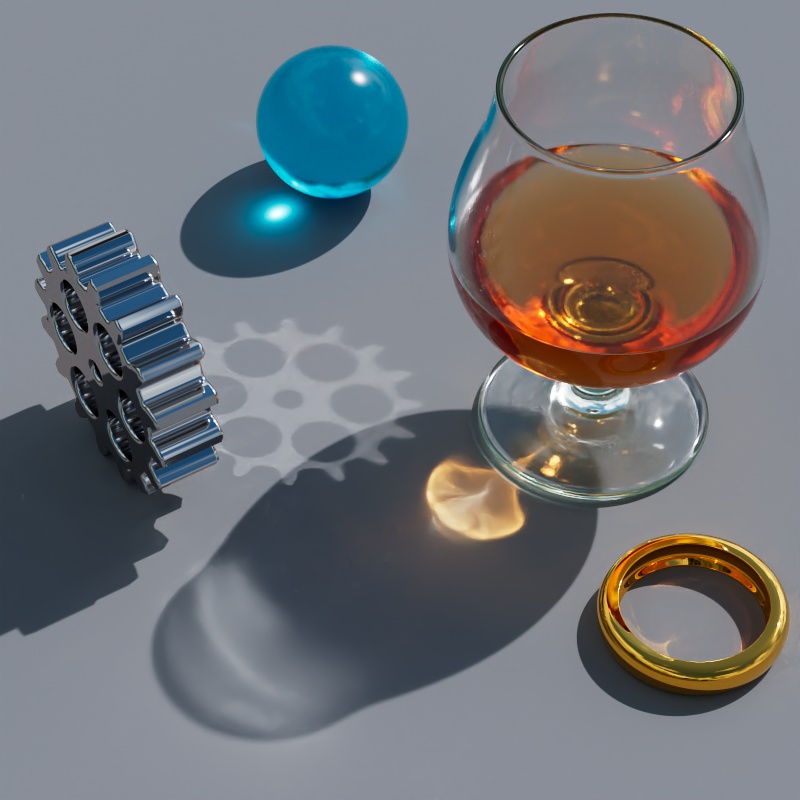
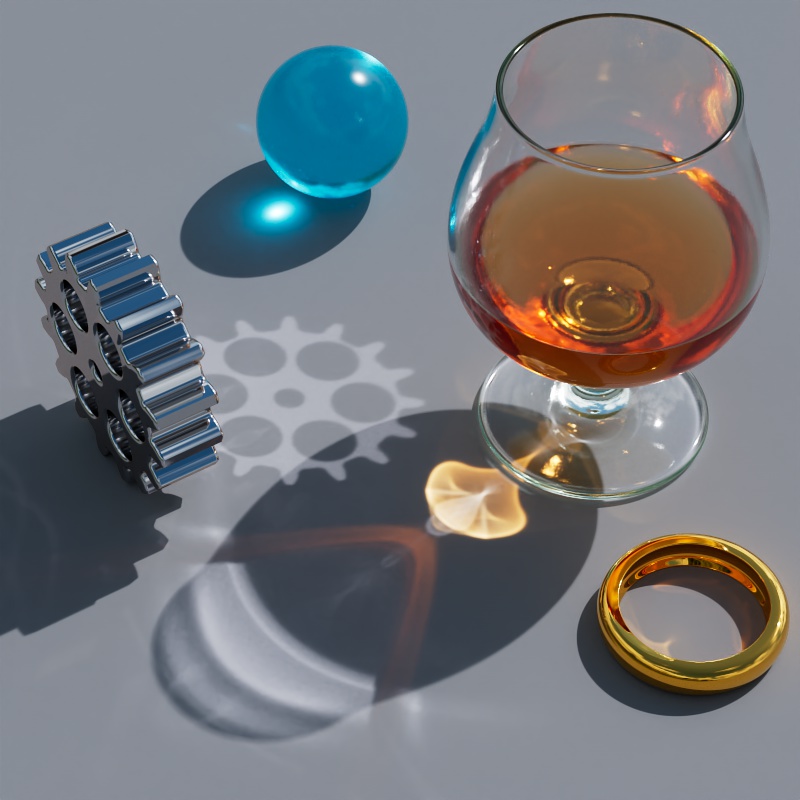
| Caustics Engine: Brute Force | Photon |
When Caustics are enabled, Brute Force caustics are always used during IPR rendering because Photon Caustics are not compatible with progressive rendering. This enables you to get a preview of caustics in your scene but be aware that the final result will likely differ greatly if you are using Photon Caustics for final rendering.
Brute Force Caustics vs Photon Caustics
Brute Force Caustics
- Pros
- Works great with dome lights
- More realistic
- Supports indirect lighting caustics (emissive materials and GI)
- Cons
- Softer caustics
- Doesn't work with infinite lights (including Physical Sun) and delta lights (point, spot)
- Not good with small lights
- May introduce noise that is hard to clean
- Doesn't have its own AOV (BF Caustics are included with Global Illumination)
Photon Caustics
- Pros
- Sharp caustics
- Works best with narrow angle spot lights
- More controllable
- Has its own Caustics AOV
- Has its own Trace Depths
- Cons
- Not good with dome lights and wide angle lights
- Best results require custom light setup
- Does not support indirect caustics
- Less realistic
When enabled, Global Caustics provides an easy 1-click option that automatically prepares all objects and lights in the scene for caustic rendering by enabling the Global Overrides covered in the section below.
When disabled, each object and light needs to be manually set up for caustic rendering. The following settings are necessary to enable caustics:
- Objects must have the following Visibility options enabled:
- Casts Reflection Caustics (disabled by default)
- Casts Refraction Caustics (disabled by default)
- Receives Caustic Photons (enabled by default)
- Lights must have the following traits:
- Casts Caustics: On
- Caustics Intensity: Greater than 0 (required for Brute Force and Photon Caustics - default 1)
- Photon Multiplier: Greater than 0 (only required for Photon Caustics - default 1)
- For best results, Override Refraction Shadows should be enabled.

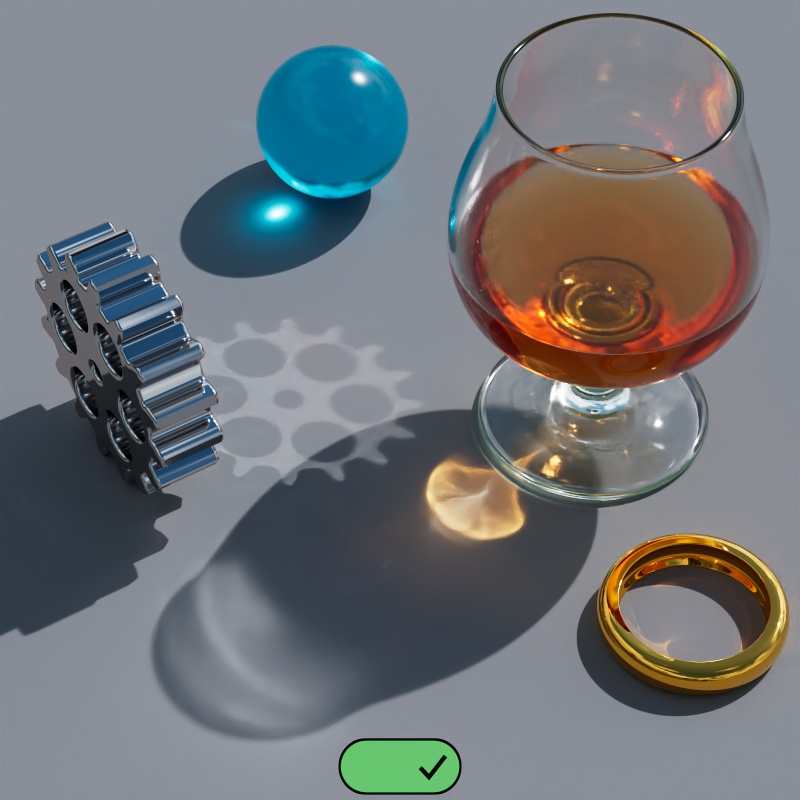
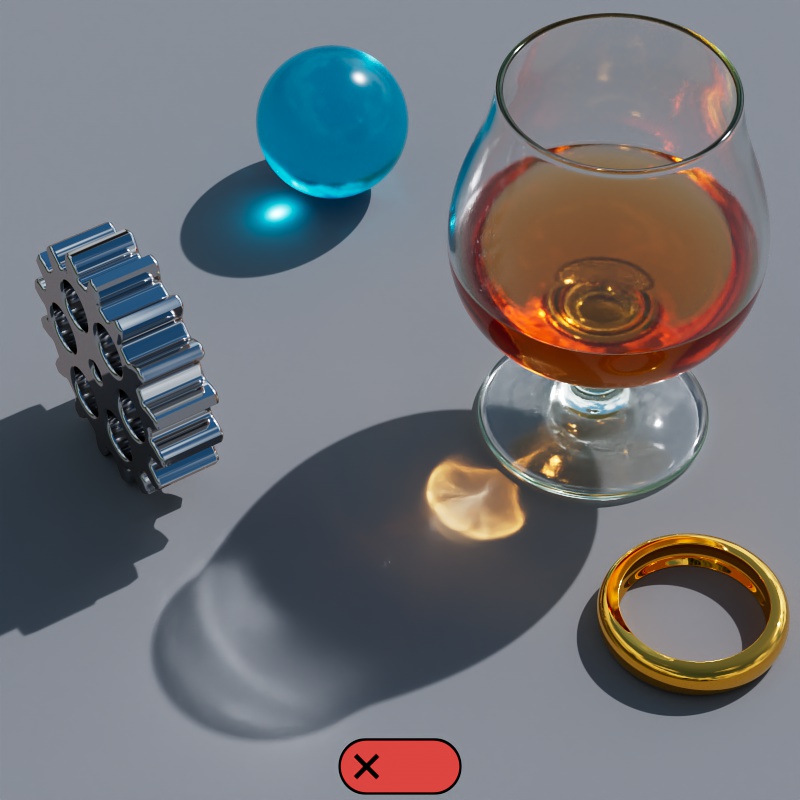
When enabled, all objects are automatically able to cast reflection caustics.
When disabled, all objects do not automatically cast reflection caustics.
Under both conditions this behavior can be manually overridden per object by enabling or disabling the Visibility option "Casts Reflection Caustics". For example, if you have many objects in the scene that need to cast reflection caustics then consider leaving the Global Override enabled and manually disabling "Casts Reflection Caustics" on the few objects that don't. If the opposite is true, you only need a few objects to cast reflection caustics, then consider leaving this Global Override disabled and only manually enabling "Casts Reflection Caustics" on those objects.
|
|
| Reflection Caustics : Enabled | Disabled |
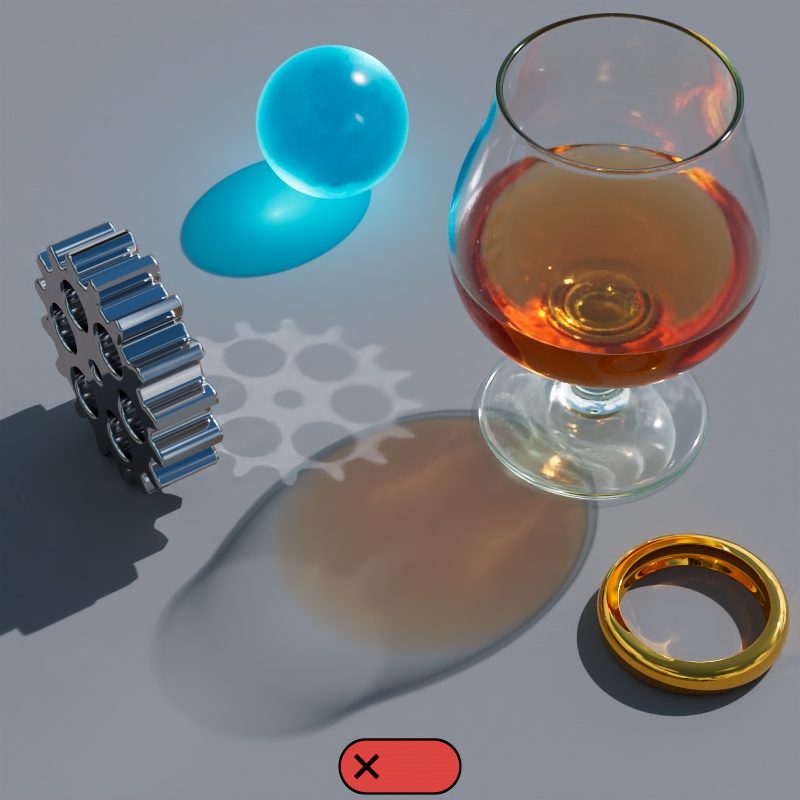
When enabled, all objects are automatically able to cast refraction caustics.
When disabled, all objects do not automatically cast refraction caustics.
Under both conditions this behavior can be manually overridden per object by enabling or disabling the Visibility option "Casts Refraction Caustics". For example, if you have many transmissive objects in the scene that need to cast refraction caustics then consider leaving the Global Override enabled and manually disabling "Casts Refraction Caustics" on the few objects that don't. If the opposite is true, you only need a few objects to cast refraction caustics, then consider leaving this Global Override disabled and only manually enabling "Casts Refraction Caustics" on those objects.
|
|
|
| Refraction Caustics: Enalbed | Disabled |
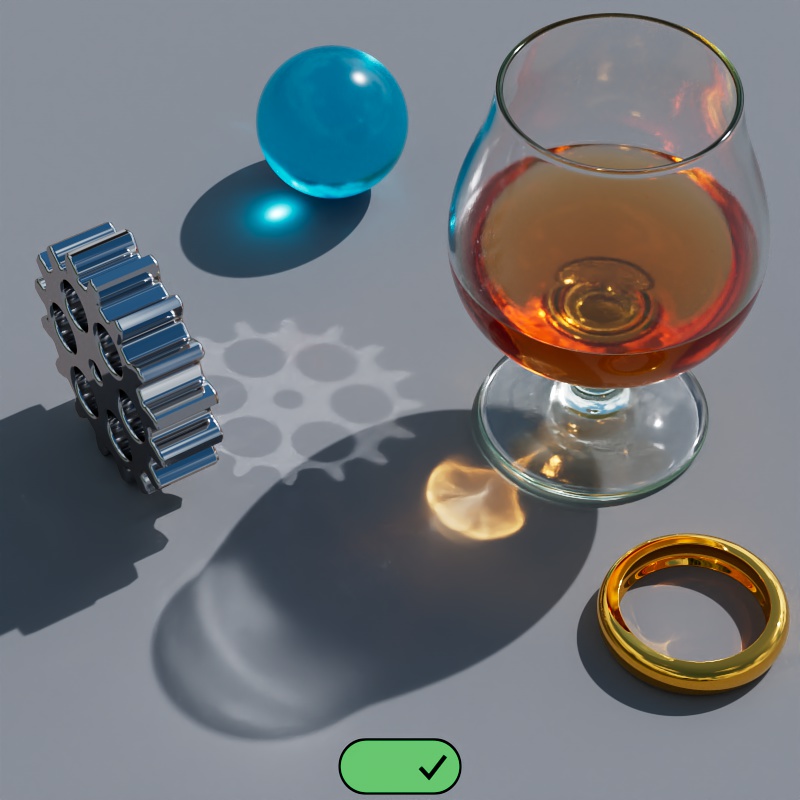
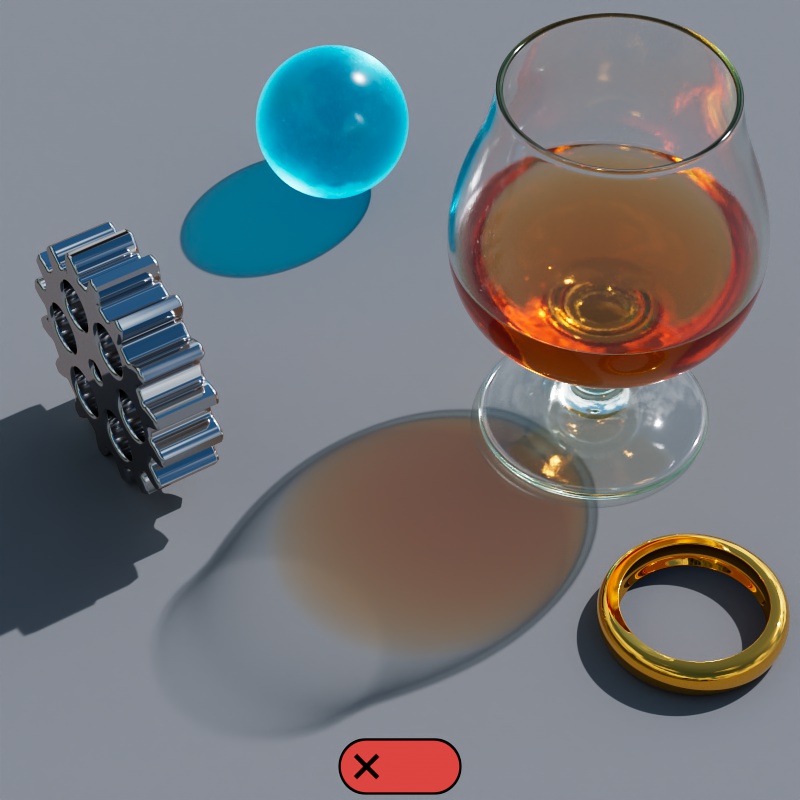
By default, all Redshift lights start in a Casts Caustics mode called "Render Settings". In this mode, a light's caustic capabilities are controlled by the "Light Casts Caustics" parameter.
When enabled, all lights in the Render Settings mode:
- Automatically cast caustics
- All transmissive Standard Materials with Casts Refraction Caustics enabled have their Shadow Opacity set to 1.
- This ensures that a transmissive object's shadow is appropriately dark so that it can be lit up by the more realistic caustics.
When disabled, all lights in the Render Settings mode:
- Do not cast caustics
- The Shadow Opacity of Standard Materials is not changed.
- This results in transmissive object shadows that attempt to loosely approximate a basic caustic look.
Under both conditions this behavior can be manually overridden per light by setting the Cast Caustics mode to "On" or "Off". For example, if you have many lights in the scene that need to cast caustics then consider leaving the Global Override enabled and manually setting the Casts Caustics mode to "Off" on the few lights that don't. If the opposite is true, you only need a few lights to cast caustics, then consider leaving this Global Override disabled and only manually setting the Casts Caustics mode to "On" for those lights.
|
|
| Light Casts Caustics: Enabled | Disabled |
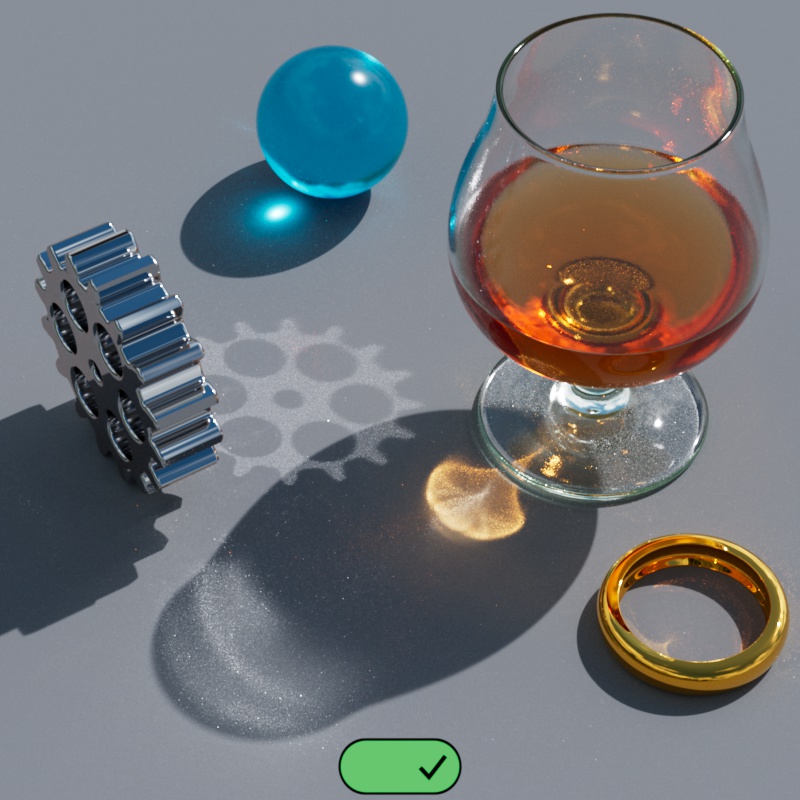
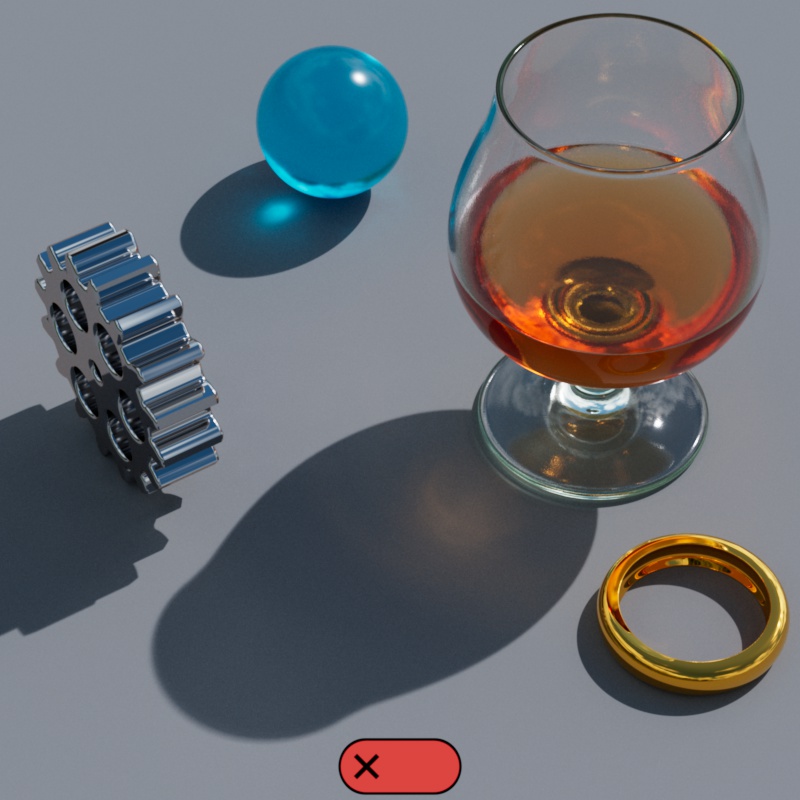
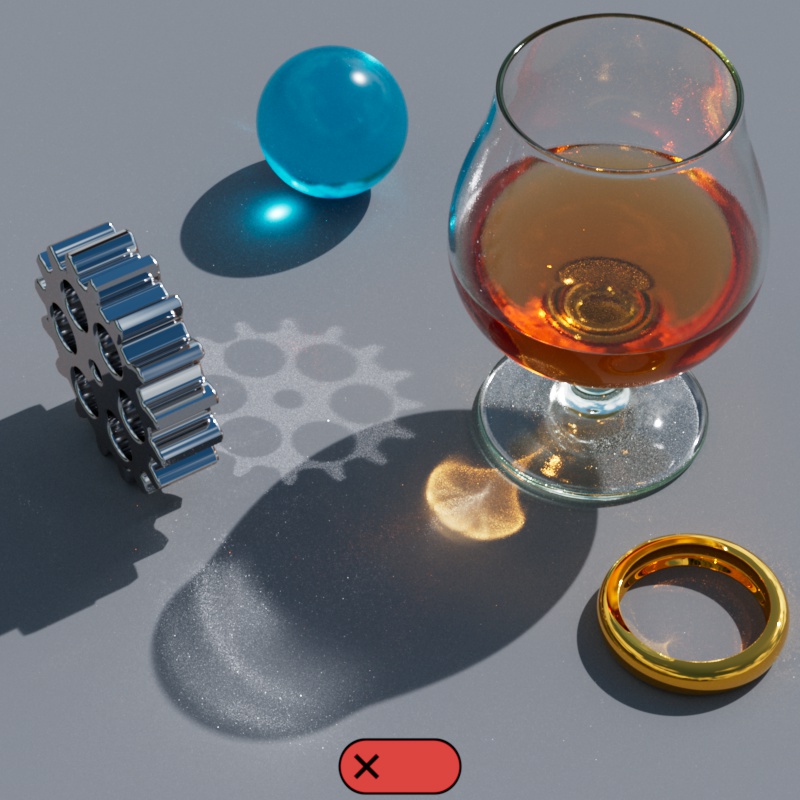
When enabled, caustics are not limited by the Max Subsample and Max Secondary Ray Intensity clamps. This allows caustics to reach their appropriate intensity without being clamped like other rays in the scene.
When disabled, caustics are limited to the same values as the Max Subsample and Max Secondary Ray Intensity clamps. This can give you more control over the maximum brightness of caustics and help limit caustic fireflies, however, when intensity clamps are low this can result in caustics that are unrealistically dim. Increasing these clamps allow caustics to get brighter but you run the risk of introducing noise from other features that were previously clamped much lower and now require more samples. The familiar caustic patterns are the result of highly concentrated light and very high values like 20 may be needed to appropriately capture their intensity.
|
|
|
| Disable Intensity Clamp: Enabled Max Subsample / Secondary Ray Intensity: 4 |
Disabled 4 |
Disabled 10 |
Has no effect when Automatic Sampling is enabled.
Controls the number of rays used for Brute Force caustic casting and Brute Force Global Illumination. Higher values result in sharper and less noisy caustics but take longer to render. Values as high as 32,000 to 64,000 may be required for smooth caustics and in some situations using max samples will never be enough to fully clean caustic noise. If you still see fireflies and noise consider disabling the "Disable Intensity Clamp" override and control the maximum ray values manually. You will sacrifice some light energy but may be able to clear up most of the noise.
Note, the number of Brute Force Caustic Rays is shared with the Brute Force Global Illumination Rays. In general, to clear up noise, you will always need more BF Rays for BF Caustics compared to the number of rays needed for BF GI.
| Brute Force Rays: 0 - 32,000 |
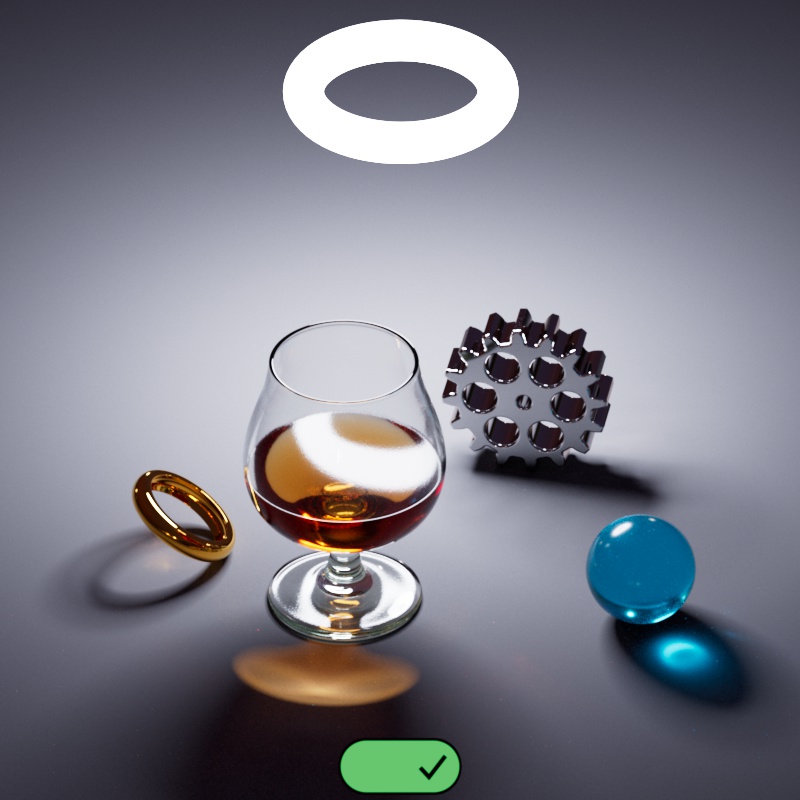
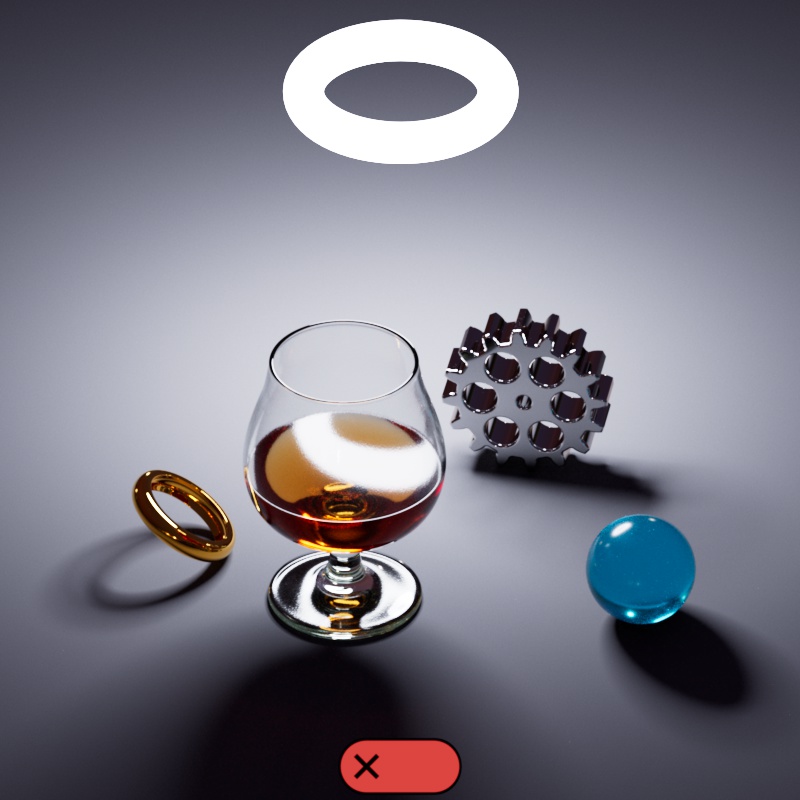
Enables or disables caustic casting from indirect global illumination rays. When enabled, caustics can be cast by emissive materials and other global illumination rays that bounce around the scene. In the example below, the torus uses an incandescent material to light the scene.
|
|
| Indirect Caustics: Enabled | Disabled |
Specifies the caustics Mode to be used from the following options:
- Rebuild (don't save) - Redshift computes new caustic photons from scratch (for each frame) but does not save it to disk. Then the frame is rendered to completion.
- Rebuild (prepass only) - Redshift computes new caustic photons from scratch (for each frame) and saves it to the user-specified file. Final rendering is skipped.
- Rebuild - Redshift computes new caustic photons from scratch (for each frame) and saves it to the user-specified file. Then the frame is rendered to completion.
- Load - Redshift skips the caustic computation stage and the caustic data is loaded from the user-specified file in the parameter below. Then the frame is rendered to completion.
Light-emitted photons are independent from the camera settings, so fly-through animations can get away with generating the photon map once (on the first frame) and re-using it for all other frames.
However, if photon-emitting lights move or material settings are animated, a new photon map will have to be generated to account for these generations.
Specifies where to save or load the caustics data.
Specifies the number of photons shot from each light in the scene. For more granular per-light control, use the Photon Multiplier option found on each light.
| Num Photons: 10,000 - 5,000,000 |
Max Photon Density[1..2147483647]
Specifies the maximum number of photons that can be stored in the "Blur Radius."
Higher values allow the photon shooting algorithm to store more photons per unit area which requires more memory but not necessarily improved image quality! Therefore we recommend leaving this setting at the default value of 200 because there is frequently little to be gained.
| Max Photon Density: 0 - 100 |
Controls the distance in world units around each pixel that is used to find photons.
Higher values result in smoother but blurrier results while lower values result in sharper but potentially more splotchy results.
This setting is closely tied to the maximum number of photons shot into the scene. As more photons are shot the Blur Radius can be reduced without resulting splotchy artifacts. If too few photons are shot the Blur Radius has to be increased in order to not be splotchy.
| Blur Radius: 0 - 1.5 |
Specifies the number of times a photon can bounce around the scene for reflections. A value of 0 disables all Reflection Caustics.
| Reflection Trace Depth: 0 - 10 |
Specifies the number of times a photon can bounce around the scene for refractions. A value of 0 disables all Refraction Caustics.
| Refraction Trace Depth: 0 - 10 |
Specifies the maximum number of times a photon can bounce around the scene for both reflections and refractions. This means that if the individual trace depth value for reflections or refractions is higher than the Combined Depth the resulting render will still be capped at the Combined Depth value.
| Combined Trace Depth: 0 - 10 |