

Cluster
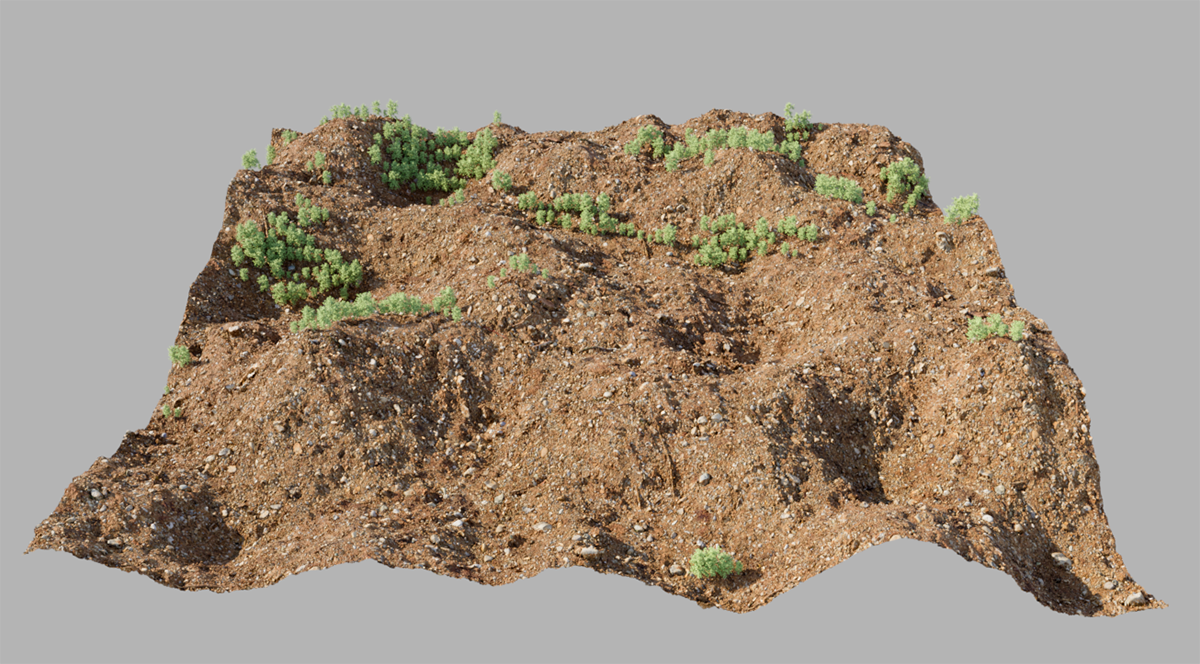
The Cluster settings offer an additional placement feature that uses a noise pattern, which can be scaled and rotated as desired. This allows you to place seemingly random groups and clusters of instances on a surface without having to create additional selections or work with fields.
An additional benefit arises from using Scatter Tags on the objects to be distributed, as this also allows for the placement of individual objects in specific cluster cells.
This enables you to place instances in contiguous groups. This allows you to quickly place clusters or islands of objects without having to resort to additional selections.
Use this value to control the density and, consequently, the maximum number of contiguously placed instances within an island. For larger, contiguous cluster islands, choose smaller values, such as 2 or 3.
In addition, the Cluster cells are also divided internally into indexed groups. This makes it possible to use individual objects via Scatter Tag only within specific cluster groups.
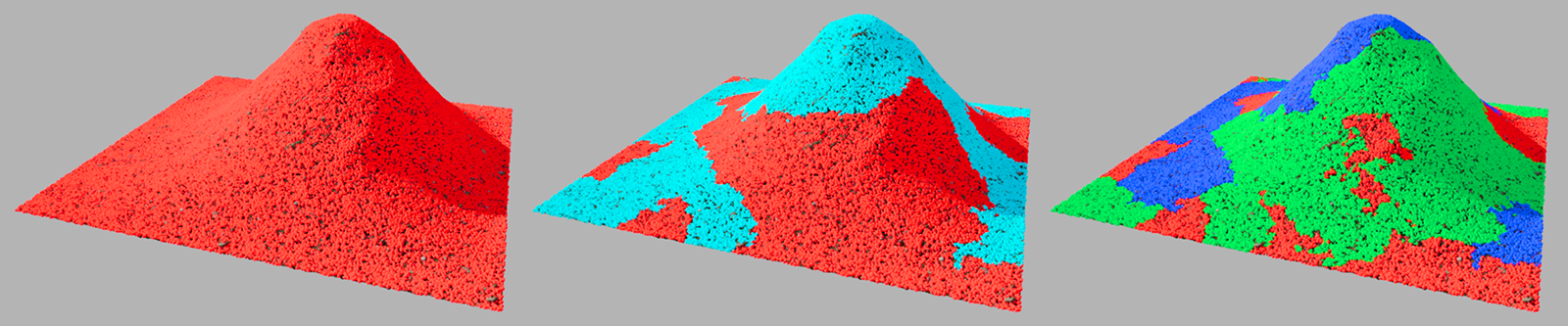
For example, the figure above shows the use of 1, 2, and 3 for the Count value and how this changes the arrangement and number of individual cluster islands in the landscape. The colored highlighting of these areas can be enabled using the Show option for the placed instances. This color coding makes it immediately clear in which cluster cell the instances have been placed.
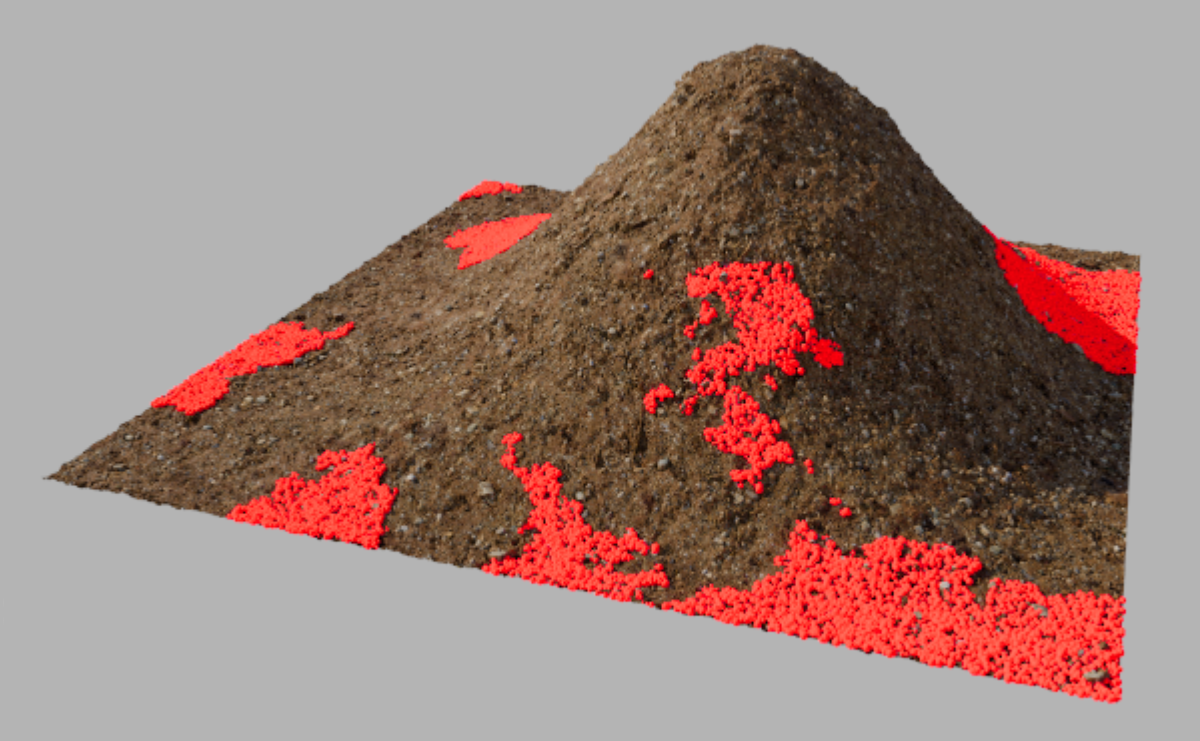
The example shown in the figure above uses Count 3 for the clusters on the Scatter object and also uses Scatter tags on the sphere objects distributed across the landscape. Only Cluster ID 1 was specifically activated on each of these Scatter tags. As a result, all sphere instances remain visible only in the cells with index number 1. All other cluster cells remain empty.
These settings affect the noise structure used to calculate the clusters. You can adjust the size of the noise pattern proportionally using Scale, or individually along each of the three axes using Relative Scale. Orientation also allows you to rotate the noise structure individually around all three axes.
This allows instances near the cluster boundaries to be placed more unevenly. As a result, the cluster boundaries appear less jagged.
This results in a blurring of the boundaries between adjacent cluster islands.
The noise structure is based on this value. To obtain a new variant of the cluster distribution, change this value.
This assigns random colors to all instances based on the Cluster ID in which they were placed. For example, all instances located in cells with Cluster ID 1 will then be displayed in red.