Scatter Tag
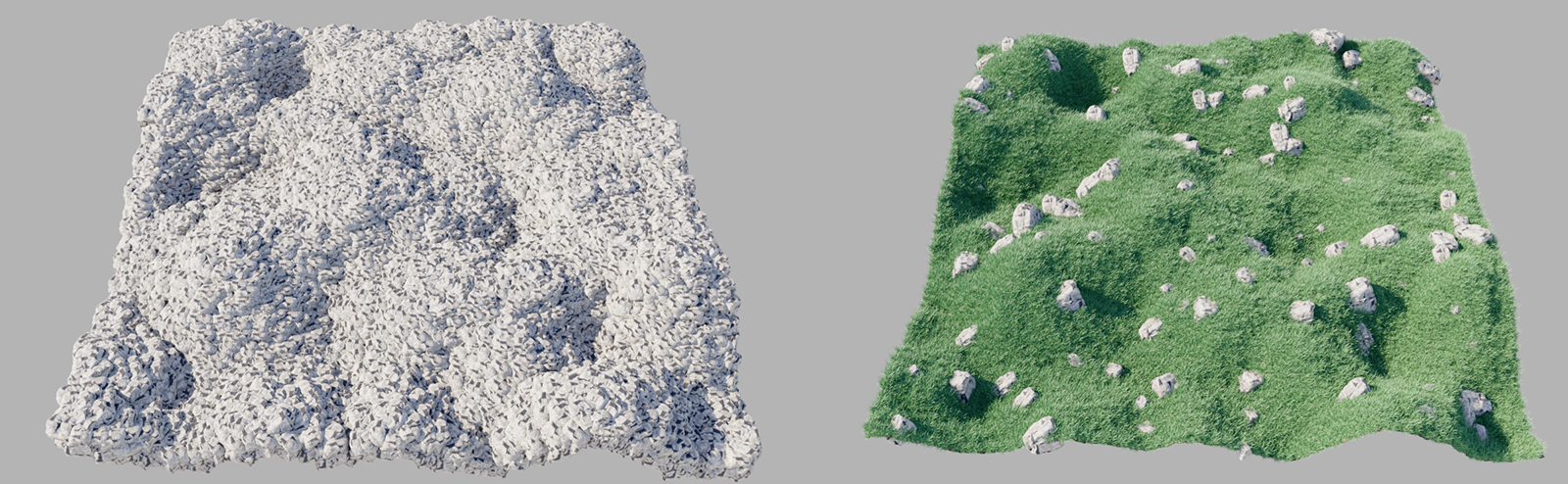
The Scatter tag works only in conjunction with the Scatter object and can then optionally be assigned to the objects that are to be distributed across a surface. The advantage of this additional tag is that it allows you to specifically override the Scatter object’s settings for individual objects. For example, the proportion of object usage during distribution is the same for all objects. All objects subordinate to the Scatter object are used in equal proportions. However, if, for example, particularly unusual shapes or shapes that vary greatly in size are used, it can be helpful to ensure that these objects appear less frequently in the Scatter distribution. Such situations can be easily resolved using the Scatter Tag.
The same applies to individual variations in scaling, translation, or rotation, or, for example, when applying filters. This allows you, for instance, to specifically distribute certain plants in deeper valleys and other objects on the higher elevations of a terrain.